Basic Functionality
How FusionCue works, table etiquette that keeps scoring accurate, and recording, instant replay, and sharing.
How FusionCue works
An overhead camera watches your table while a projector draws directly onto the cloth — placement markers, targets, progress, results. FusionCue's vision engine tracks every ball in real time, decides when a shot has settled, and scores it automatically. Everything runs locally on your PC; no footage leaves your machine unless you choose to share it.
That's the whole loop: the app projects where to put the balls, confirms your setup, tells you when to shoot, watches the shot, and scores it — hands-free.
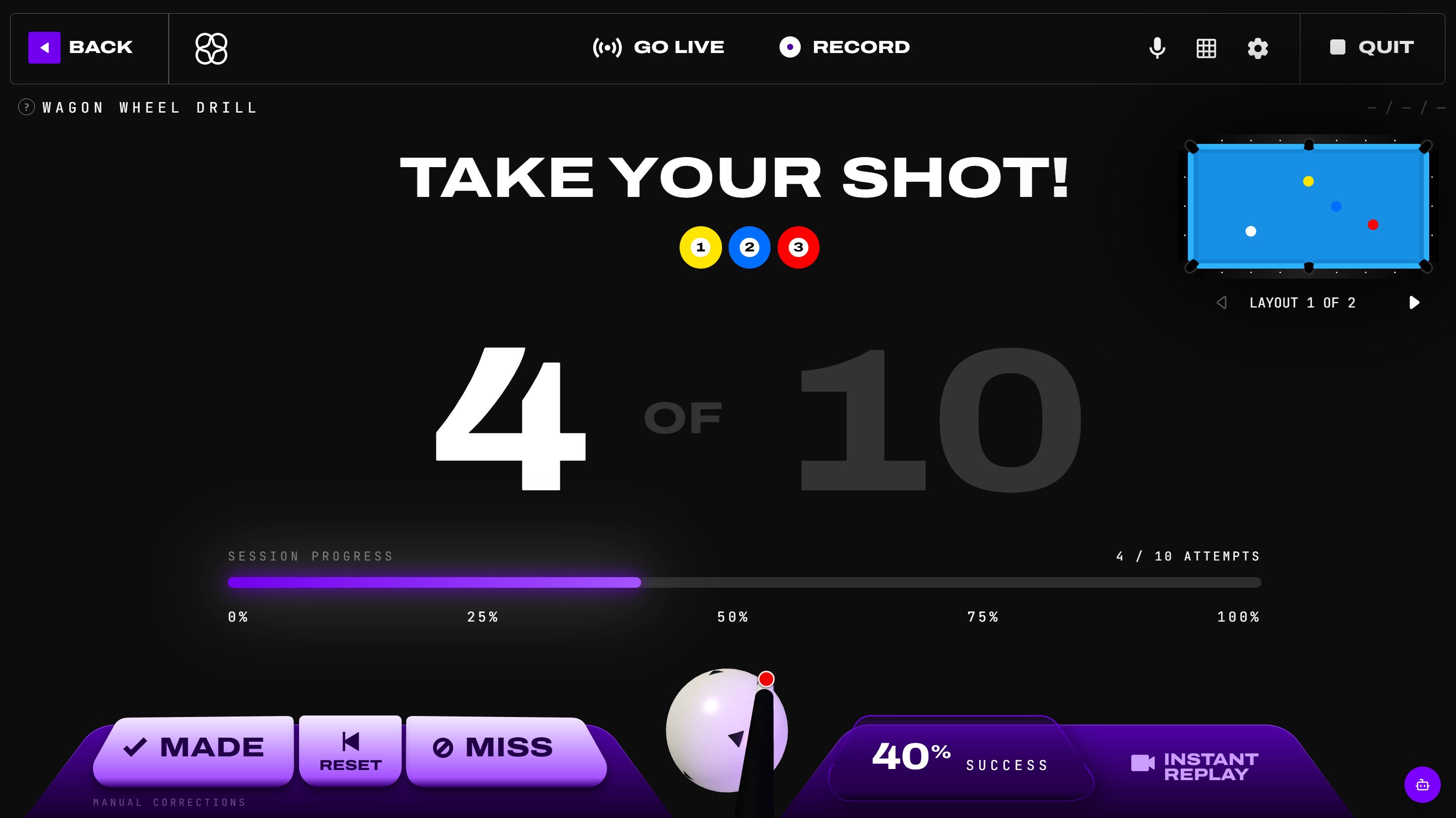 A drill in progress: attempt counter, session progress, manual corrections bottom-left, success rate and Instant Replay bottom-right.
The session screen
Every drill and game shares the same frame:
- Header — BACK, GO LIVE (streaming), RECORD (drill video), the eye button (table graphics), ball-path VFX, microphone, grid overlay, settings cog, and QUIT. The eye button hides the shooting graphics: setup, respots, the shot in motion, and results stay visible, and everything else goes dark once your balls are set. Hidden is a saved setting — it stays hidden on every layout, drill, and game until you click the eye again (it turns amber as a reminder). Poolseye keeps its target visible and does not show that control. To hide just one kind of graphic — the shot line, ghost ball, landing zones, SHOOT! banner and more — untick it under Show on the table in the grid overlay's menu (details).
- Center stage — what to do right now: PLACE YOUR BALLS during setup, TAKE YOUR SHOT! once armed, then the result.
- Bottom-left dock — manual corrections: MADE, RESET, MISS. The camera is right the vast majority of the time, but you always have the final say.
- Bottom-right dock — your success rate and the Instant Replay button, plus the cue-ball english picker.
- Mini table (top-right) — the current layout and, in multi-layout drills, a layout pager.
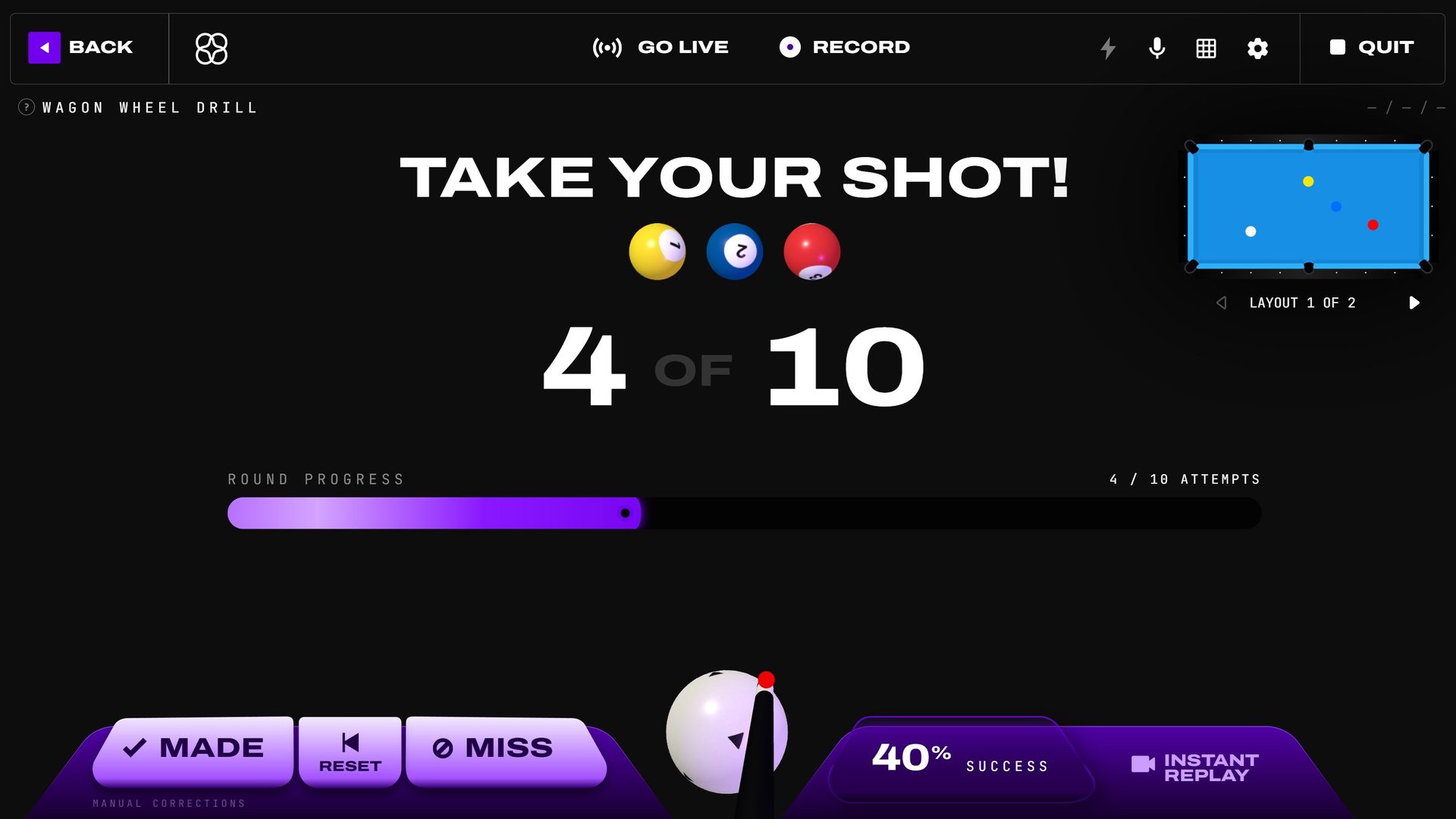 The header, current objective, progress, table preview, correction dock, cue-ball picker, and replay dock share one frame.
Result screens replace this live chrome entirely: no header, corrections, cue-ball picker, or replay dock remains underneath. Use the single Back button in the upper-left, or the result-specific replay/next-level actions.
The settings cog opens Game Settings mid-session. Pick a page from the list on the left: Audio & voice, Shot detection, Ball model, Ball matching, Cue-ball recovery, Shot plan graphics, and — on NVIDIA PCs — GPU graphics. Changes apply to the table within a few seconds, no restart needed. (Details on each page in Drills.)
Ball-path VFX
Select the lightning-bolt button during a drill or game to open Ball Path VFX. The master switch turns projected cue-ball trails on or off; choose Water, Tron, Plasma, Vortex, Shield, Lava, Quantum, Aurora, Nebula, Fire, or Prism from previews rendered by the same shader engine that drives the projector. Picking an effect turns trails on if they were off. Voice commands and the phone or tablet remote stay synchronized with the selected effect.
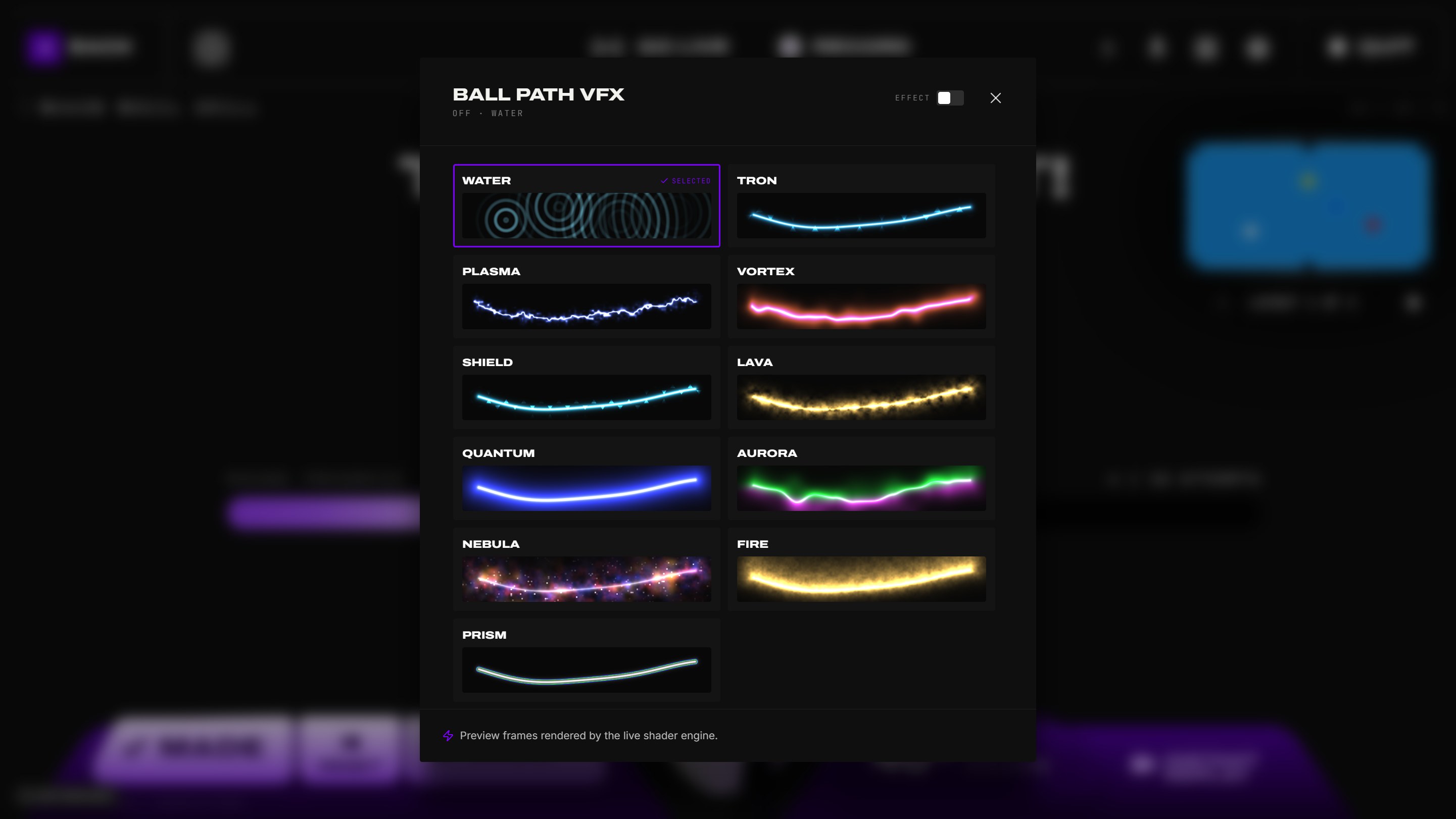 The in-session picker previews every projector trail with the same shader engine used on the table.
Game sound
The speaker button in the bottom-right corner of every session screen controls FusionCue's game sound. Click it for Game sound: a button that turns the sound off or on, and a volume slider (moving the slider turns muted sound back on). Your table speakers, recordings, and live streams all follow it. It's the same setting as the speaker on the phone remote and Settings → Account → Sound effects.
Ending a session
Pressing QUIT ends the table session and returns to the dashboard with a session summary on top. It shows elapsed time, balls struck, and mode-aware makes and misses — for example, landing inside a Poolseye ring or completing a snooker objective counts as a make in those modes.
Each drill or game played during that table session gets its own card. Select a card to open that activity's detailed analysis, or choose PLAYER STATS to review your complete history. Setup-only visits with no shots are discarded and do not appear in the summary or Player Stats.
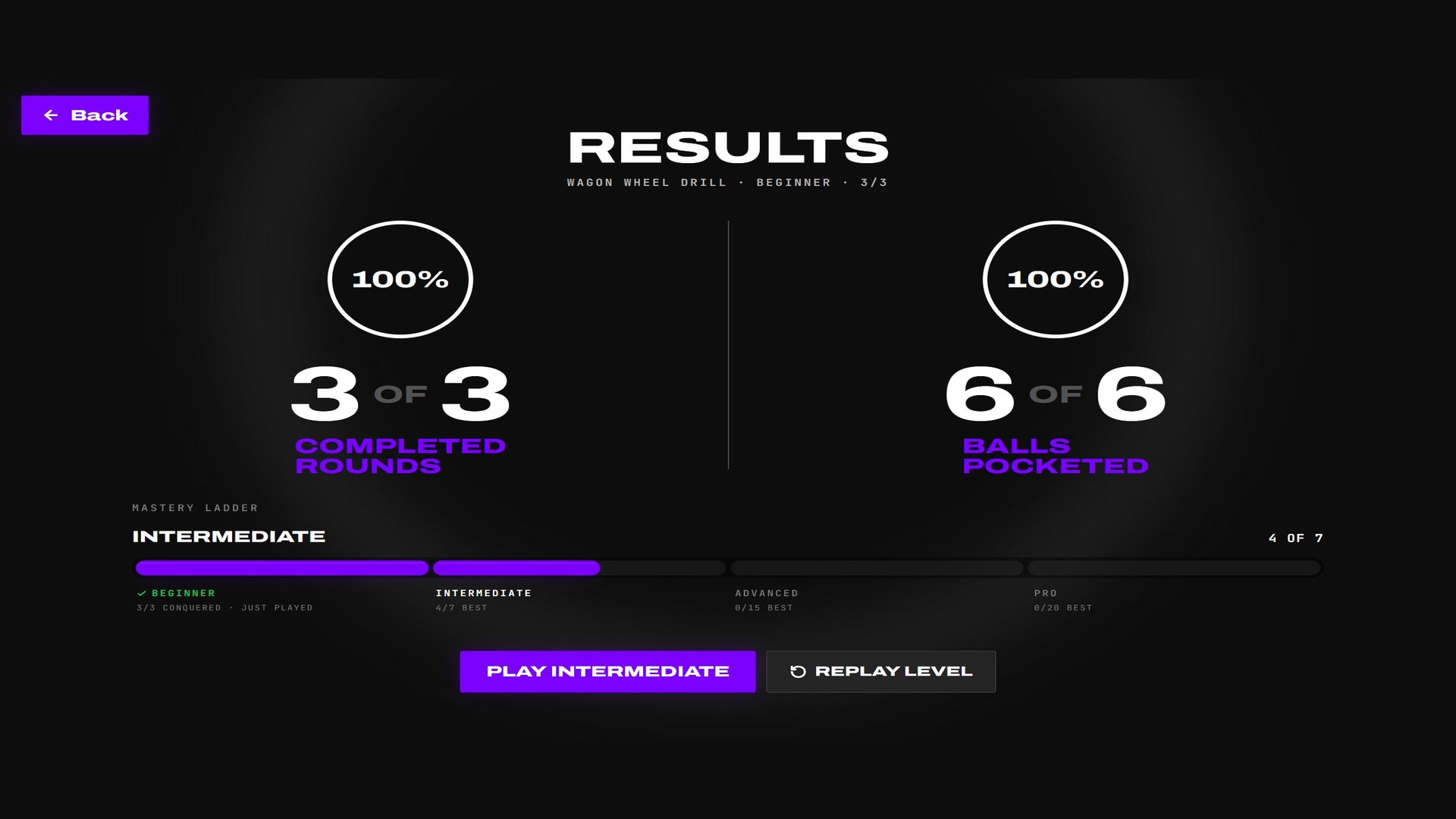 The live controls disappear at completion, leaving the result, performance totals, and replay actions.
Best practices at the table
FusionCue scores by watching balls move and settle. A few habits keep it accurate:
- Stay clear until SHOOT appears. During setup the placement markers need a moment to confirm each ball. Move into your stance only after the table tells you to shoot.
- Don't touch the cue ball while it's moving — or any ball after a shot until the result registers. Grabbing a still-rolling ball can turn a make into a misread scratch. The shot is scored once everything settles (about half a second by default).
- One shot at a time. Let the result animation land before you rack up the next attempt or start re-placing balls.
- Keep hands and the cue out of the table view when possible during ball placement — leaning across the layout slows down confirmation.
- Stable light, stable camera. Big lighting swings or a bumped camera hurt detection; if things drift, re-run calibration step 4 (and see Calibration for the projector-washout tip).
- If the call is wrong, correct it — MADE / MISS in the dock fix the previous round; scoring stays honest and your stats stay useful.
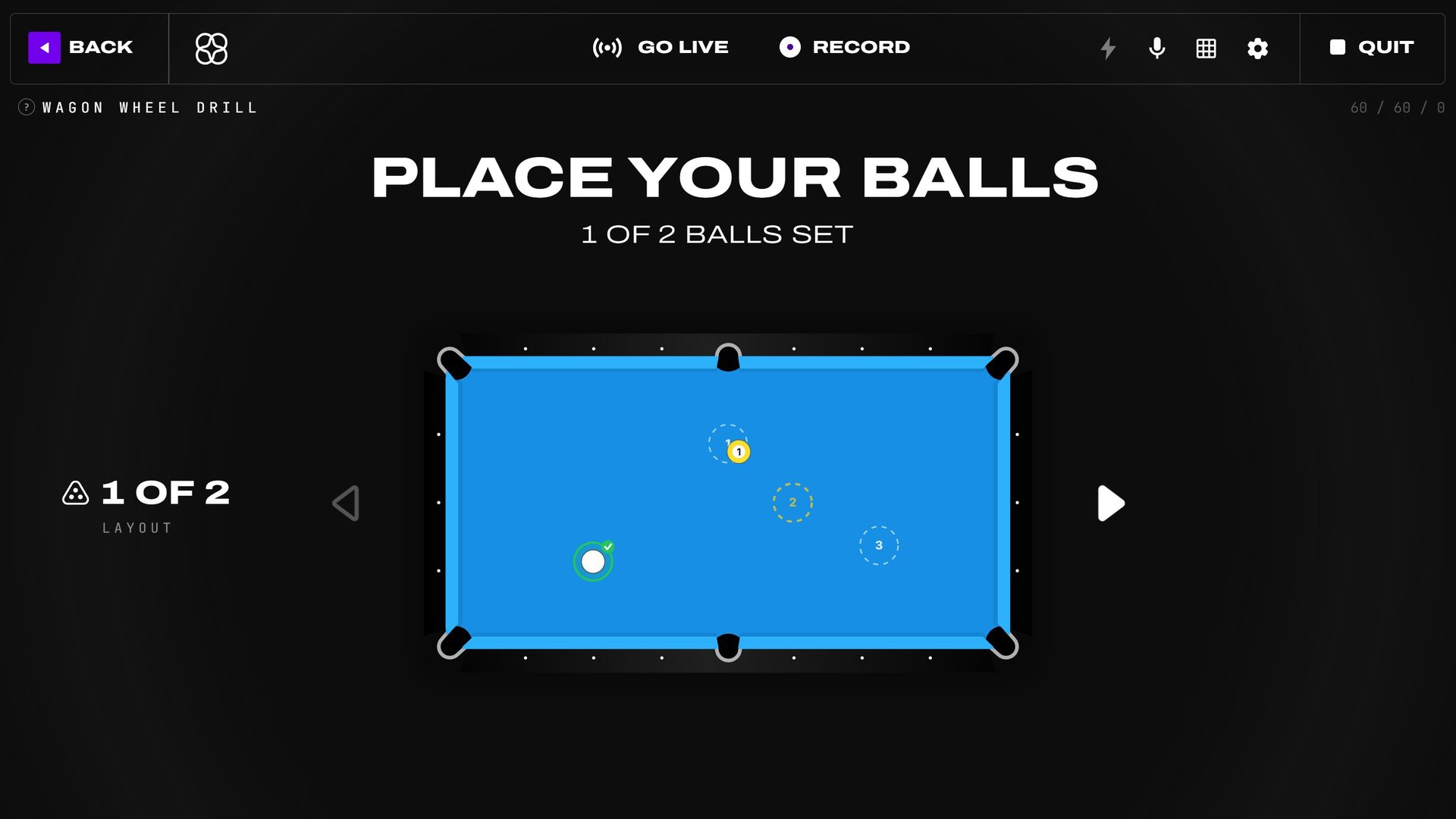 Waiting for SHOOT keeps the placement model clear of hands and cues while every target confirms.
Voice commands
With a microphone configured, you can run the table hands-free. Start each command with "Hey Cue": "Hey Cue, turn projection off", "Hey Cue, show me how to hit the 3". ("Okay Cue" works too; talk about the cue ball never counts.) Say "Hey Cue" on its own and a chime plays — FusionCue listens for the next few seconds. For about eight seconds after a command, short follow-ups like "another way", "next shot", or naming a pocket work without the call-out, and "replay" works on its own any time during play.
The call-out keeps table talk and narration from setting anything off. In a quiet room you can drop it: open Game Settings → Audio & voice and change Call-out from Require call-out “Hey Cue” to Open. Commands then work on their own, but anything that sounds like table talk is ignored — add "Hey Cue" when it matters. Calibration never needs the call-out.
With the Connected plan (any active subscription), "Hey Cue" understands far more ways of saying things, including several instructions in one sentence. Without it, FusionCue listens for a fixed list of phrases; View command list on the Audio & voice page shows the ones that work in what you're playing. The shot planner's commands are in Instant Recall.
What FusionCue heard shows for a few seconds in the header bar, beside the logo: purple when it understood, grey when it didn't (often a missing "Hey Cue").
The mic icon in the session header opens two switches: Microphone (whether internet opponents hear you) and Voice commands (whether what you say can control the table). Chatting with an opponent? Keep the microphone on and switch voice commands off — talking then never triggers an action. Turning voice commands off never releases the microphone — recordings still capture audio.
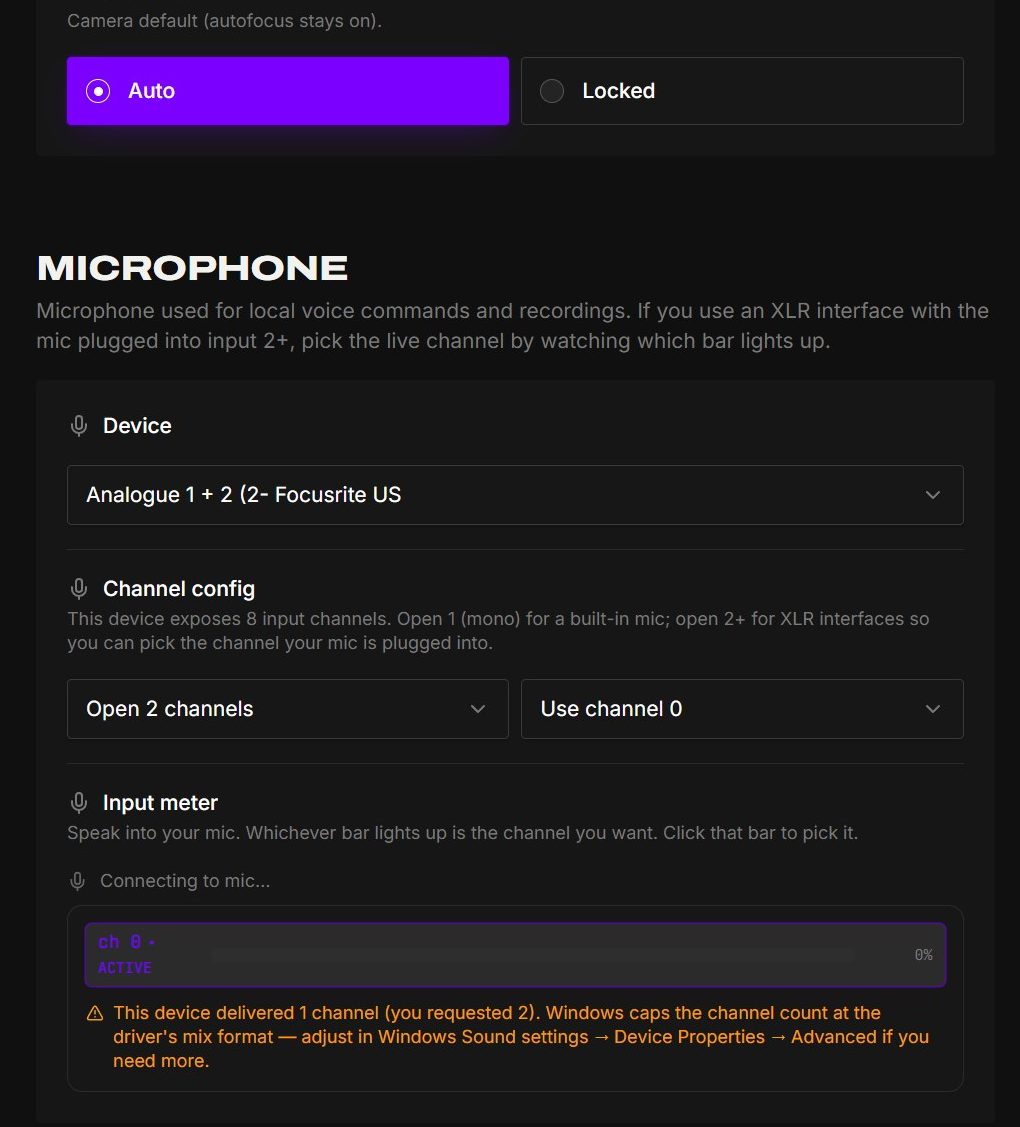 Settings → Hardware identifies the input, opens the required channels, and shows which channel is actually live.
Recording drill videos
The RECORD button in the session header captures your drill as an MP4 (license feature). It starts on a 3-2-1 countdown projected onto the table (the header button counts with it), shows elapsed time while rolling, and opens a save dialog when you stop: title, comment, visibility (Public / Unlisted / Private), thumbnail, and—for public videos—an optional Publish to community feed switch directly below the comment. When enabled, that comment is also the post on the Community page.
If the drill finishes while recording, the result screen keeps the recording decision visible: choose FINISH & SAVE RECORDING to finalize the video, or REPLAY & KEEP RECORDING to continue into another run. Back cannot close the session while a recording is active or finalizing; it finishes the recording first and waits for the save dialog.
Recording defaults live under Settings → Recording: countdown length, output resolution (1080p, or 720p for weaker GPUs), a performance toggle that skips animated zone stripes, and your default visibility.
Community videos can show the same session lower third during playback. Use Video stats above the Community feed to hide or show overlays for every video; FusionCue remembers the choice. Moving the pointer over a video hides its lower third immediately so the native play, volume, and fullscreen controls remain clear.
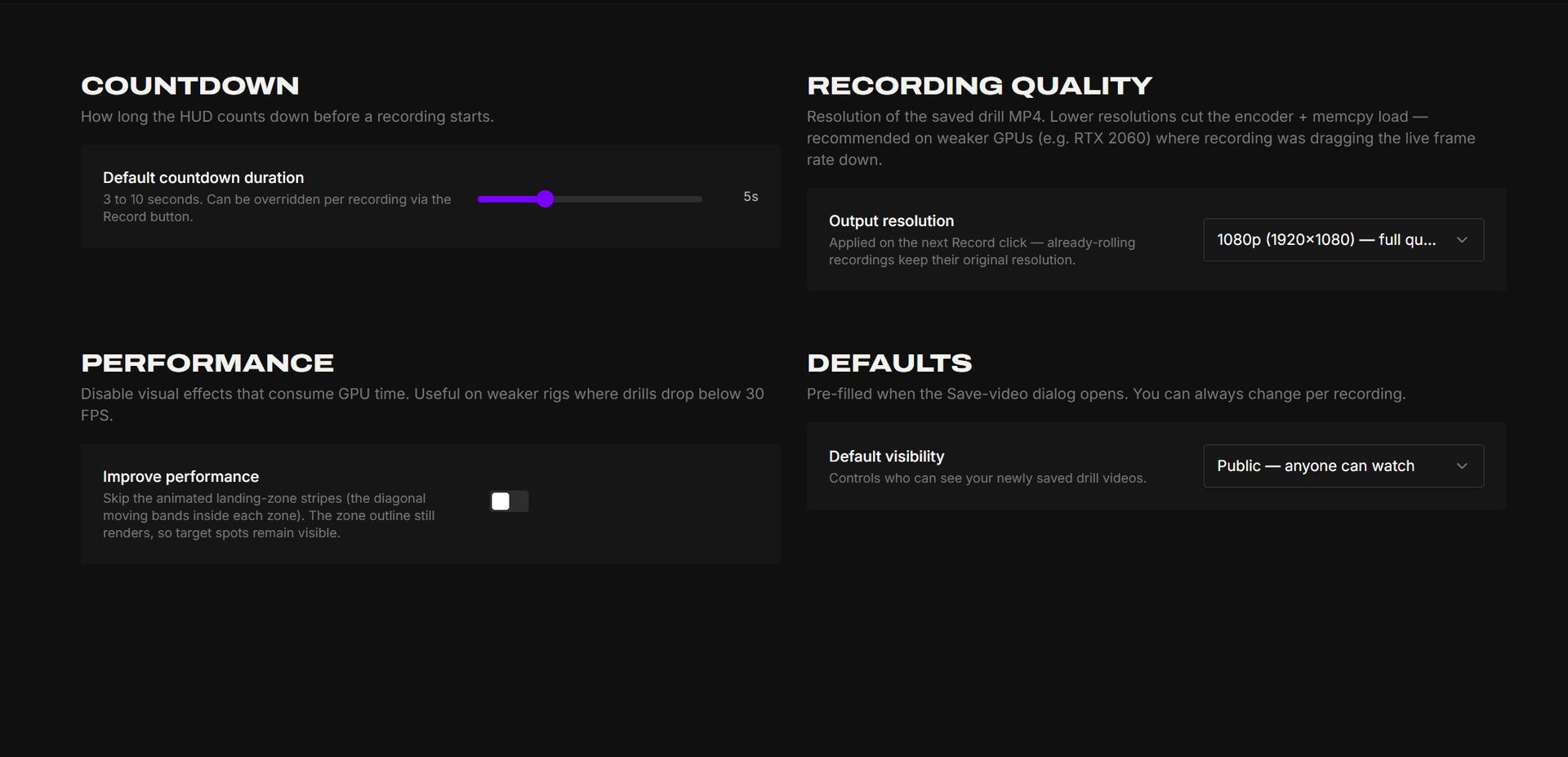 Settings → Recording controls countdown, output quality, performance mode, and default visibility.
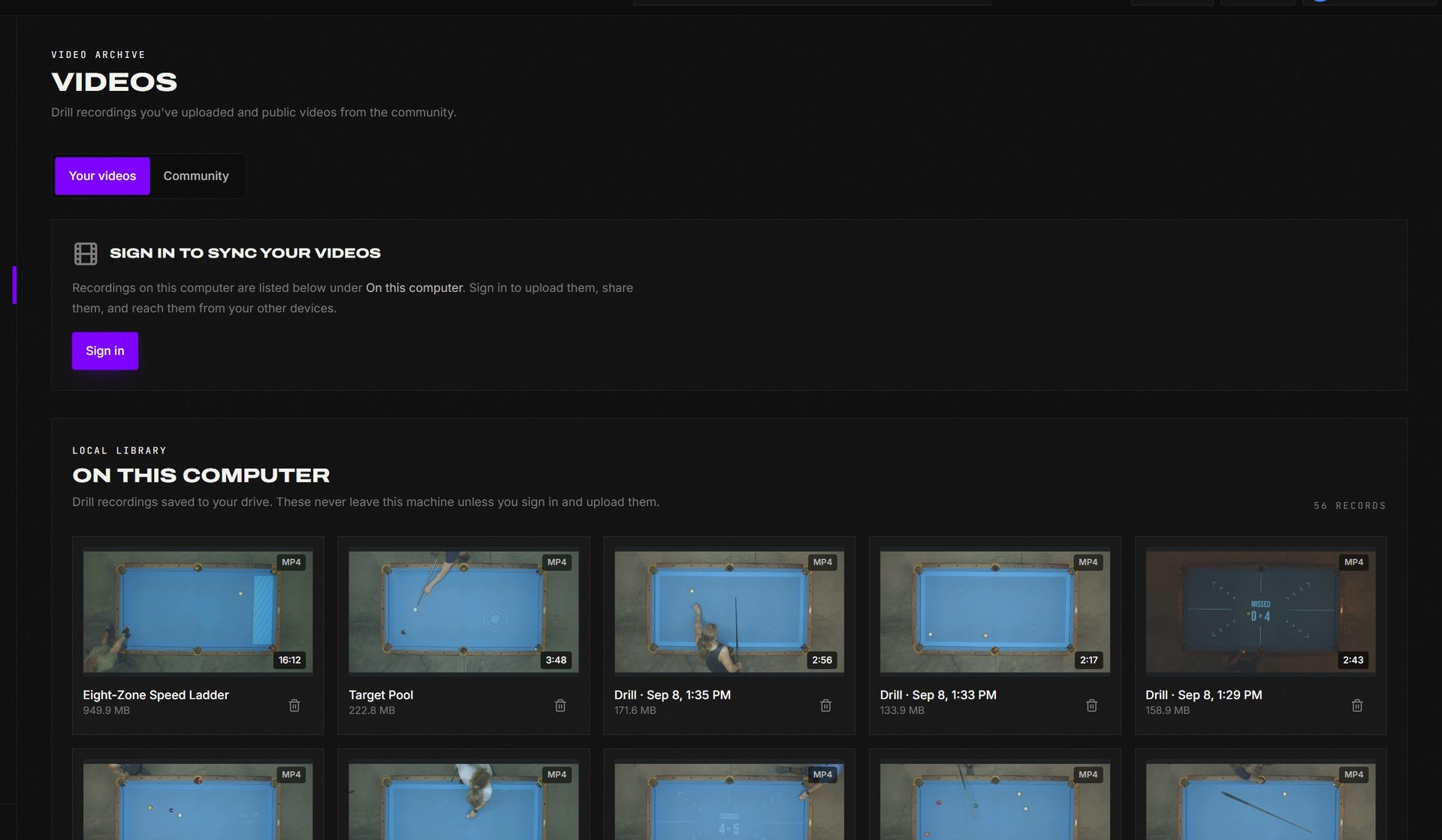 The Videos page keeps uploads and recordings still on this computer in the same library.
The Videos page lists your newest recordings first, a page at a time. When you stop a recording, Watch in the save dialog plays it back before you decide whether to keep or upload it.
Instant replay
The Instant Replay button in the bottom-right dock plays back the last few seconds of table video — perfect for checking whether that 9 really rattled or you got robbed. It's off by default: while it's on, FusionCue buffers the camera in the background, which costs frame rate on slower PCs. While it's off the button is dimmed; press it (or open Game Settings → Instant replay) to turn it on. Once it's on, the replay is ready moments after each shot, and you can save a clip from the replay player.
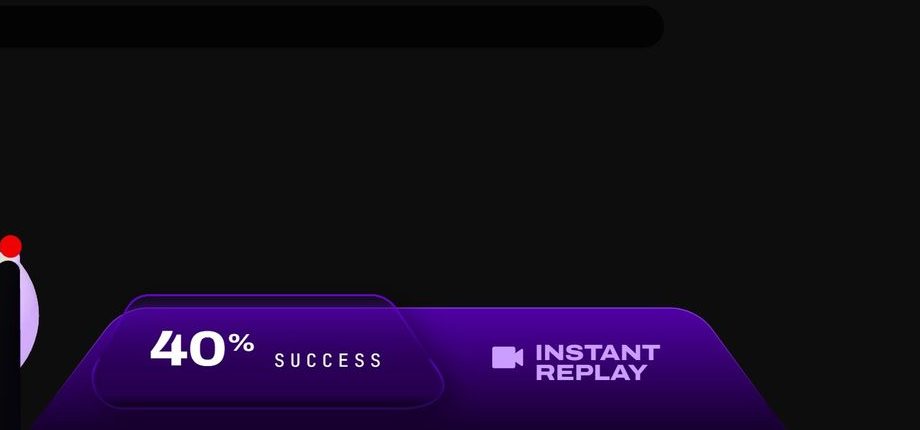 Instant Replay stays beside the live success rate and cue-ball controls throughout play.
Entertainment: your table as a screen
The Entertainment page has three libraries: Official, YouTube, and Local. Official loops are ready to play. With an active membership, save a named YouTube link for one-click replay or use Play once without saving it. YouTube stays streamed — it is not downloaded.
The Local tab imports videos from your computer and creates a projector-ready copy plus thumbnail. YouTube and local video audio follows the Mute video switch. Real videos center-fill the complete playing surface instead of leaving short-rail gaps. Starting a drill, game, or match (or leaving Entertainment for Settings) stops the video automatically. If a smart plug is configured, the table light dims while video is playing.
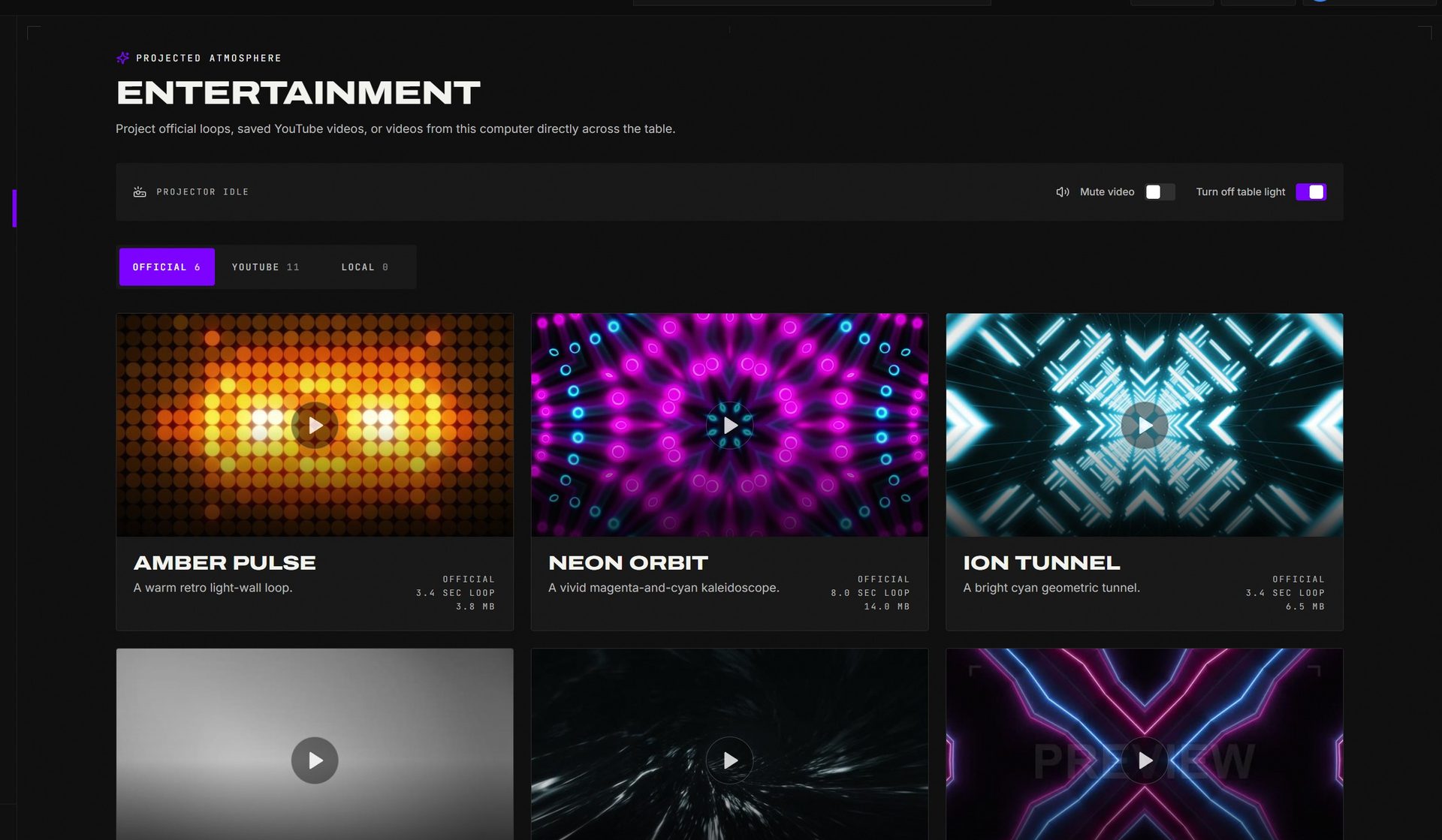 Official projector loops, YouTube links, and local files all launch from Entertainment.
Reading your miss stats
Open a drill and scroll to My Stats. The Frequent Miss card sums up how your misses on that drill fall:
- On straight-in shots it reads missed left or missed right of the
pocket, from the shooter's point of view. The line under it shows the
split, for example
3 right · 2 left. - On cut shots it reads too thin or too full instead, since that is what a cut miss means.
- Not tracked counts misses where the camera never saw the object ball in flight, so no side is claimed. They are listed but never counted in the percentage.
Each shot's own verdict, with the evidence behind it (a jaw hit or the fitted approach line), is in the shot list under Inspect paths.
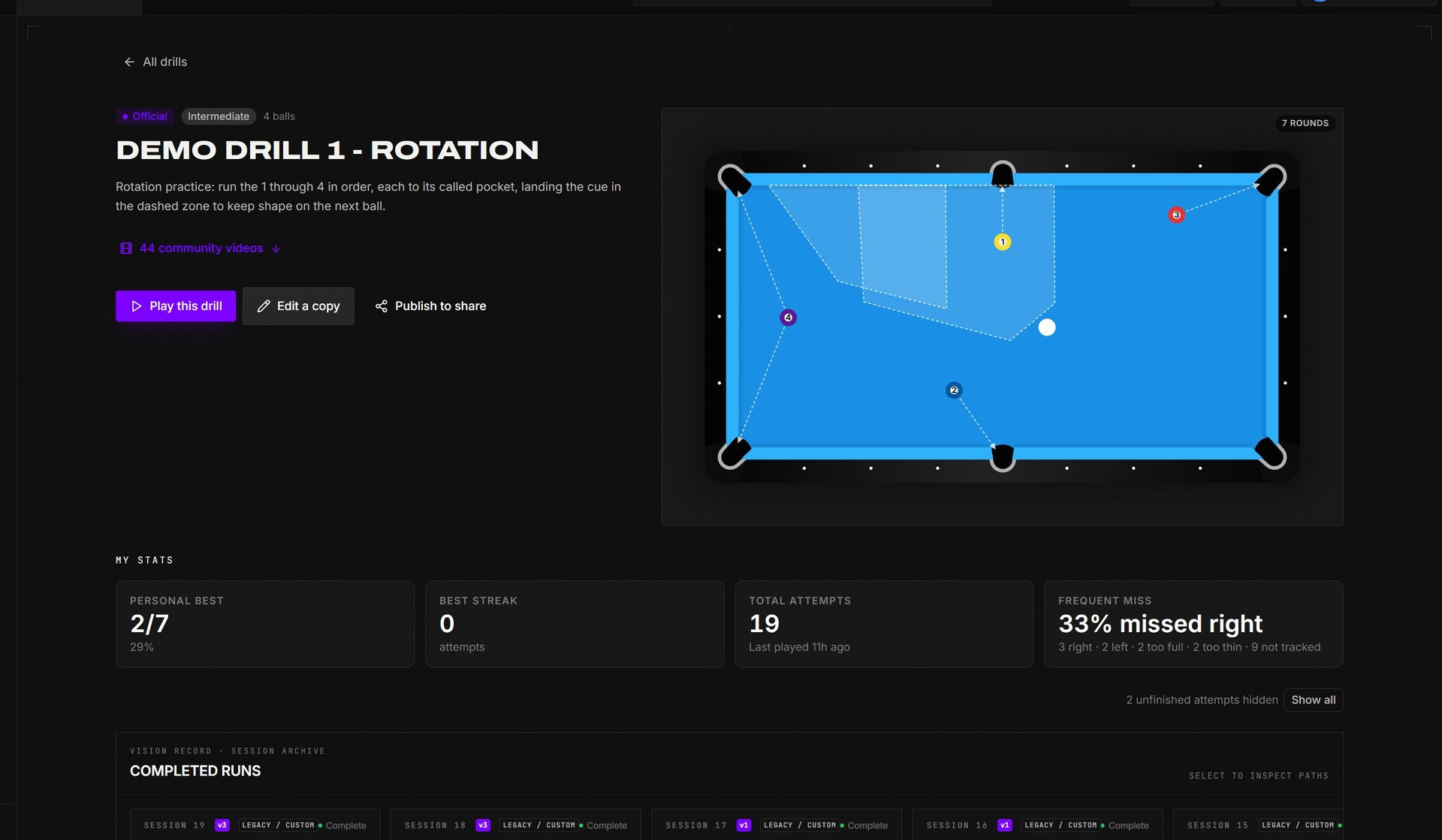 A drill's detail page combines personal bests, frequent-miss direction, completed runs, and trend charts.
Resetting your stats
Stats belong to the selected player profile, so a fresh start never has to mean a new profile:
- One drill — open the drill, scroll to My Stats, and use Reset my stats for this drill. Its attempts and earned levels go back to never tried; every other drill is untouched.
- One game — on the Games page each game card has Reset my stats under your personal mark.
- Everything — the Stats page has Clear all stats under the profile header. Type the profile name to confirm. Every drill attempt, shot, game and multiplayer round for that profile is deleted on the machine and in your account. Drills, videos and the profile stay.
Resets cannot be undone.
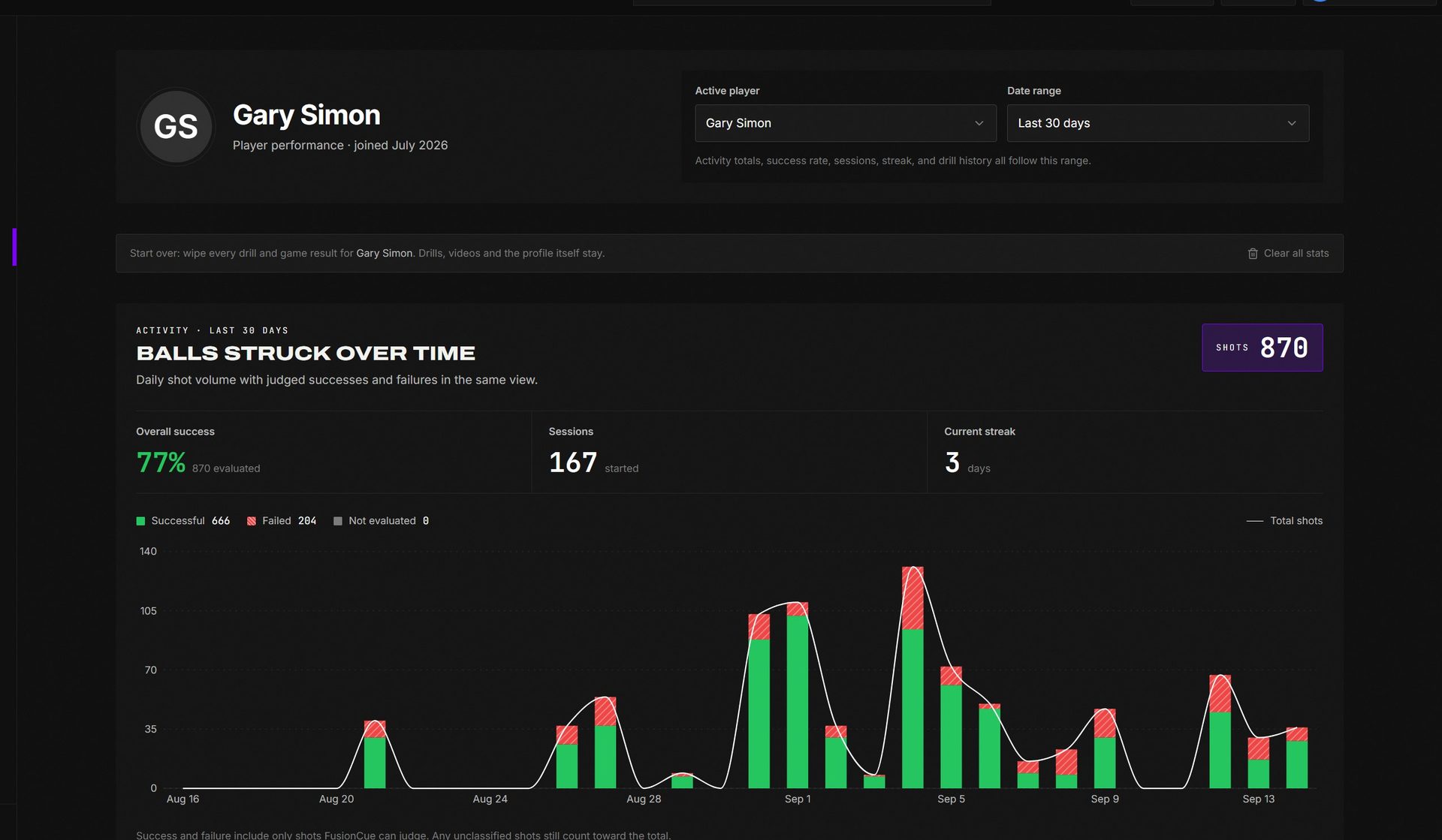 Player Stats keeps profile context, lifetime totals, and progress over time together.
Your dashboard and progress
When you're signed in, the dashboard is your own overview:
- Your stats: your level, the XP you need for the next one, and your day streak. Below that are Total balls hit, the balls you've hit in the last 30 days, your Success rate, and a chart of balls struck per day. The chart counts every shot: drills, Poolseye and Instant Recall, and the games too — each SPEEDPOOL stroke, each lag, each Maze, STOPSHOP and GROUND ZERO shot, solo or online.
- Recent drills: one row per drill you've played, with Play to set it up again. Player stats opens the full statistics.
- Highlights: level-ups, new personal bests, milestones and tournament wins from players on FusionCue. Tap the thumbs-up to give props. Community opens the full feed.
- Live now: at the top of the right column whenever something is on — live tournaments and ones taking entries, open tables you can Join, and public Live Play events that are live or starting within the hour. It's hidden when nothing is on.
- Drill of the day: see Drills.
- Milestones: your three closest milestones. The counter next to the heading opens the full list, where you also set your Weekly goal (days you want to play each week).
Levels belong to each player profile, so everyone at your table levels up on their own. You earn XP for every shot and every ball you pocket in a drill, plus a bonus for finishing it, up to 500 XP a day from practice. Personal bests, weekly goals met, internet matches and milestones add bonus XP on top. Your level and XP bar also show on your profile page.
The community feed (posts, recordings and the live activity rail) has its own Community page in the sidebar.
Player profiles and pictures
Every player on your table has their own stats, and when you're signed in, their own profile picture. That picture shows in chat, the feed and multiplayer whenever that player is active.
- Open the player menu (top right) and choose Manage profiles & pictures.
- Every player stored on this table is listed. A player who doesn't have a cloud profile yet shows "No profile yet": press the upload icon to add a picture (the profile is created for you), or the add-person icon to create the profile without a picture.
- An account can hold up to 50 profiles. The Account profile mirrors your account name and picture; change those on fusioncue.com.
- The website (Account → Player profiles) manages the same profiles from any device, but only the app can see the players stored on your table.
The selected player profile owns the lifetime totals, charts, drill history, and multiplayer results shown here.
Sharing
- Videos — saved recordings upload with your chosen visibility and can be published to the community feed; everyone gets a watch link.
- Drills you build — publish to the Community library or share by link; see Drill Editor.
- Instant Recall layouts — the SHARE LAYOUT button shares any captured layout; see Instant Recall.
- Live — stream your session to YouTube, Twitch, Facebook, or any RTMP destination; see Streaming.
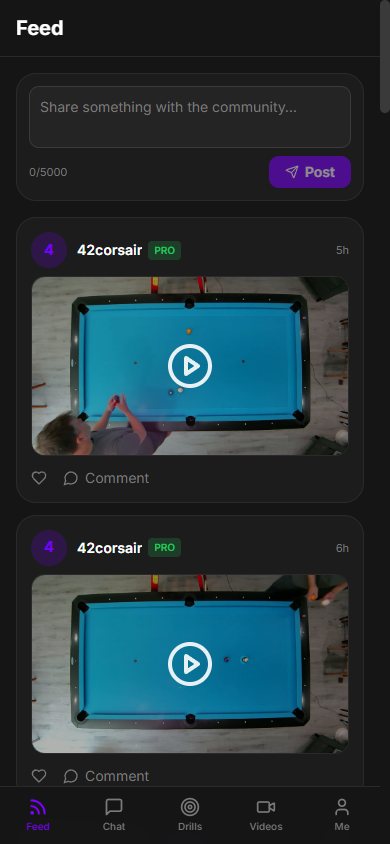 Published table videos, comments, likes, and new posts remain available from the mobile web app.