Smart Light
Let FusionCue control the light over your table with a TP-Link Kasa or Tapo smart plug — dark for result animations, opponent casts and Entertainment, back on when play resumes.
FusionCue can switch the light above your pool table off and on at the moments that matter: while a shot result animates on the felt, while an opponent's table is cast onto yours in an internet match, and while an Entertainment preset is projected. It does this through a smart plug on your local network — no hub, no cloud round trip, and the light always comes back on when a session ends.
What you need
- A TP-Link smart plug (Kasa or Tapo, any single plug or power strip). FusionCue is developed and tested against the Tapo TP15; its sibling the Tapo P125M uses the same firmware and app flow and is the one Amazon keeps in stock, at about $10: Tapo P125M Smart Plug Mini on Amazon. The other Tapo minis (P115, P105, P100) and Kasa plugs (EP10, HS103, KP115) work the same way. Tapo and Kasa plugs are also a common shelf item at Walmart, Target, Best Buy, Home Depot and Lowe's, so a same-day pickup works too.
- The table light plugged into that outlet. The light itself can be any ordinary fixture; the plug does the switching.
- The plug on the same Wi-Fi network as the FusionCue PC.
- The TP-Link account (email and password) you used in the Tapo or Kasa app. Newer plug firmware refuses local control without it; very old Kasa plugs can skip it.
Philips Hue and DMX rigs are a different feature (Light Shows) and are not covered here.
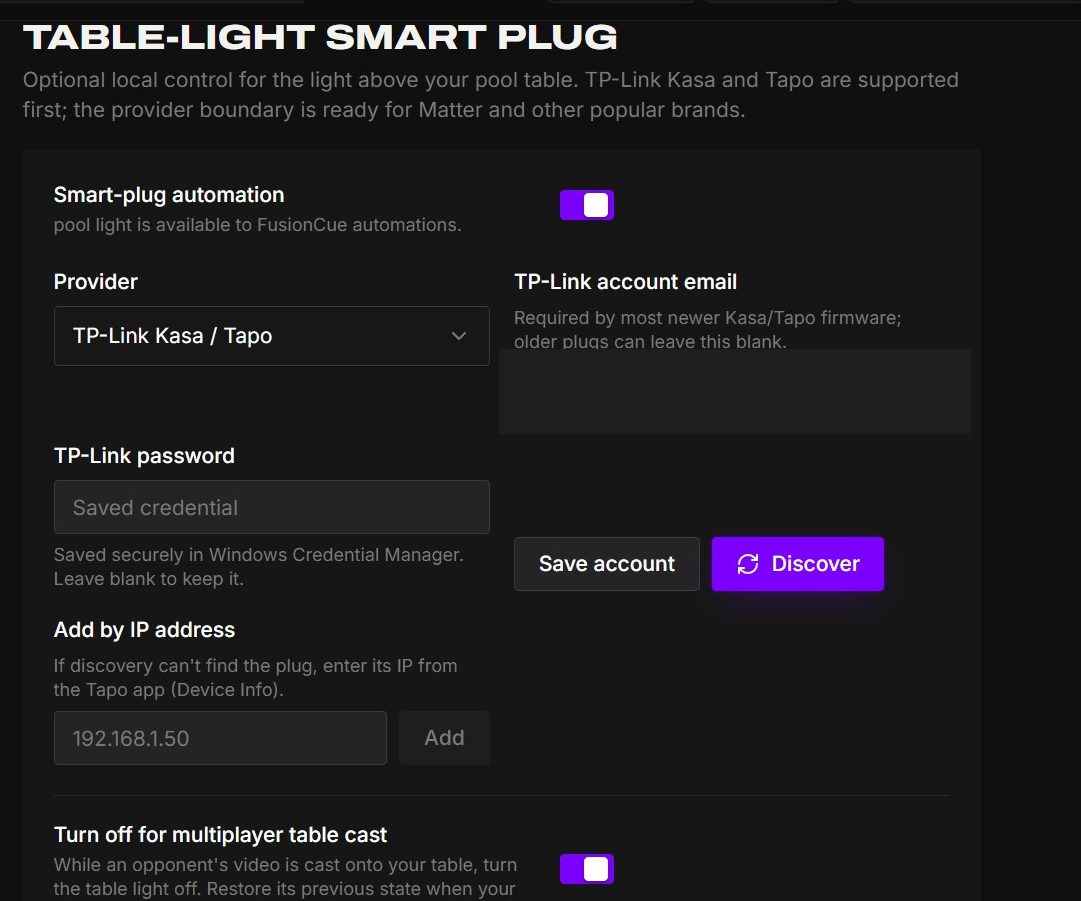 A compatible plug ultimately appears here with its provider, account, discovery, manual-IP, and automation status.
Step 1 — Set the plug up in the Tapo app
- Install the Tapo app (or Kasa for Kasa-branded plugs), sign in with your TP-Link account, and add the plug the normal way.
- Give it a clear name such as Pool light and confirm the light switches on and off from the app.
- Update the plug's firmware from the app (Device Settings → Firmware Update). Tapo TP15 plugs need 1.4.4 or newer; 1.4.2 has a bug that blocks local control with error 1003. Other models just need the latest version offered.
The plug name and account configured in Tapo are the device FusionCue discovers in this block.
Step 2 — Allow local control
Current TP-Link firmware only talks to third-party apps when you say so. This step is the one most people miss.
- Turn on Third-Party Compatibility. It is an account-level switch,
not a per-device one, and it sits in a different place in each app:
- Tapo app: Me → Third-Party Services → Third-Party Compatibility.
- Kasa app: Me → Settings → Third-Party Compatibility. The Kasa app's Third-Party Services page (Alexa, Google Home, IFTTT, SmartThings) is the wrong place; none of those is needed.
- If your TP-Link account has two-step verification on, turn it off. Local control signs in with the plain email and password, and the second factor gets in the way.
- Unplug the smart plug from the wall for ten seconds and plug it back in. The compatibility change does not take effect until the plug restarts. Skipping this is the usual reason discovery finds nothing.
After compatibility is enabled and the plug restarts, Discover should find it; Add by IP remains the fallback.
Step 3 — Connect it in FusionCue
- Open Settings → Hardware and scroll to Table-light smart plug.
- Leave Provider on TP-Link Kasa / Tapo.
- Enter your TP-Link account email and TP-Link password and click Save account. The password is stored in Windows Credential Manager, not in a settings file.
- Click Discover. Every compatible plug on your network appears under Table-light plug; pick the one the light is on. The choice saves as soon as you select it.
- If nothing is found, use Add by IP address: in the Tapo app open the plug, then Device Info, copy its IP address, paste it in and add it. Giving the plug a fixed address in your router (a DHCP reservation) keeps that IP from changing later.
- Click Test off and Test on to prove FusionCue can switch it.
Settings → Hardware keeps account credentials, discovery, and manual IP setup in one focused block.
Step 4 — Turn on automation
Flip Smart-plug automation on. It stays locked until a plug has been chosen. Then pick the behaviours you want:
- Turn off for drill results — after a shot settles, the light goes off for the projected result animation (about four seconds) and comes back on as it ends. Snooker drills use their shorter corridor verdict window.
- Turn off for multiplayer table cast — while an opponent's table is cast onto yours in an internet match, the light stays off so the video is readable; it returns to its previous state when your turn begins.
- Turn off for Entertainment — the light goes off when a projected video preset starts and comes back when Entertainment stops. The Entertainment page shows its own light toggle once a plug is configured.
Every session end, including a crash or a force quit, turns the light back on. Plug commands take about half a second over Wi-Fi, which is why the result-animation timing is measured and adjusted per plug rather than fixed.
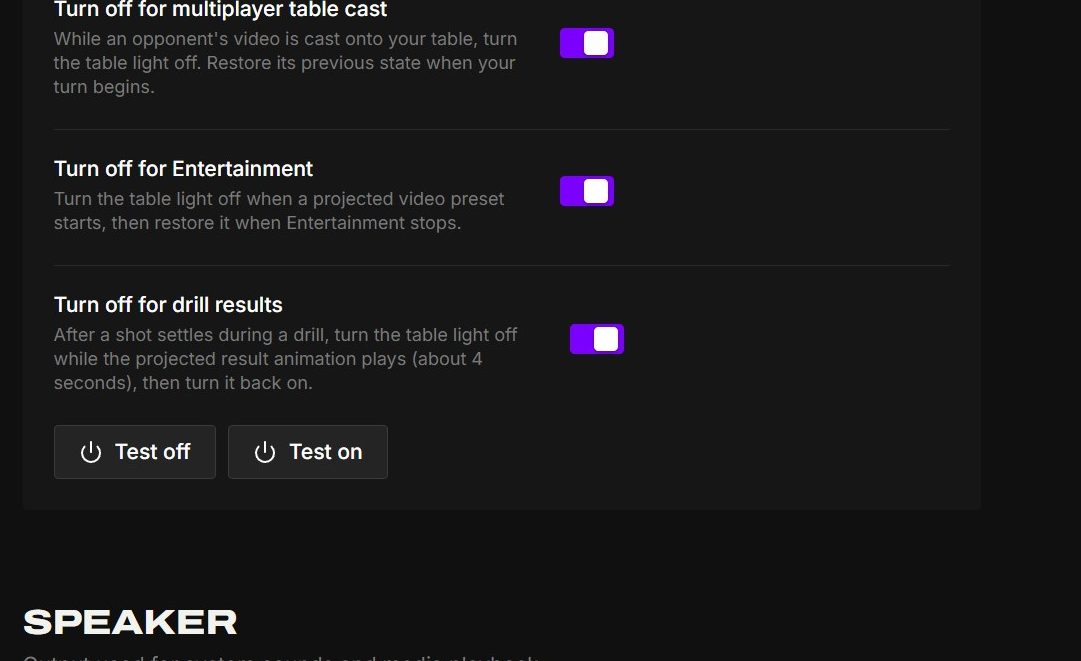 Each automatic light-off behavior is independent, and Test off / Test on verifies the selected plug immediately.
Troubleshooting
- "No compatible TP-Link plugs were found on this network." Do Step 2 again, especially the unplug-and-replug. Then try Add by IP address. If the PC and the plug are on different networks (a guest Wi-Fi, a separate VLAN), discovery cannot cross them and only the IP route works.
- "…responded, but its firmware blocks local control." The plug was seen but refused to talk. Turn on Third-Party Compatibility, update the firmware, power-cycle the plug, and discover again.
- Discovery works but Test on/off fails. Check the email and password match the account that owns the plug in the app, and that two-step verification is off.
- The light lags or flickers during animations. That is Wi-Fi latency to the plug. Move the plug or the access point, or give the plug a 2.4 GHz network of its own; FusionCue re-measures the round trip and adapts.
- The light is off after something crashed. Use Test on in Settings → Hardware, or toggle it in the Tapo app. FusionCue never leaves it off on purpose after a session ends.
Troubleshooting ends with the same Test off / Test on controls used during setup.