Hardware You Need
What FusionCue needs in the room — projector, camera, PC, lighting, monitor, microphone and the optional extras — why each one matters, and how to buy it new or used.
FusionCue is software. You bring the hardware: a Windows PC, an overhead camera, an overhead projector, and even light over the table. Everything else on this page is optional.
The Get Started page picks exact models for your room. It asks two questions — your table size and the height from the table top to the ceiling — and shows the camera and projectors that fit, with current prices and buy links. This page explains the why behind those picks, so you can judge gear that is not on the list, shop used, or reuse what you already own.
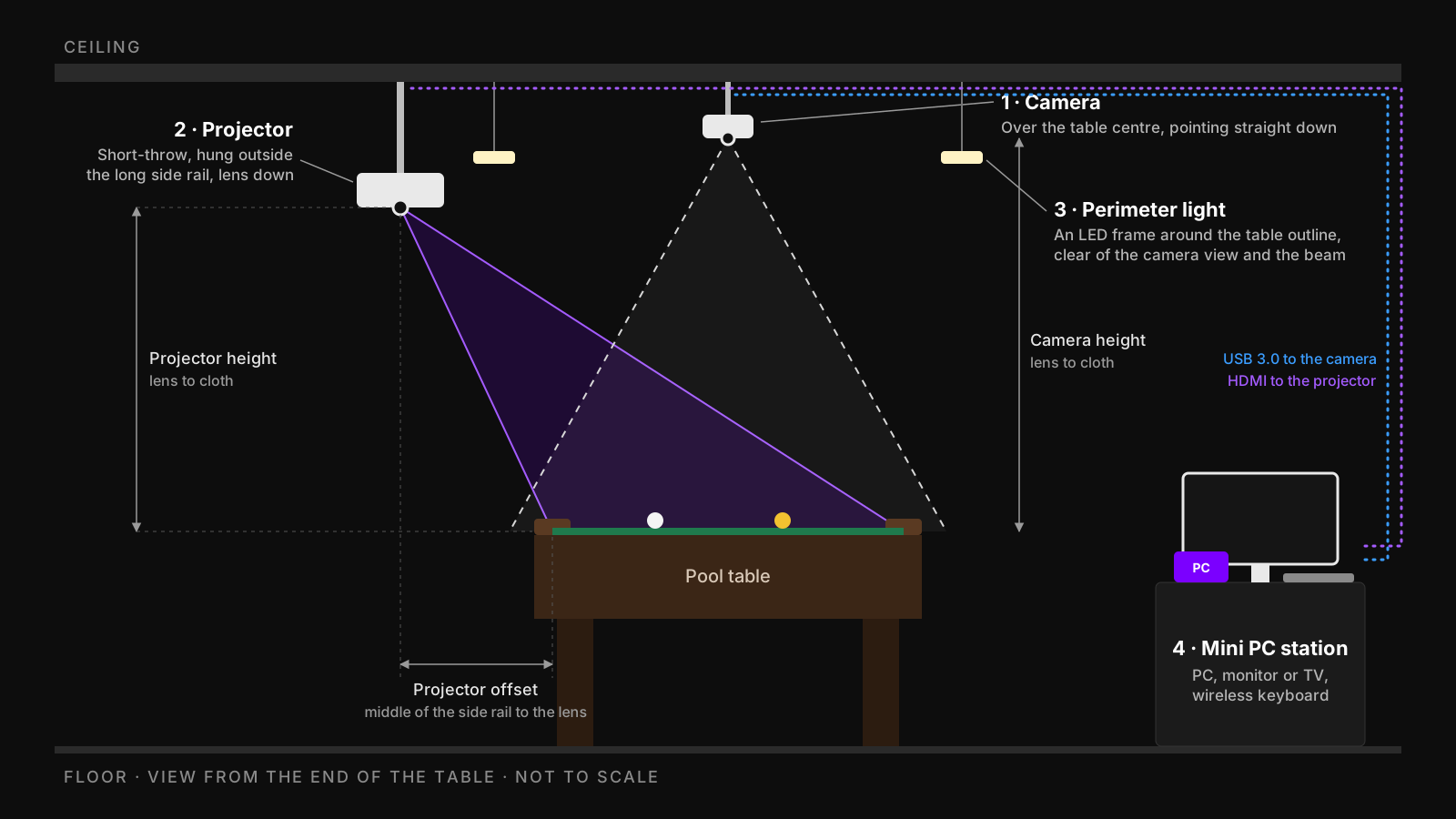 The whole rig: camera over the centre, projector beside the table, light around it, and a PC station anywhere within cable reach.
Measure first — two numbers decide almost everything: your table size and the clearance from the table top (the cloth) to the ceiling. A standard 8 ft ceiling leaves about 65 in above the cloth. Enter both on Get Started before you buy anything.
The short list
| Item | Needed? | What to look for | Typical cost |
|---|---|---|---|
| Windows PC | Required | Six-core CPU, 16 GB RAM, graphics at the floor, two display outputs | $400–$1,400 |
| Projector | Required | Short throw (about 0.5), 3,000+ lumens, HDMI | $150 used – $1,250 new |
| Camera | Required | Sharp 1080p or better, lockable focus and exposure | $95 used – $200 new |
| Mounts and long cables | Required | Ceiling mount, camera arm, active USB and HDMI | $50–$150 |
| Even table lighting | Required | Perimeter LED frame, nothing hanging over the cloth | Varies, or DIY |
| Monitor or TV, keyboard | Required for a mini PC | Any HDMI screen, wireless keyboard | Often already owned |
| Wireless microphone | Optional | USB-C receiver | $50–$250 |
| Wireless headphones | Optional | Bluetooth | Any |
| Smart plug for the light | Optional | TP-Link Kasa or Tapo | About $10 |
| Phone or tablet | Optional | Any modern browser | Already owned |
Prices are from the Get Started page, last checked September 13, 2026.
Windows PC
FusionCue runs entirely on your PC. The PC reads the camera, finds every ball, scores the shot, and draws the projection — all locally, with no cloud processing in the loop. That makes the PC the part most worth getting right.
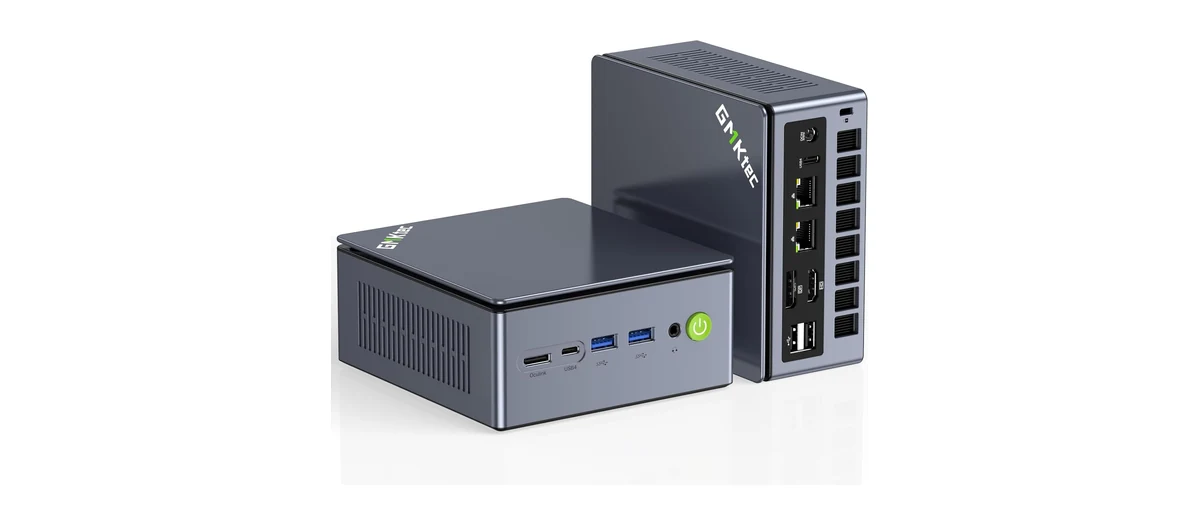 The GMKtec M7 Ultra — the FusionCue-verified mini PC — is small enough to mount behind a TV.
The ideal setup has a GPU
Our recommendation is a PC with a real GPU. FusionCue's vision engine runs on DirectX 12 graphics from Intel, AMD or NVIDIA, but only chips at the graphics floor track balls fast enough. A GPU is what gives you headroom:
- Ball tracking stays fast while other things are happening. Recording a session, streaming with Go Live and casting an online opponent all compete for the same graphics hardware.
- Projected effects stay smooth. On an NVIDIA card with 6 GB or more, FusionCue downloads an optional GPU graphics pack (about 2 GB) that renders cue-ball trails and landing zones on the GPU, so they do not stutter while you record. It installs by itself; see Settings → Runtime.
- It ages better. Detection models and effects grow over time. A GPU is the cheapest way to stay ahead of them.
"A GPU" here means either a dedicated graphics card (the RTX 3050 and RTX 4060 desktops on Get Started) or a strong integrated GPU of the Radeon 680M / 780M class (the mini PCs on Get Started — the Radeon 680M GMKtec M7 Ultra is the FusionCue-verified reference machine). The basic graphics chip in an office PC or a thin laptop does not count.
The graphics floor
Ball tracking runs on the PC's graphics chip, and its speed decides how the table feels.
- At the floor: Radeon 680M / 780M-class integrated graphics, Intel Arc, or a dedicated GPU (GTX 1650, RTX 3050 or RX 6400 or better).
- Below the floor: Intel UHD and HD Graphics, Intel Iris Xe, and older Ryzen "Vega" graphics (Ryzen 3000-5000 U-series; Windows often lists these as plain "Radeon Graphics").
On integrated graphics (the Radeon and Intel chips above), ball tracking tops out at 20 fps and leaves the chip room to draw the desktop, so the mouse and keyboard stay responsive during a game.
Below the floor, ball tracking runs at about 4 fps. That means lag, missed balls and false scratches. FusionCue still installs and you can calibrate, but it will not play well.
Not sure what your PC has? Press Ctrl + Shift + Esc, open Performance, choose each GPU entry, and read the name at the top right. Or use Will my existing PC work? on Get Started. A plain "Radeon Graphics" label can mean older Vega graphics (a Ryzen 3000-5000 chip) or 680M-class graphics (for example a Ryzen 7 7735HS), so check the CPU name too.
Below the floor? On a desktop, add a graphics card. GTX 1650, RTX 3050 6 GB and RX 6400 are affordable starting points; check the case size, power-supply wattage and connectors, and any low-profile requirement before you buy. A laptop or a sealed mini PC cannot take a card. If the laptop has Thunderbolt 3 or 4, an external GPU box may be an option (we have not tested one); otherwise a mini PC from Get Started is the simplest fix.
Requirements
| Minimum | Recommended | |
|---|---|---|
| Windows | 10 or 11, 64-bit | 11, 64-bit |
| CPU | Six-core Core i5 or Ryzen 5 class | Same class or better |
| Graphics | At the floor: Radeon 680M / 780M-class, Intel Arc, or a dedicated GPU (GTX 1650 / RTX 3050 / RX 6400 or better), with DirectX 12. Intel UHD, Iris Xe and older Ryzen Vega do not meet it | Radeon 680M / 780M, or a dedicated RTX GPU |
| Memory | 16 GB | 32 GB in two sticks (dual-channel) with built-in graphics; 16 GB with a dedicated GPU |
| Storage | SSD with 10 GB free | 1 TB NVMe SSD (recordings add up) |
| Displays | Two display outputs | HDMI plus HDMI or DisplayPort |
| USB | Two free ports | A blue USB 3.0 port for the camera, plus two more |
Two display outputs are not optional. One drives your monitor or TV (the FusionCue app), the other drives the projector (the table). A PC with a single HDMI port and nothing else cannot run the rig.
Mini PC, desktop or laptop?
- Mini PC — the default. Silent, tiny, mounts behind a TV or on a shelf, and the Radeon 680M / 780M models are fully capable. It ships without a screen or keyboard, so add a monitor or TV and a wireless keyboard.
- Desktop tower — the most headroom for the money, because it carries a dedicated RTX card. Choose this if you plan to record and stream a lot.
- Laptop — works only if its graphics meet the floor and it has an HDMI (or USB-C video) output for the projector; its own screen is the main display. Most thin-and-light laptops with Intel UHD or Iris Xe graphics are below the floor, and a laptop cannot take a graphics card. If yours has Thunderbolt 3 or 4, an external GPU box may be an option (we have not tested one). The laptop's built-in webcam shows up in the camera list too; choose the overhead camera, not that one.
See the six current picks, with new and used prices, under PCs on Get Started.
Projector
The projector hangs from the ceiling beside the table, outside one long side rail, pointing straight down. It paints drill layouts, ball-placement markers, cue-ball paths, landing zones and game graphics onto the cloth.
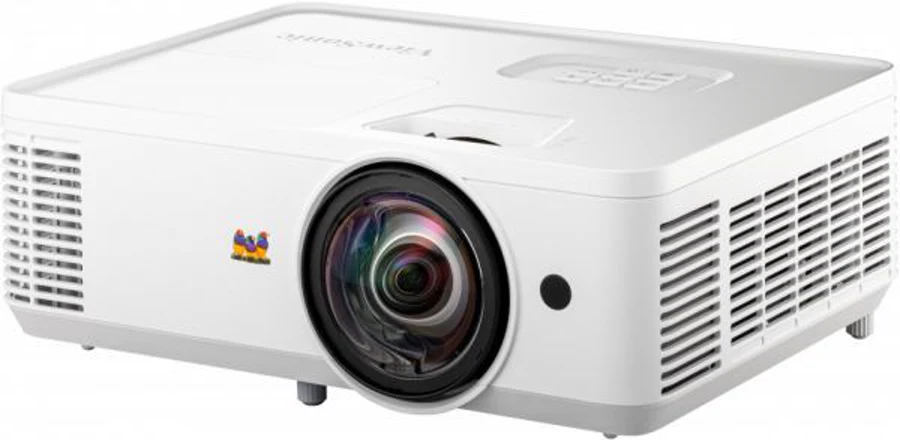 The ViewSonic PS502W is the projector on FusionCue's own tables: 4,000 lumens and a fixed 0.52 short throw.
Throw ratio decides whether it fits
A ceiling-mounted projector has very little distance to work with — often just 4 to 5 ft from lens to cloth. Throw ratio is distance divided by image width, so a lower number paints a bigger picture from the same height:
- About 0.5 (short throw) — covers an 8 ft table from roughly 50 in above the cloth. This is what you want.
- 0.7–0.8 — needs a noticeably higher ceiling (the BenQ TH671ST below).
- 1.2 and up (a normal home-theater or office projector) — paints an image barely 4 ft wide from a normal ceiling. It will not cover the table. This is the most common buying mistake.
The image has to cover the whole cloth with a little spare past the rails. Calibration trims the picture to the table; it cannot stretch a picture that is too small.
Minimum clearance by table size
Inches from the table top to the ceiling that each pick needs, from the same fit check that powers Get Started. Your room needs to clear both your camera column and your projector column.
| Table | MX Brio camera | H110 camera | ViewSonic PS502W | Optoma GT2000HDR / GT1080HDRx / UHD35STx | BenQ TH671ST |
|---|---|---|---|---|---|
| 6 ft | 46 in | 37 in | 41 in | 40 in | 52 in |
| 7 ft (bar) | 53 in | 41 in | 47 in | 46 in | 60 in |
| 8 ft (home) | 59 in | 44 in | 52 in | 50 in | 67 in |
| 8 ft+ (pro 8) | 61 in | 45 in | 54 in | 52 in | 70 in |
| 9 ft (tournament) | 65 in | 48 in | 59 in | 56 in | 76 in |
| 10 ft (snooker) | 73 in | 51 in | 65 in | 63 in | 84 in |
A standard 8 ft ceiling gives about 65 in. That clears an 8 ft table with every short-throw pick and the MX Brio, and it is right at the MX Brio's limit over a 9 ft table — which is exactly the case the wide-angle camera exists for.
Check before you buy — a recommendation can still be wrong for your room. Put your ceiling height and table size into the 3D room configurator, place the projector, and confirm full-table coverage before ordering.
Brightness, resolution and light source
- Brightness — about 2,500 ANSI lumens is the floor in controlled light; 3,000+ is recommended, because the projector has to compete with the table light. If a projector is too bright for ball detection, FusionCue can dim it: Settings → Hardware → Projected overlay brightness.
- Resolution — the verified PS502W is WXGA (1280×800), and it works well. A 1080p projector is noticeably clearer: the picture is stretched across an entire table, so extra pixels show up as crisper text, thinner lines and cleaner ball markers. 4K is sharper again. Resolution changes how the table looks, not how FusionCue tracks or scores, so buy the sharpest short-throw projector your budget allows.
- Laser or LED light sources need no lamp replacements and start instantly. Lamp models are cheaper, especially used.
- Input — HDMI.
- Geometry controls — zoom or digital corner adjustment is a nice safety margin, but FusionCue's own calibration does the precise fitting, and it can rotate or un-mirror the picture in software if your mount flips it.
Camera
The camera mounts directly over the centre of the table, pointing straight down. It is the only sensor FusionCue has, so its job is simple and strict: see the entire cloth, all four rails and all six pockets, sharply and steadily.
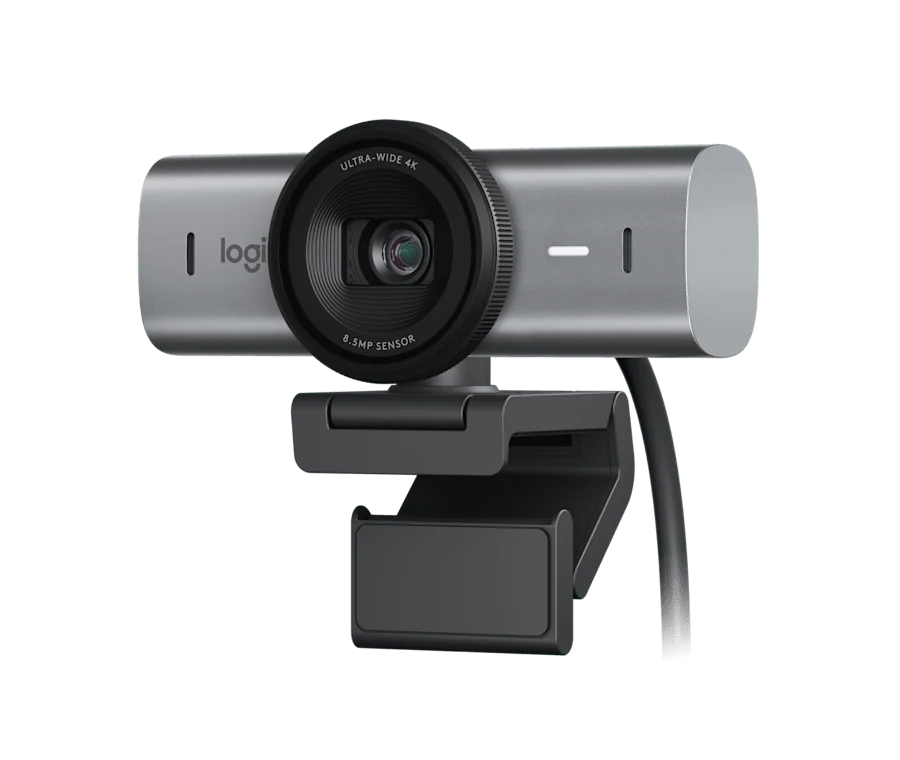 The Logitech MX Brio is the camera every FusionCue rig has been tuned on.
What makes a camera work
- Coverage — table detection locks onto the six pockets and the cushion tops, which sit outside the playing surface. A camera that frames only the cloth fails even though "the table" is in view. You need the rails plus a margin.
- Ball size in pixels — a ball should be 20 or more pixels across in the picture (12 is the hard floor). An extreme ultra-wide lens sees the table from anywhere but makes every ball too small. Get Started shows the px-per-ball figure for your room.
- Locked exposure, focus and white balance — a camera that keeps re-focusing or re-exposing mid-drill makes tracking jitter. FusionCue can lock focus for you (Settings → Hardware → Camera focus).
- No "smart" features — turn off auto framing, subject tracking and background effects. They move the picture.
- 1080p at 30 fps minimum. 60 fps is smoother and the MX Brio delivers it at 1080p.
- USB webcam or HDMI capture. USB is simplest. A camera with HDMI out through a capture card also works.
Which camera
| Logitech MX Brio | SVPRO / ELP 4K with the H110 lens | |
|---|---|---|
| Status | FusionCue verified | FusionCue verified |
| Best for | Standard ceilings (about 8 ft and up) | Low ceilings (7 to 8 ft) |
| Field of view | 90° diagonal (82° horizontal) at its widest | 110°, corrected in FusionCue |
| Frame rate | 4K at 30 fps · 1080p at 60 fps | 1080p at 60 fps |
| Connection | USB-C | USB 3.0 and HDMI |
| Mount thread | 1/4"-20 socket | Its own yoke bracket |
| Price | About $200 new · $95–$130 used | About $150 new · $60–$90 used |
About the H110 camera — tested on a FusionCue table: over an 8 ft table it frames every pocket from 40 in above the cloth. Its focus is manual: once it is mounted, loosen the small screw beside the lens, turn the lens until the balls look sharp in FusionCue's camera preview, and tighten the screw again. When you order it, select the H110 lens option — its other lens options are not this recommendation.
Avoid bargain webcams (soft optics, no manual controls) and any camera whose widest view still crops a rail.
Lighting
Lighting is hardware too, and it is the piece people most often get wrong.
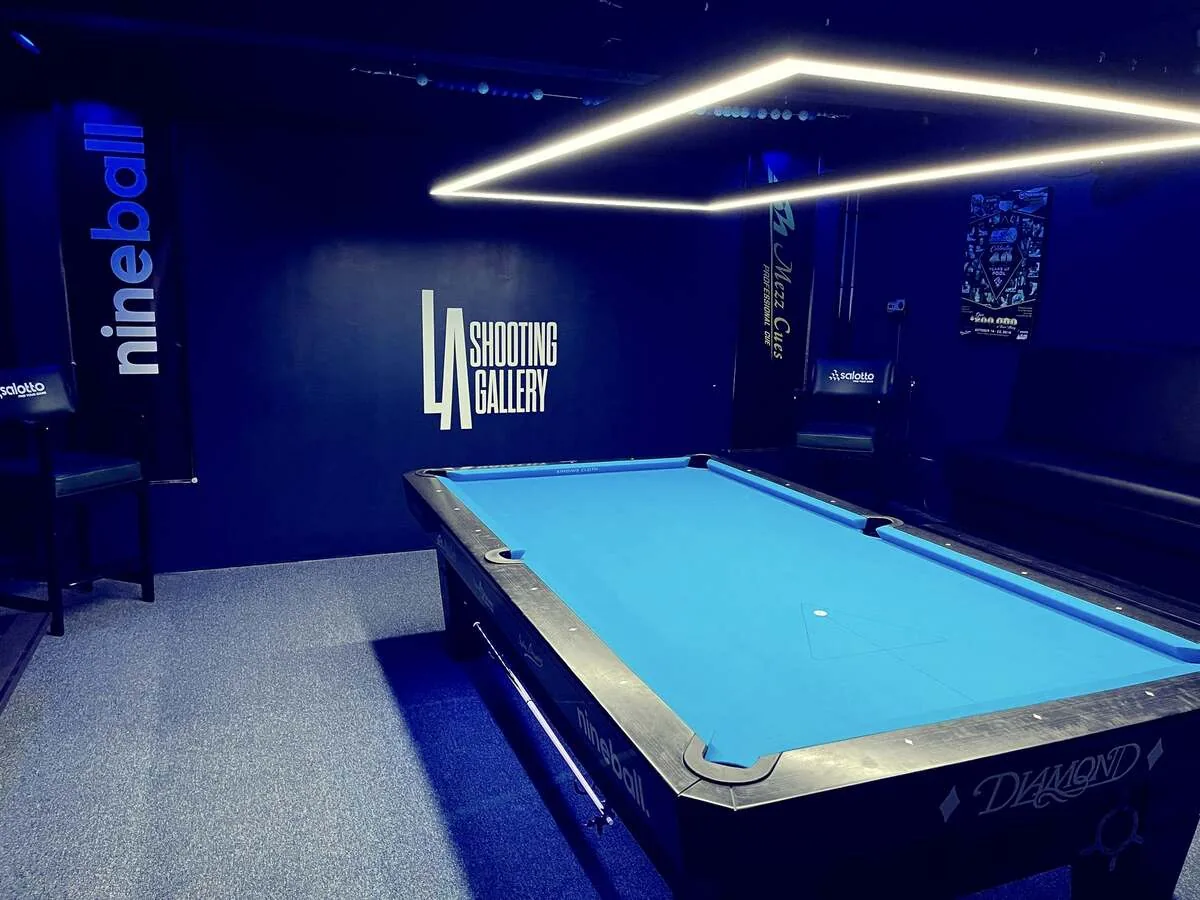 A perimeter light frames the table's outline, so nothing hangs between the camera and the cloth.
Why a traditional pool table light will not work
A conventional pool light hangs over the middle of the table — exactly where the camera has to look and where the projector has to throw. Its shade, bar and cables block part of the cloth, the hot spot under it washes out the balls beneath it, and the corners fall into shadow. Ball tracking needs the whole table visible and lit the same everywhere.
What to use instead
A perimeter light: a continuous LED frame around the table's footprint. Nothing hangs over the cloth, the player and cue never throw a hard shadow on the balls, and brightness is even from corner to corner.
- Perimeter Billiard Lights makes frames sized for 7, 8 and 9 ft tables.
- DIY works just as well: LED strip in an aluminium channel, hung around the table's outline at the same height on every side.
- Keep every fixture outside the camera's view and the projector's beam.
- Avoid direct sunlight that moves across the table through the day, and single bare bulbs that cast one hard shadow.
Let FusionCue control the light
Optional, about $10: put the table light on a TP-Link Kasa or Tapo smart plug and FusionCue switches it off for shot-result animations, opponent casts and Entertainment, then back on when play resumes. It works over your local network with no hub. Setup is in Smart Light.
FusionCue also drives DMX fixtures and Philips Hue for light shows. That is entertainment lighting, separate from lighting the table for play.
Monitor or TV
You need one ordinary screen for the FusionCue app itself — the drill library, settings, scores and replays. Any HDMI monitor or TV works. Keep it permanently connected: it is where Windows setup and maintenance happen, and the projector stays the second display.
A wall-mounted TV near the table is the nicest version. In an internet match your opponent's table is cast onto your cloth and their video shows on this screen, so bigger is better.
Keyboard and mouse
A mini PC ships without them. A wireless keyboard with a built-in touchpad is the tidy choice for a game room; any 2.4 GHz USB-receiver or Bluetooth set works. You will mostly use it for setup — during play the phone or tablet remote and voice commands do the work.
Microphone
Optional. A microphone does three things in FusionCue:
- Voice commands — "Hey Cue, show me how to run this out", "Hey Cue, turn projection off" and the rest, hands-free at the table. See Basic Functionality.
- Your voice in internet matches.
- Your voice on recordings and Go Live streams.
The camera's built-in mic is enough for basic commands. A wireless clip-on (lavalier) mic is far better for recordings, coaching and streaming, because it stays the same distance from your mouth while you walk around the table. Any wireless lav whose receiver plugs into the PC over USB-C works:
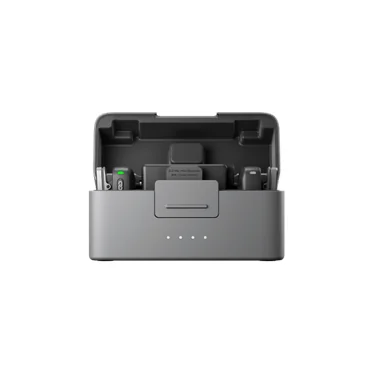 One transmitter and one receiver — all a single player needs.
| Kit | Why |
|---|---|
| DJI Mic Mini (1 TX + 1 RX) | The sweet spot for one player |
| DJI Mic 2 (2 TX + 1 RX) | Two transmitters, noise cancelling for a lively room |
| Hollyland Lark M2 | The budget pick, button-sized transmitters |
Pick the input under Settings → Hardware → Microphone.
Headphones and speakers
Sound effects and your opponent's voice play through Windows' default audio output, so TV or monitor speakers are enough to start.
Wireless headphones (Bluetooth) are optional and worth it for internet matches and lessons: you hear your opponent clearly over the room, and their voice does not come out of your speakers and back into your microphone.
Phone or tablet remote
Optional and free: pair a phone or tablet by QR code and use it as a full controller — launch and control drills, show cue-ball paths, record clips, chat. It runs in the browser, so there is nothing to install. See Phone & Tablet Remote.
Mounts and cables
Do not treat these as an afterthought — a camera that sags or a cable that drops out is the most common cause of "it worked yesterday".
| Item | What to buy | Notes |
|---|---|---|
| Projector mount | ONKRON K3A (11–15 in drop) or suptek PR05LW (31–49 in drop) | Match the drop to your mount height |
| Camera mount | VAUBORTTI arm or UYODM articulating arms | Both fit the MX Brio's 1/4"-20 socket directly |
| Camera cable | Active USB 3.0 extension, 25–100 ft | Needed beyond about 10 ft; a passive extension will drop frames |
| Projector cable | Active optical HDMI, 15–150 ft | It is directional: "Source" end at the PC |
All of these are linked under Hardware accessories on Get Started. How to install them is in Hardware Installation.
Buying used
Most of a FusionCue rig is ordinary consumer hardware with a deep used market, and buying used can cut the total by half. Every product card on Get Started has a Shop eBay link and shows a current used price range next to the new price.
| Item | New | Typical used |
|---|---|---|
| ViewSonic PS502W projector | $575 | $150–$500 |
| Optoma GT1080HDRx projector | From $1,095 | $675–$800 |
| BenQ TH671ST projector | $949 | $450–$750 |
| Logitech MX Brio camera | $200 | $95–$130 |
| GMKtec M7 Ultra mini PC | $600 | $400–$500 |
| ZYNEEX S5 desktop (RTX 3050) | $810 | $450–$600 |
Checked September 13, 2026.
Used projectors
Projectors are the best used buy — schools and offices replace them constantly.
- Search by throw ratio, not by brand. Any short-throw model around 0.5 with HDMI and 3,000+ lumens is a candidate. Older short-throw classroom projectors are often excellent value. Run the exact model through the 3D room configurator before you bid.
- Ask for lamp hours. A lamp near the end of its rated life is a hidden cost; price in a replacement. Laser and LED models avoid the question.
- Check the picture: no dead pixels, no dust blobs, no yellowed or blotchy areas, and even focus corner to corner.
- Make sure the remote is included. Many menu options, including input selection and ceiling-mount settings, are remote-only.
- Confirm the mounting holes are intact; they take the full weight overhead.
Used PCs
- Hold the same line as new: six-core Core i5 / Ryzen 5 class, 16 GB RAM (32 GB with built-in graphics), SSD, graphics at the floor, two display outputs.
- A used gaming desktop with a dedicated GPU is usually the best value per dollar — more graphics headroom than a new mini PC for less money.
- Confirm Windows 10 or 11 is activated, and that the GPU is actually in the listing photos.
- Most office PCs have Intel UHD graphics, which is below the floor. Buy one only as a tower or small-form-factor unit with room for a graphics card (GTX 1650, RTX 3050 or RX 6400 class), and check the case size and power supply first. Tiny and micro units have no slot for a card, so skip them.
Used cameras
- The MX Brio sells used for about half its new price. Confirm the listing is the MX Brio specifically, that the lens is unscratched, and that the USB-C cable is included.
What not to buy used
Cables and mounts. They are cheap new, an active cable's electronics do not age well, and a mount holds weight over people's heads. Buy them new and stay under every rated load.
Still unsure?
Ask before you spend. Send your room dimensions, table size and the gear you are considering — setup help is free.
- Discord — discord.gg/jpj26WZYRj, the fastest route.
- Phone — +1 330 550 5143.
- In the app — Setup help knows your PC and walks you through the rest once the hardware arrives.
Next: Hardware Installation.