Instant Recall
Capture any table layout and keep coming back to it — every leave remembered, every shot replayable, and the run-out planned on the cloth.
Instant Recall is layout memory for your table. Break a rack (or place balls however you like), capture the layout once, and work through the run-out — FusionCue remembers every leave along the way, so you can jump back to any of them and shoot it again. It's the fastest way to grind a specific run-out or replay the leave that beat you.
Starting a game
Hover Play a Game in the app header and pick Instant Recall to go straight to its settings — or click Play a Game, open Instant Recall, and press PLAY. The settings open in a dialog, each with a ? that explains it:
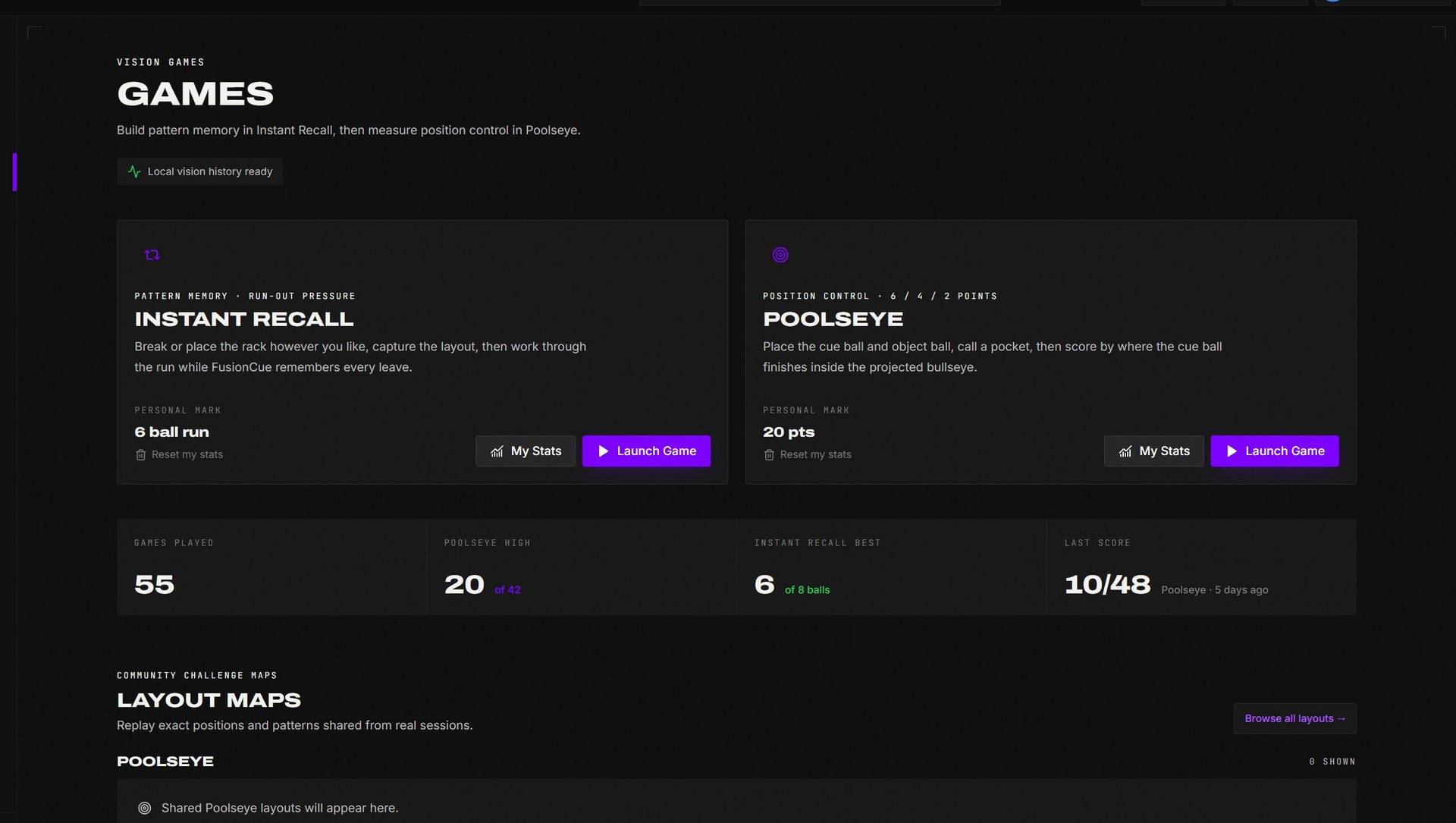 Instant Recall launches from Play a Game alongside Poolseye and the saved-layout library.
- Play Mode — Rotation (9-/10-ball: the lowest ball is the auto-target, you just call a pocket) or Open Play (call any ball, then a pocket, any order).
- After a Miss — Require Make (every ball is restored to its pre-shot position and you replay the shot until you make it) or Allow Misses (the result is recorded and you keep playing from the settled leave).
- Session Flow — One layout (finish after clearing the captured layout) or Continuous layouts (clear, rerack, capture again, and keep going until you end the game).
There's no round count — clearing the table is the win condition.
Playing
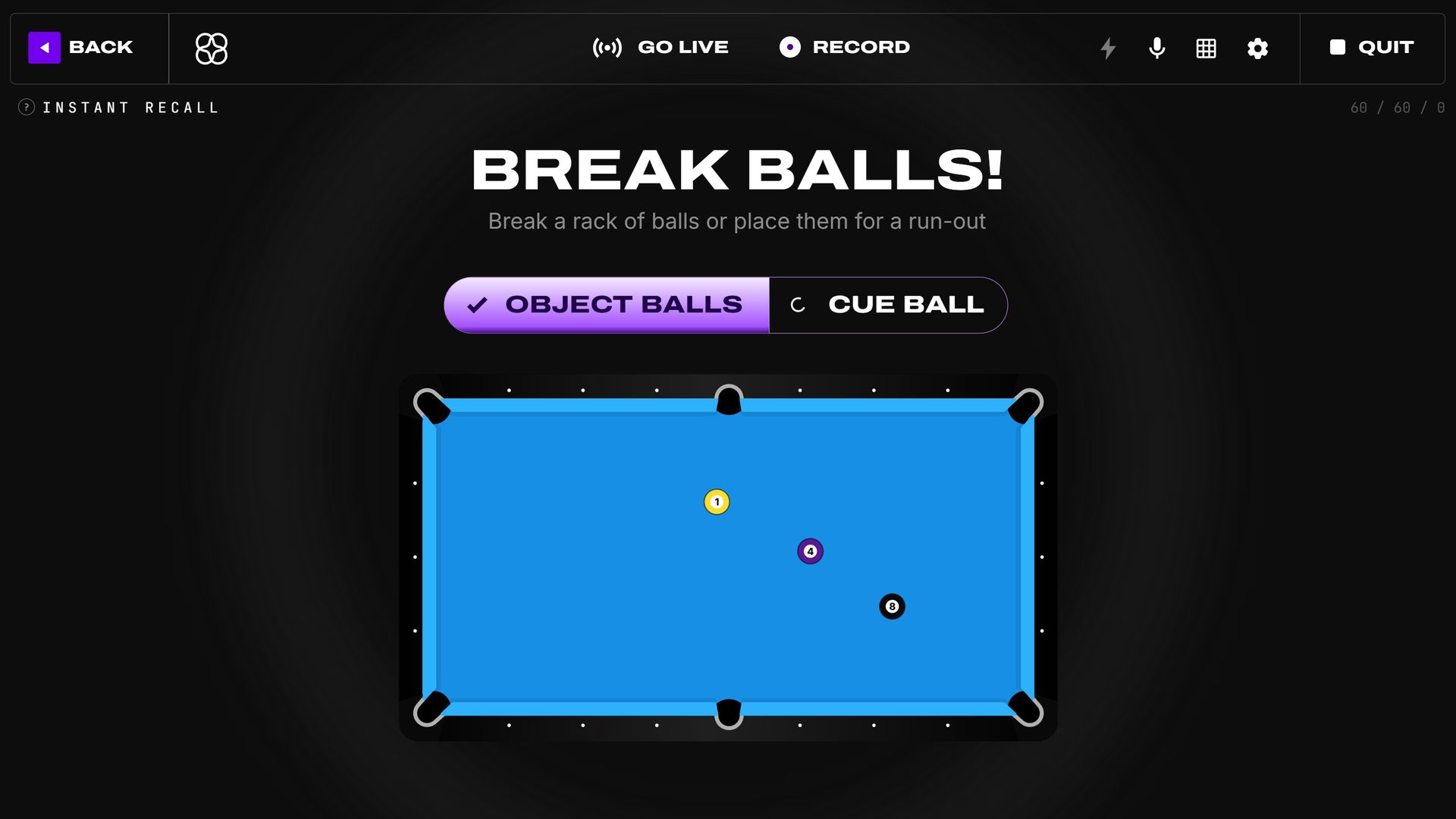 Setup: break or place balls; once the object balls and cue ball register, hit START NOW.
Break the balls or set up your position, wait for the OBJECT BALLS and CUE BALL signals to go green, and start. Then run out:
- Call your shot (in Rotation, just the pocket) and shoot. FusionCue captures the table after every settled shot.
- The history strip across the screen shows every leave, shot by shot. Click any earlier layout to jump back to it — ghost markers on the cloth show exactly where each ball goes, and the round arms itself automatically once everything is back within tolerance.
- Clear the table and (in Continuous mode) the next layout starts automatically after a rerack.
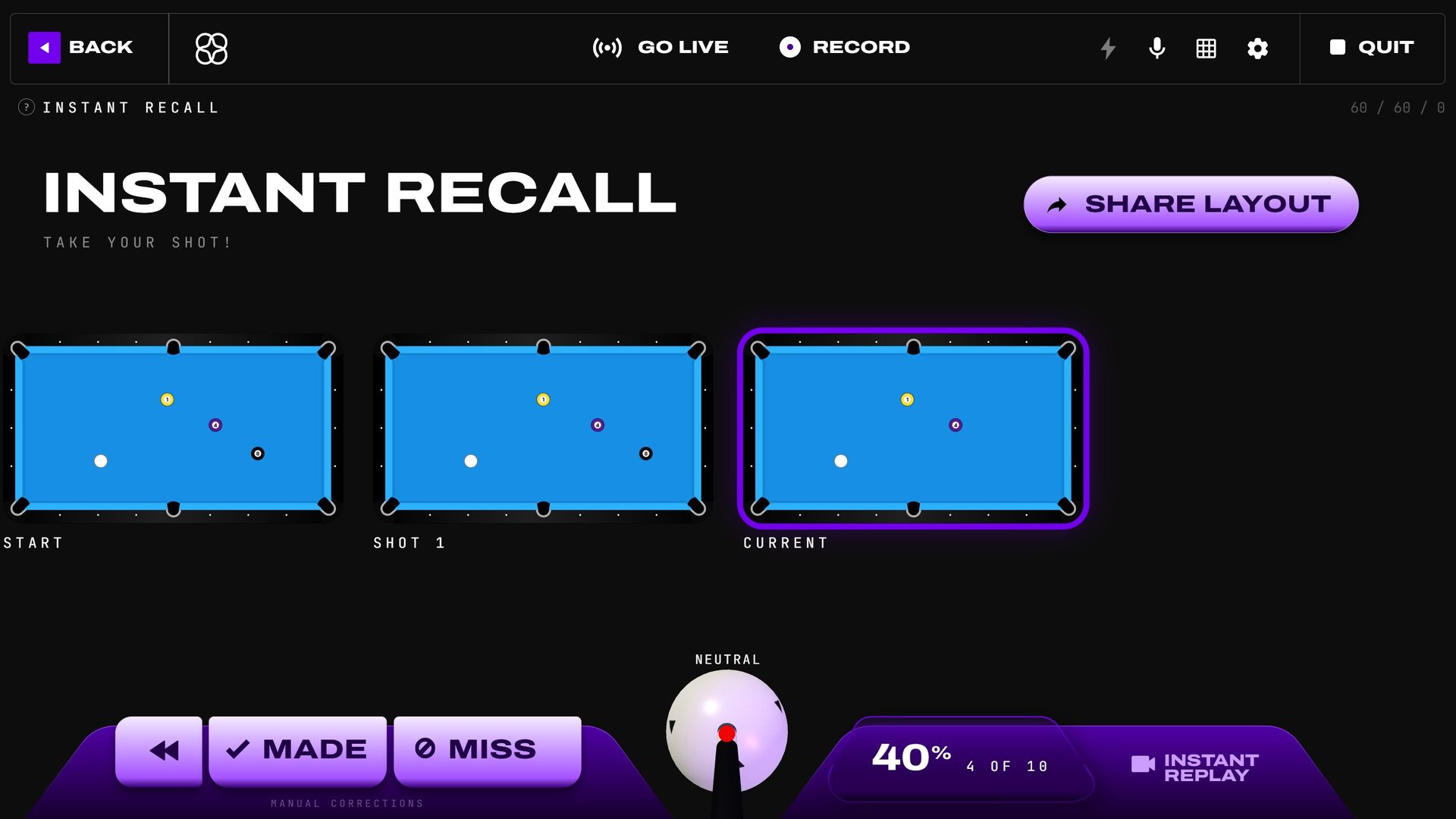 Mid-run: the layout history strip — START, each shot, and CURRENT — with manual corrections and replay in the docks.
Dock controls: go back one layout, and mark the previous shot made / missed if the camera ever calls one wrong. Instant Replay is right where it always is.
Made counts the ball that actually went in. FusionCue already knows which ball it lost sight of; if more than one could have gone, it asks Which ball went in? Your run carries on as if the shot had counted, even in Allow Misses, where the miss had reset it.
When a ball shows the wrong number
Now and then the camera reads a ball as another one — a red 3 as a 7, say — and the planner and the coach would call it by the wrong number. Fix it on the screen:
- Click the table on the setup screen, or the CURRENT card while you play (the pen in its corner).
- Click the ball that's wrong.
- Click its real number.
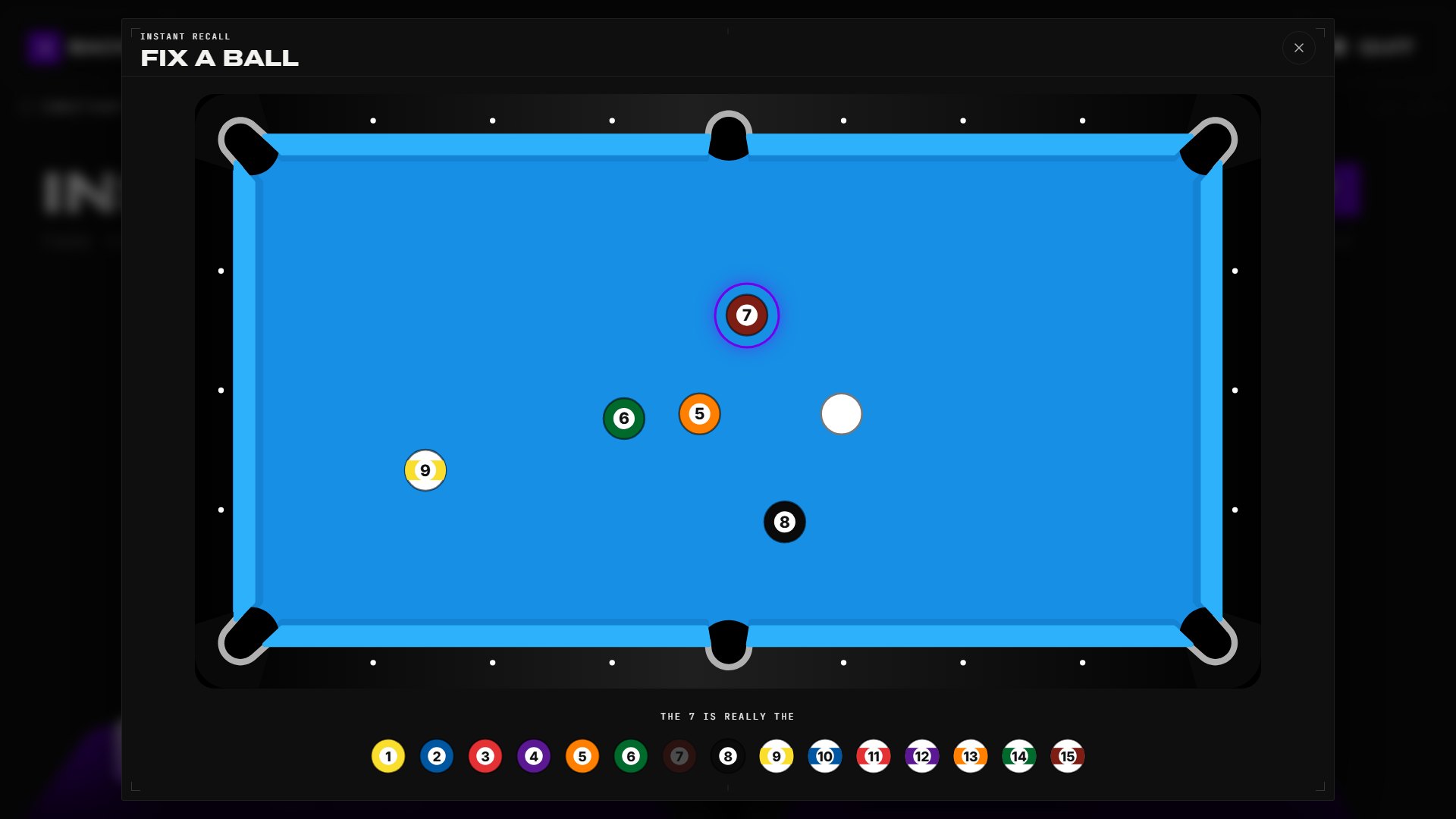 The camera read this 3 as a 7: click it, then click the 3.
From then on it's tracked as that ball for the rest of the layout: the START card, every leave, the shot planner, and the coach all use the right number. If two balls were read the other way round, fix either one and they swap. If two balls show the same wrong number, fix each one: every ball keeps its own fix. A new rack starts fresh.
The balls on the screen are drawn in the colours of the ball set you picked in Settings → Hardware → Ball set style (Cyclop, TV or Tournament BLACK), so they look like the balls on your table.
A ball the camera can't number at all — usually a stripe lying white side up, or a ball it mistakes for one already on the table — shows on the setup table as a gray ?. Click it, then its number, and it's tracked as that ball from then on. If another ball has that number, it gives it up: it takes the next number it reads, or turns into a ? for you to name. A ? you leave unnumbered isn't part of the layout: once you start, the game ignores it, so it can never be counted as one of your balls.
The phone remote fixes balls the same way: on the setup table, tap any ball, a ? or a numbered one (or tap balls need a number), then its number.
While you set up, FusionCue names balls from your Ball set (Settings → Calibration): each number goes to one ball, so when two balls read alike the one that loses a number takes the free number it reads next. If you've run Teach FusionCue your balls, every ? you name also teaches FusionCue your set, a few seconds later.
The same screen fixes the table itself:
- A marker for a ball that isn't there — say it went in and wasn't counted. Click its marker, then Not on table. If FusionCue saw it go, the shot it went in on counts as a make and your run is scored again from there. Either way the ball stops holding up the next shot.
- A ball counted as pocketed that's still on the table — turn it so its number shows: once the camera reads it clearly for a couple of seconds, FusionCue puts it back by itself. Or click it in the POCKETED row, then Still on table. Either way it's back in the layout and the run is scored again without it.
Note — Instant Recall finds the balls with YOLOv8s v5 and Exact numbers matching while you play, whatever Game Settings says; your own settings come back when the game ends.
The shot planner
Not sure how to play the layout? FusionCue plans it from the balls the camera sees and draws the shot on the cloth: the aim line and ghost ball, the object ball's way into the pocket, the cue ball's route, and the landing zone where it should stop.
- SHOW RUN-OUT (top right of the play screen) plans the whole rack, lowest ball first, and puts up the first shot.
- Shoot it, and the next shot goes up from where the balls actually stopped. The run-out follows the rack until the table is clear or you stop it.
- NEXT SHOT steps ahead through the plan without shooting: it shows the following shot from where this one should leave the cue ball.
- ANOTHER WAY shows a different way to play the shot on the table (and replans the rest of the run-out from where it leaves the cue ball).
- The round X stops the plan and takes it off the table.
While a plan is up, the game screen shows how to strike the cue ball: the dock's big cue ball shows where the tip goes, and one line right above it names the stroke — for example FIRM STUN-FOLLOW + RIGHT ENGLISH. The table shows which ball, which pocket, and the route. The buttons wait while balls are going back for an earlier layout.
Note — if you've hidden the table graphics with the eye button, the plan is hidden while you shoot too. Click the eye to bring it back. Unticking Shot line, Ghost ball, or Landing zones under Show on the table (the grid button) takes that part out of every plan; the cue ball's route always shows. SHOOT! banner there hides the GO! too.
By voice
Start with "Hey Cue" (see Voice commands), then say:
| Say | What happens |
|---|---|
| "show me how to run this out", "run these out" | Same as SHOW RUN-OUT |
| "next shot", "what's next" | Same as NEXT SHOT |
| "another way" | Same as ANOTHER WAY |
| "stop showing me", "clear plan" | Stops the plan |
| "show me how to hit the 3" | A way to reach the 3: straight at it when the path is clear, otherwise the easiest kick. With no number, the lowest ball. |
| "how do I make the 7 in the side" | A way to pot it in that pocket, banked or kicked in if needed |
| "shape on the 5" | Pots the lowest ball with the cue ball stopping for a shot on the 5 |
"Show me how to hit…" and "another way" also work in drills and Poolseye. Run-outs, NEXT SHOT, and shape are for the open table: Instant Recall and Free Practice.
Free Practice and the phone remote
Free Practice — start it from the phone remote's Free Practice button — has the same planner once you press Ready: Show run-out, then Next shot, Another way, and Stop, with the stroke shown under them. The phone remote has Show run-out, Next shot, Another way, and Stop run-out in both Instant Recall and Free Practice.
How plans look
Game Settings → Shot plan graphics chooses how plans are drawn on the table (a drill's own paths, ghost ball, and landing zones follow it too): Glow, Pulse, Sonar, Arrows, Plasma, or Original (the default: the graphics as they've always been, without the effects). The effect looks use the projector's shader effects; with Improve performance on (Settings → Recording), or on a PC that can't run them, plans draw as Original.
The summary
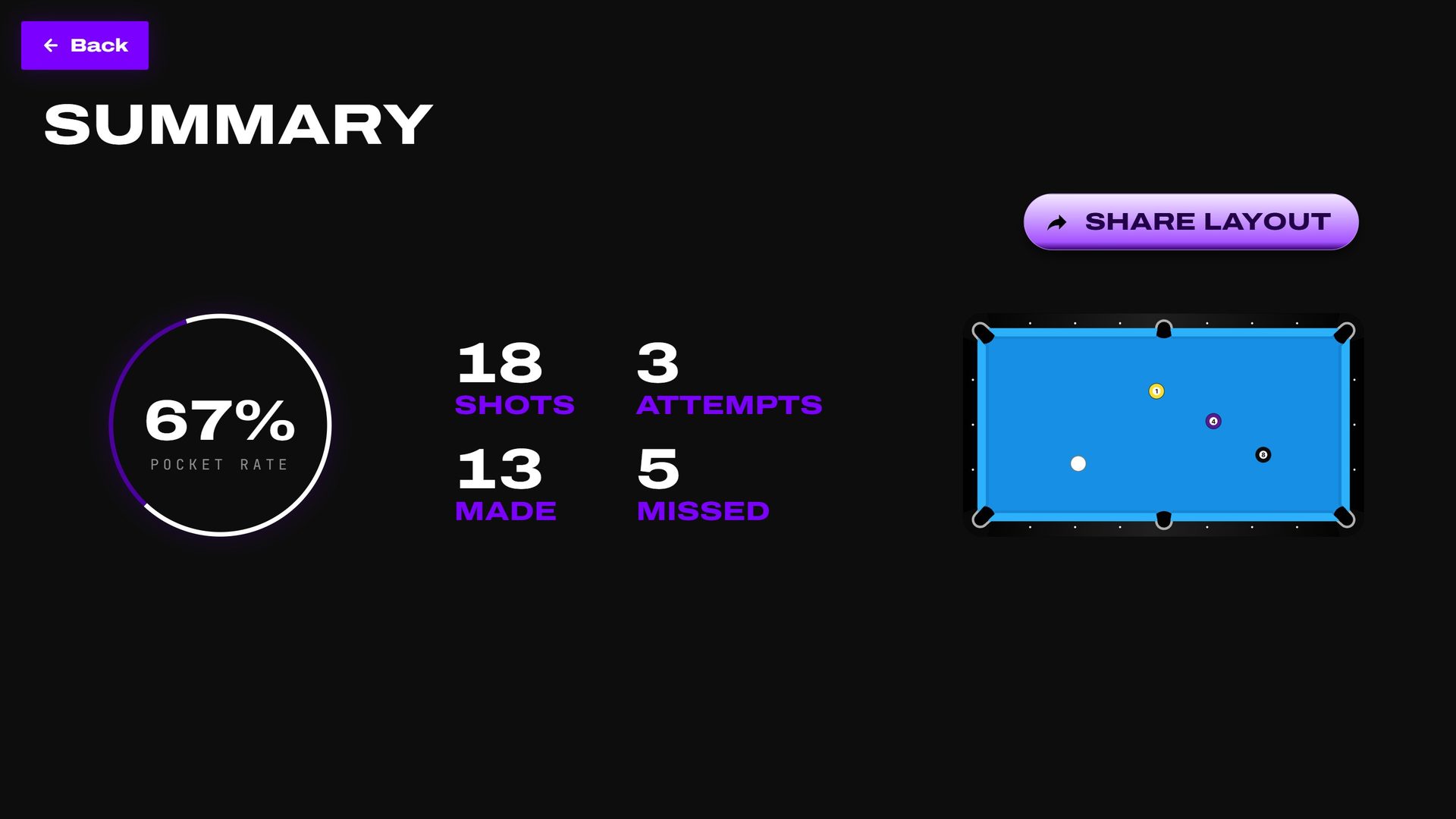 Session summary: pocket rate, shots, attempts, made and missed.
Sharing layouts
The SHARE LAYOUT button (on the play screen and the summary) publishes the current layout so anyone can open it, set the balls on their own table, and try the same run — great for challenges and "how would you play this?" posts.
Share Layout stays available from the summary beside the final pocket-rate and shot totals.
Multiplayer
Instant Recall is single-player today, in both local and internet play. Multiplayer game modes are Poolseye (local 2–6 + internet 1v1) and drills (local 2–6 + internet 1v1) — see Poolseye and Drills. A multiplayer Instant Recall — setter rotates, first miss ends your turn, layout restored for the next player — is on the roadmap.
The Games page makes the current boundary explicit: Poolseye exposes multiplayer, while Instant Recall remains solo.