Setup help
The built-in setup assistant — what it can see, what it can change, what leaves your PC, and how to turn it off.
Setup help (it introduces itself as Rack) walks you from a fresh install to your first scored drill. On an unconfigured table it opens as a full-screen setup workspace: the six setup rows stay on the left, while the current step and Rack's plain-language help stay on the right. The rest of the app returns once calibration is complete.
Setup steps that need their own page — sign-in, hardware, runtime, phone pairing and calibration — temporarily replace the workspace. Back to setup returns to the same row. Choose Set up later to use the normal app for the rest of that launch.
After calibration, Setup help becomes a drawer. Open your username menu at the top right and choose Setup Wizard. The dashboard's Get playing card disappears as soon as Play demo is the only step left, and its X dismisses it sooner. Existing tables that were already configured are not forced through first-run setup again.
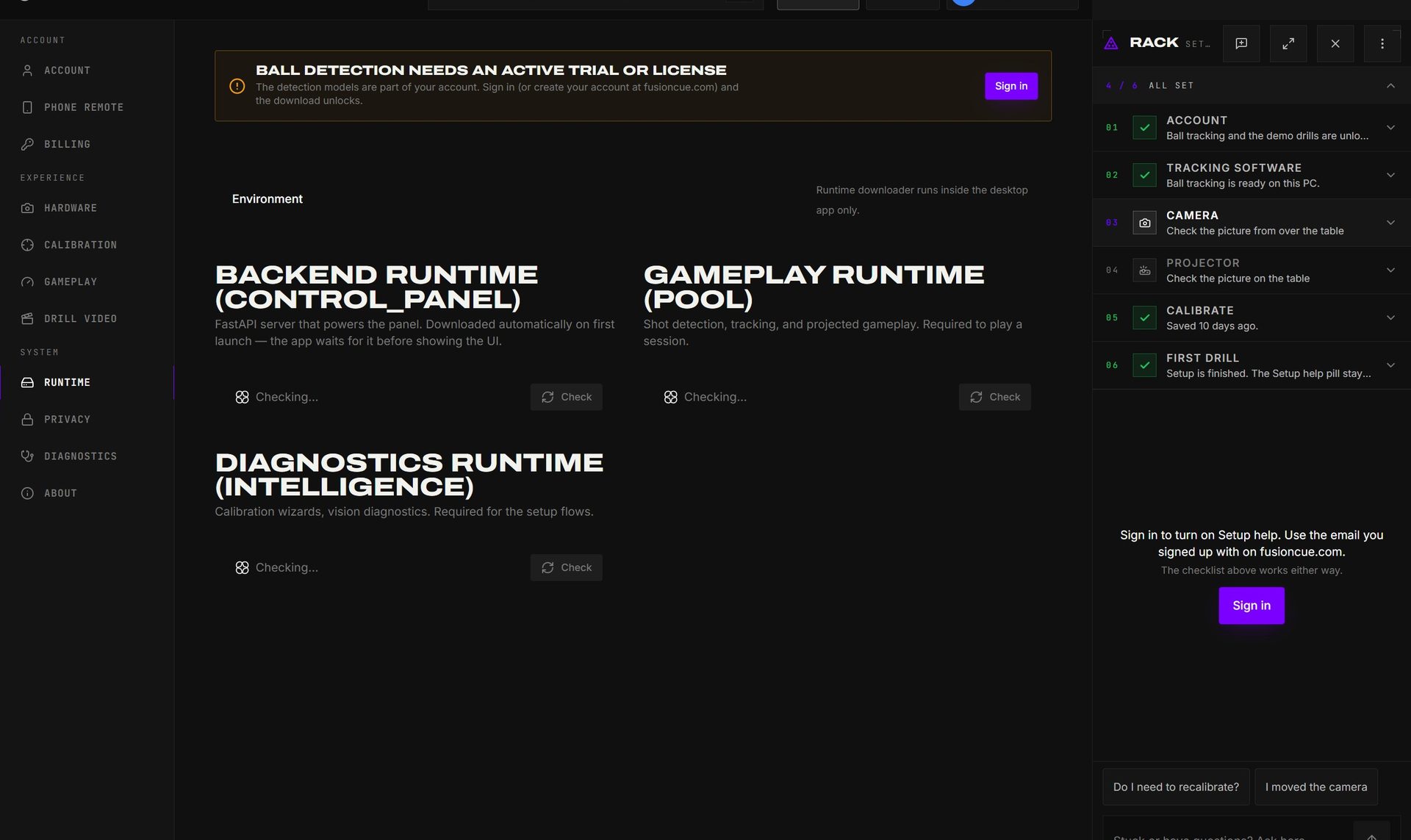 Rack stays beside the task you are fixing: the checklist remains visible while the current settings page keeps its full controls.
The six rows
Setup help tracks six things, in order. A row turns green when the app can see it's done; a few rows also ask you to confirm something the camera can't judge (for example, "can you see all six pockets with a little margin?").
| Row | Done when |
|---|---|
| Account | You're signed in and can play — a license, an active trial, or a membership. |
| Tracking software | The automatic first-launch download and its ball models are installed. |
| Camera | A real overhead camera is selected, streaming, and you've confirmed it sees the whole table. |
| Projector | A second display is connected, chosen as the projector, and its picture covers the cloth. |
| Calibrate | All four calibration steps are saved. |
| First drill | Every row in the Start session window is green and you've scored a shot in a demo drill. |
Rows that can't proceed yet are grey, not red. No projector yet? The camera rows and Step 2 still work; Setup help tells you when the projector shows up. The tracking-software row needs no install click: the download starts itself, retries stalled transfers, and keeps one progress bar from start to finish. Use Flash the projector to light the table with a bright white picture and large test text for 15 seconds: confirm it landed on your table (not a monitor), and check the white reaches a little past every rail.
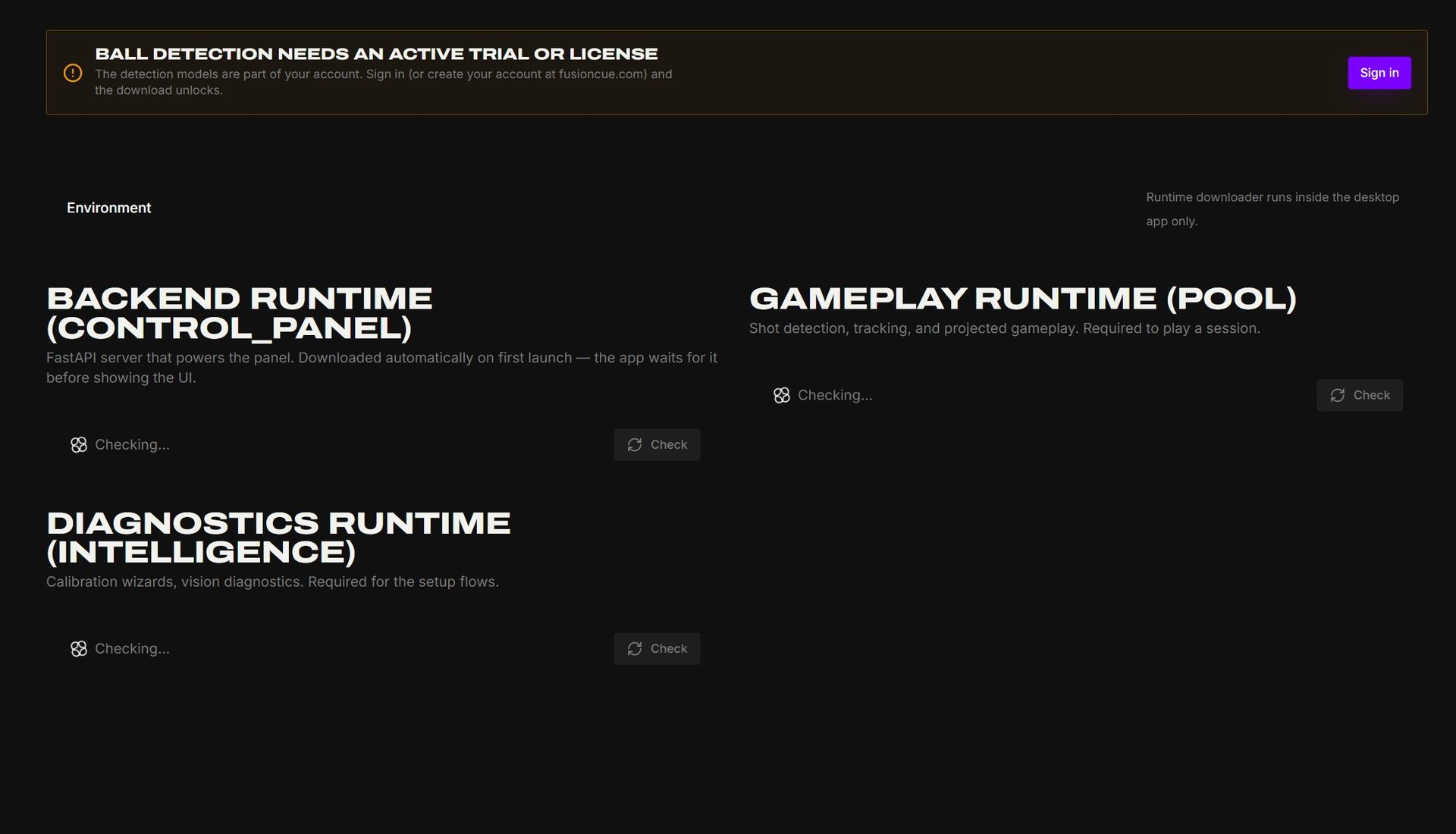 The tracking-software row reads the same backend, gameplay, and diagnostics status shown under Settings → Runtime.
What it can change — and how it asks
Setup help never changes a setting silently. Direct setup buttons do exactly what their labels say. When Rack proposes a setting change, a card shows what it will change, the current value → new value, and why. You tap Do it or Not now. Every change it makes has an Undo.
Things it can do with your say-so:
- pick the camera and the projector display
- adjust camera frame rate, focus, brightness and similar controls
- change gameplay settings such as ball matching and shot settle speed
- switch the ball-detection model or the table size
- restart the camera backend, or finish a stuck runtime download
- open a calibration step, start the projector orientation check, or start a demo drill
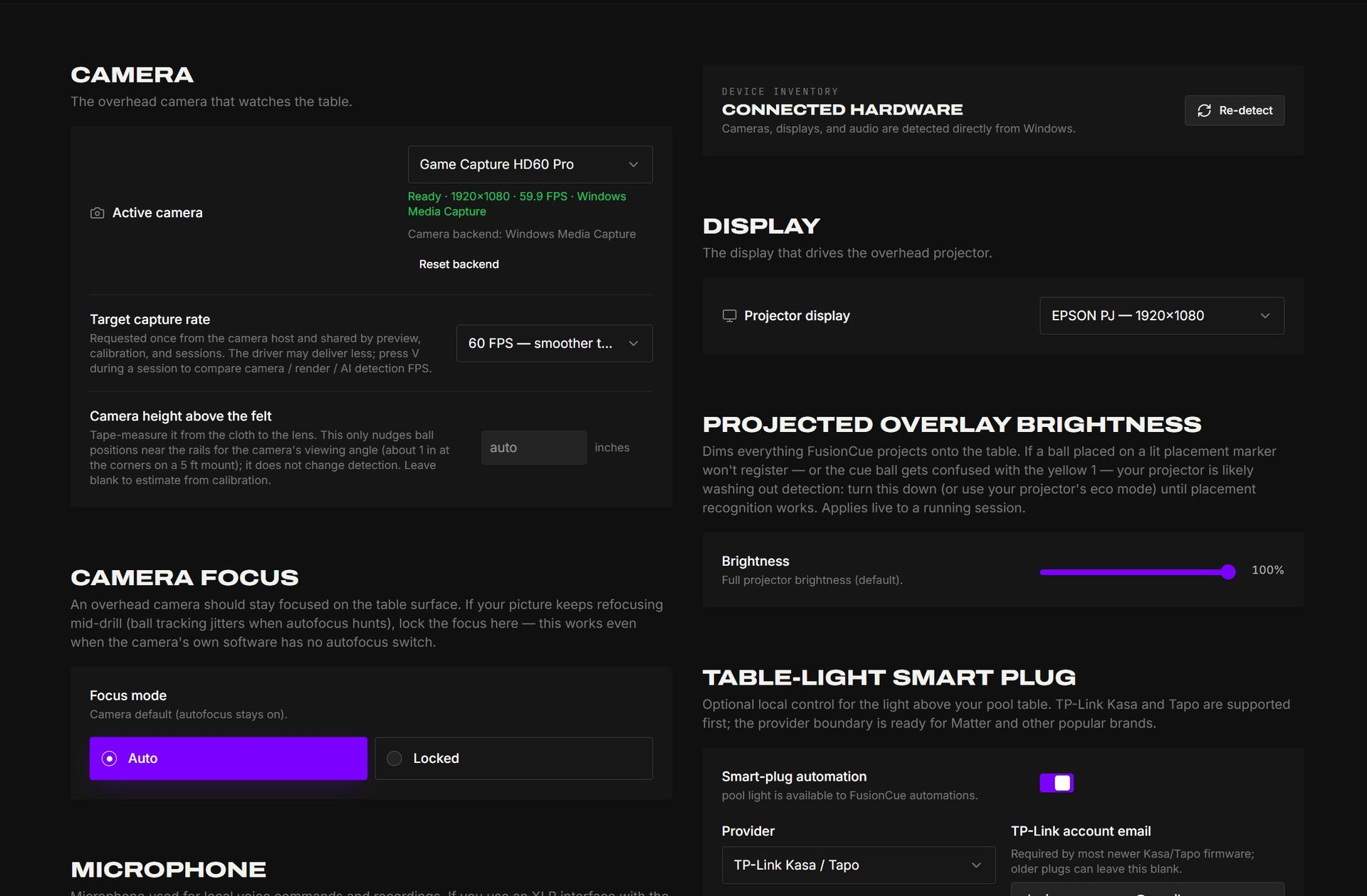 Camera, projector, focus, brightness, and smart-plug controls remain visible and user-operated even when Rack recommends a change.
Two things it will not do:
- Reset a calibration step without you typing
reset. It also insists on a fresh rig backup first, so a saved calibration can always be brought back. - Change anything in a turn where it looked something up on the web. Web results are treated as reading material, never as instructions.
It can't see the projected handles or the balls — it reads the app's own status, not your camera feed. During calibration it restates the wizard's instruction and tells you which button to press; you do the aligning.
What leaves your PC
Each message you send carries a short setup snapshot so the assistant knows what it's looking at: your Windows version, CPU and graphics card names, free disk space, camera model and resolution, display sizes, which calibration steps are saved, and the pre-flight result. That's it — no video, no camera frames, no drill names, no player names, no file paths.
- Logs are sent only when the assistant asks for them and you can see it happening (a "reading recent logs" line in the drawer). File paths and anything that looks like a key or token are stripped first.
- Camera frames are sent only if you approve the auto-tune card, which says so on the card.
- If you paste something that looks like a license or a password into the chat, it's hidden before it's sent and you're pointed at Settings → Billing instead.
- "Send Gary a report" attaches the snapshot and, if you tick it, recent logs — never video.
Nothing runs in the background: no message, no upload.
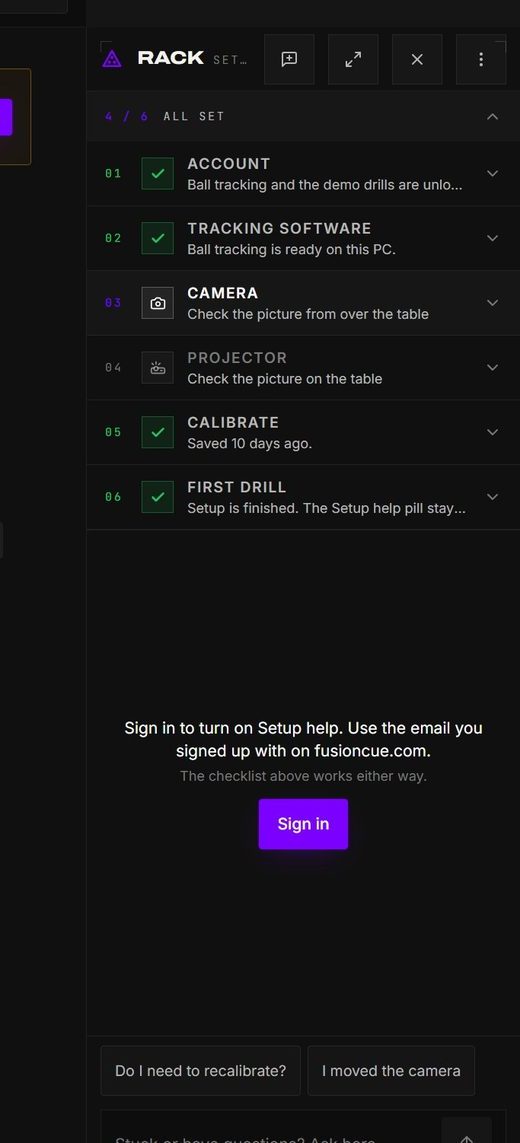 The assistant works only inside this visible drawer; status checks and messages stay attached to the setup task on screen.
The 30-day allowance
Setup help is included with every license. The clock starts the first time you send it a message — not when you buy — and counts days you actually use it, up to 30, within 90 days of that first message. Take a month to get the projector; the days you didn't ask anything don't count.
- License owners and trial users can ask up to 100 questions a day; active connected-service members can ask up to 150.
- The meter stays out of the way until only ten questions remain, then shows the number left and the reset time.
- When fewer than seven days are left, the meter says when help ends.
- After that, Setup help still answers questions (30 a day) but can no longer change settings for you. The checklist, the docs and Discord stay free forever.
- Members with an active subscription keep the full assistant.
- On the free trial it can open steps and answer questions; it can change settings once you have a license.
If a rough setup used the allowance early, ask it for a free extension — it sends Gary a short report and you'll hear back.
Allowance notices, remaining questions, and reset timing appear in the same drawer before a message is sent.
Turning it off
- Set up later closes the first-run workspace for the current launch.
- Don't open automatically (the ⋮ menu in the drawer header) stops it opening on its own. Setup Wizard stays in your username menu for when you want it.
- Close it with the X in the drawer header or Ctrl + /. Choose Setup Wizard from your username menu to bring it straight back.
It's hidden automatically on the session screen — nothing pops up while you play.
The drawer header keeps maximize, close, and the options menu visible; Setup Wizard in the username menu reopens it.
The Get help button
Get help sits in the top bar, so help is one click away from any page. It opens three ways in:
- Setup help — instant answers from Rack, the assistant described above, when your account can use it.
- Message Gary — a direct message to Gary Simon; replies are usually the same day. Sign in first. (See Direct messages.)
- Send my logs — opens Settings → Diagnostics, where one click sends your logs so Gary can see your rig.
If it can't help
After two failed fixes for the same problem it stops guessing and offers a person instead, in this order: Send Gary a report (logs only, no video), then text or call Gary Simon · 330-550-5143, or ask on Discord, a free chat app where FusionCue owners help each other.
Suggested prompts and the message box remain visible when Rack hands the problem to human support.