Drill Editor
Build your own drills — three drill types, layouts, completion rules, zones and arrows — then publish and share them.
The drill editor is where drills come from. It runs in two places with the same engine:
- In the app — create from the drill library, or edit any drill you own. Drills you build are instantly playable on your table.
- On the web, no install needed — fusioncue.com/drill-editor. Design in the browser, then pick Unlisted (live at once, only people with the link can open it) or Public (goes to the Community review queue). Drafts auto-save locally, and signing in (free) lets you save. Your drills and their status (Unlisted / Pending review / Approved) live under My Drills.
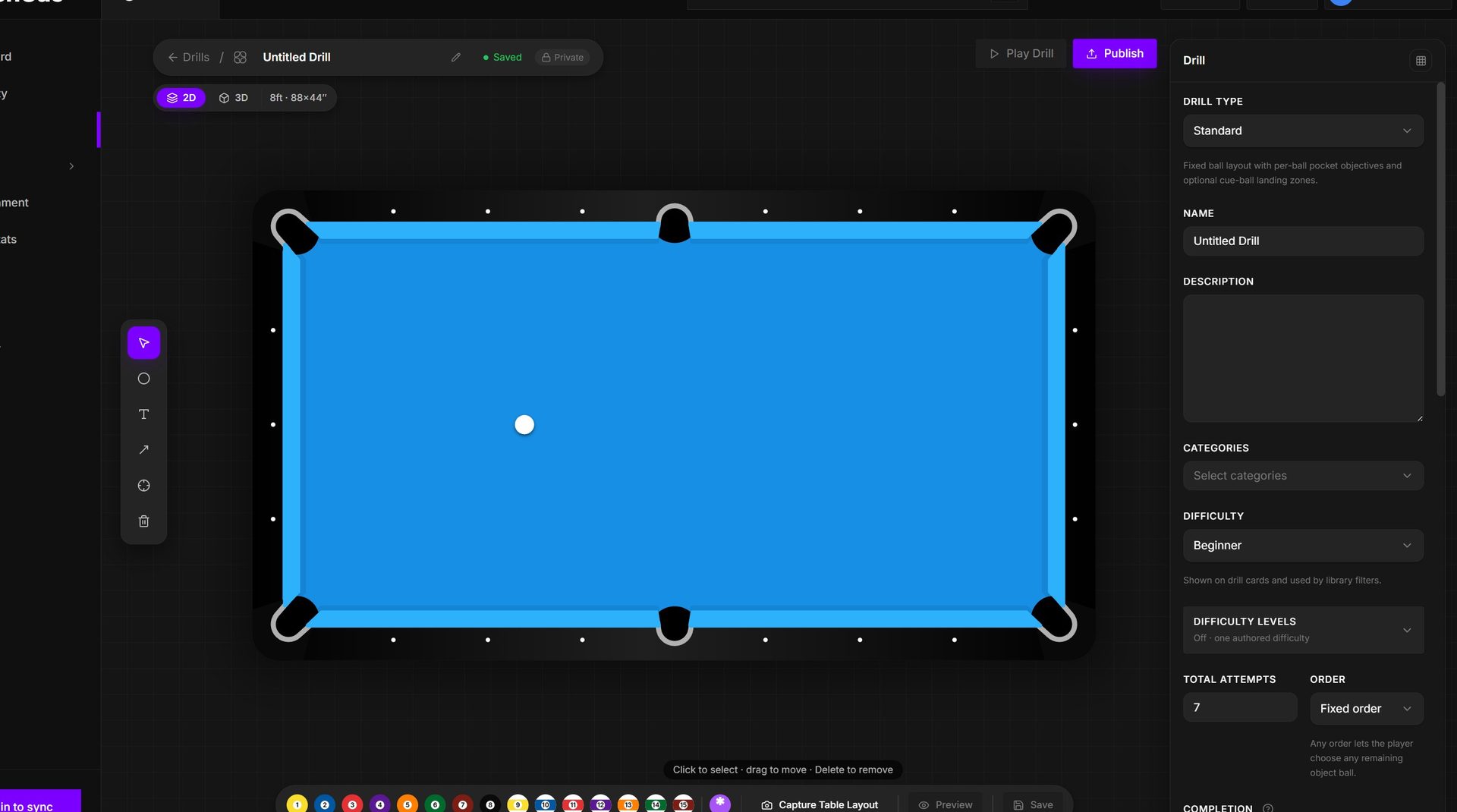 The real editor: tools on the left, 2D/3D table in the center, object palette below, and the active inspector on the right.
The tools
Down the left rail (with hotkeys): Select (V), Landing zone (Z — rectangle or polygon), Text (T), Arrow (A), Cue-ball reference (C — shows the hit point on a cue ball graphic), and the Eraser (E). Balls are placed from the palette under the table — click a ball, then click the cloth. A placement grid can be toggled for precise positioning, and the canvas supports 2D and 3D views.
Layout tools let you duplicate a layout, randomize ball positions into a new layout, mirror horizontally or vertically, and remove layouts.
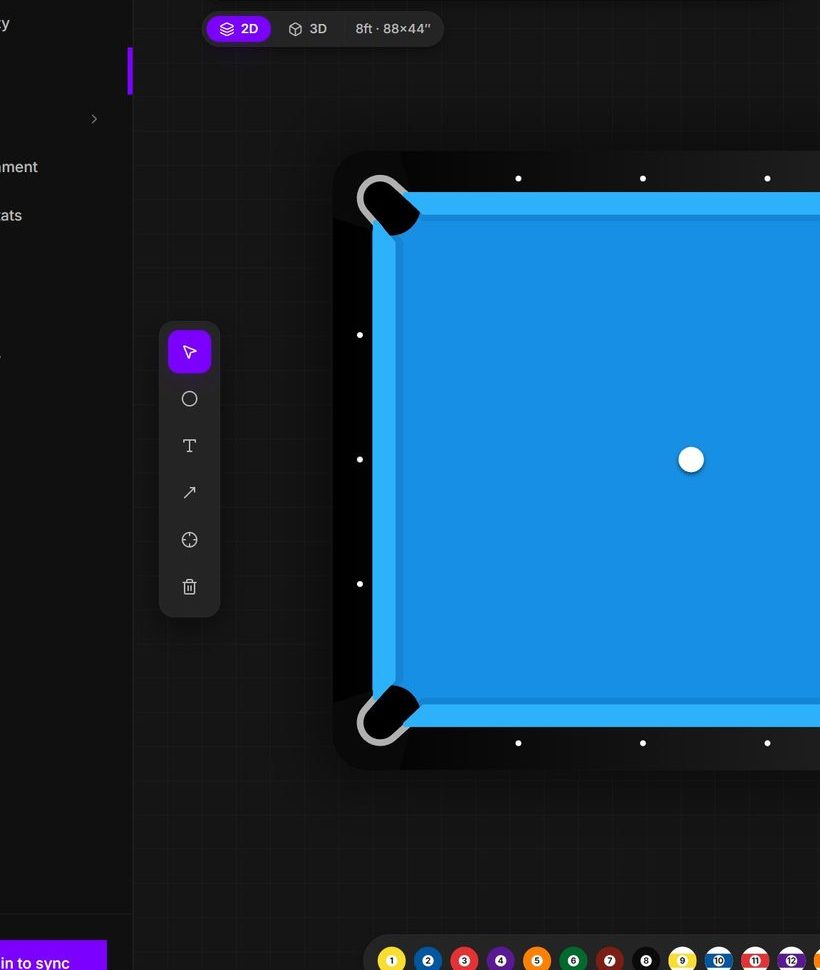 Select, zones, text, arrows, cue references, erasing, 2D/3D, and the ball palette stay around the live table canvas.
Drill types
| Type | What it is |
|---|---|
| Standard | Fixed ball layout with per-ball pocket objectives and optional cue-ball landing zones. The workhorse — most drills are Standard. |
| Wagon wheel | One object ball, one target pocket, but the cue ball cycles through cardinal zones each round. |
| Snooker drill | Per-round layouts with an object ball and blocker (snookering) balls — one layout per round. |
The wagon-wheel type adds a Wheel zone (W) tool for its cue-ball zones; snooker drills author one layout per round.
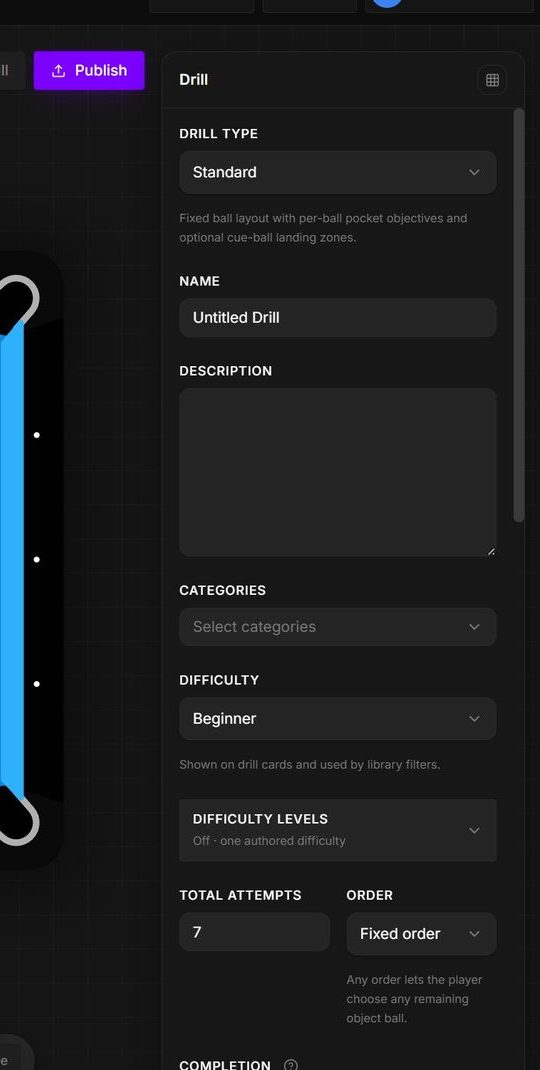 The inspector changes its available controls with the selected drill type.
Drill settings
In the right-hand inspector:
- Name, Description, Categories, Difficulty — difficulty shows on drill cards and drives library filters.
- Total attempts / Streak target / Successful plays / Layout plays — the round count; its label follows the completion mode. In attempt-budget mode it is locked to the layout schedule.
- Order — Fixed order or Any order (the player chooses any remaining object ball).
- On a miss (Standard drills) — Count it, Repeat the layout, or Start over (see Drills for how each plays). The length field follows it: Attempts, Makes to finish, or Streak to finish.
- Placement levels — one switch. Under Repeat the layout the levels are attempt budgets: the lowest enabled level is earned by finishing the drill, every higher level is the most attempts a full clear may take (at least the number of layout plays, shrinking up the ladder), and the editor suggests 3×, 2×, 1.5× and 1× the layout count. Under Start over the levels are a streak ladder, longer up the ladder. Under Count it placement is off: a score out of N is not a pass/fail. Turn on Leaderboard run instead to rank players by score: every shot counts, the run is the drill's attempts with no levels, and most made wins, with ties going to the faster time. Snooker and wagon-wheel drills have no miss-rule picker: their levels are always attempt budgets, counted over their layouts or zones.
- Layout schedule (when you add more than one layout) — Rotate (1 → 2 → 3 …, cycling) or Per layout (each layout gets its own Plays count and runs as a block).
- Visibility — private, unlisted, or public (see Sharing below).
- Official drills — the bundled FusionCue drills fork on edit for everyone except the account that owns their listing; that account edits them in place, and each save publishes the next revision to every rig.
Name, description, categories, difficulty, attempts, order, and completion rules live in one scrolling inspector.
Per-layout settings (Standard)
- Zone scoring — Strict requires both the object ball and its cue-ball landing zone; missing the zone scores no point. Lenient still credits the pocket when position is missed.
- Cue ball between rounds — Reset to start, or Play from where it lies: after a success the cue ball keeps its final position and the next round starts from there (Yo-Yo / Terrific Three style); a miss resets to the authored start.
- Respot timing — After each shot, or Anytime: pocketed respot balls can go back whenever convenient.
- Single stroke — every object ball with a pocket must drop on the same shot: caroms, combinations, two-ball shots. Making only some of them fails the round. (Without this setting, several balls dropping on one stroke are all credited and the round simply continues with whatever is left.)
- Layout description — notes the player sees in the How-to-play card.
Per-object settings
Every ball has a precise position and pocket objectives; zones tie to a ball and define what the cue ball must do; text, arrows, and the cue-ball reference have styling options (width, alignment, color, arrowheads, hit point).
Selecting a ball, zone, text layer, arrow, or cue reference replaces the drill inspector with that object's precise controls.
Blocker balls. A ball with no pocket objective is a blocker: it has to be placed every round, it is never a target, and pocketing it fails the round. Use blockers to force a stun, a kick, or a jump, or simply to make a position drill realistic — two balls sitting in the natural follow line, for example. Wildcard (any-ball) slots can be blockers too. Every Standard layout still needs at least one ball with a pocket objective so the drill can score; the editor won't save a layout that is blockers only.
Show cue ball path. Select an object ball and turn on Show cue ball path to author where the cue ball should go after the shot. Pick a hit point on the cue-ball face (the same dots as the in-game cue ball: the centre is a natural roll, just below centre is stun, the bottom is draw, above centre is follow — the dropdown adds half follow and half draw steps between them), choose side english and how many rails to draw, and the editor previews the path in purple on the table. During play, the path appears on the table the moment a round reaches that ball — computed from the live ball positions with the same engine, so what you preview is what the player sees. The option is only available for balls with exactly one pocket objective in a fixed-order drill (any-ball slots included); it is greyed out (with the reason) for multi-pocket balls, any-order drills, snooker, and open practice.
Testing your drill
The 2D and 3D canvases update live as you edit, including authored cue-ball paths and the score display. In the app, Play Drill saves your changes and opens the same Before you play dialog as the library, where you choose Solo, Local, or Internet play plus attempts, layout order, and multiplayer shot clock.
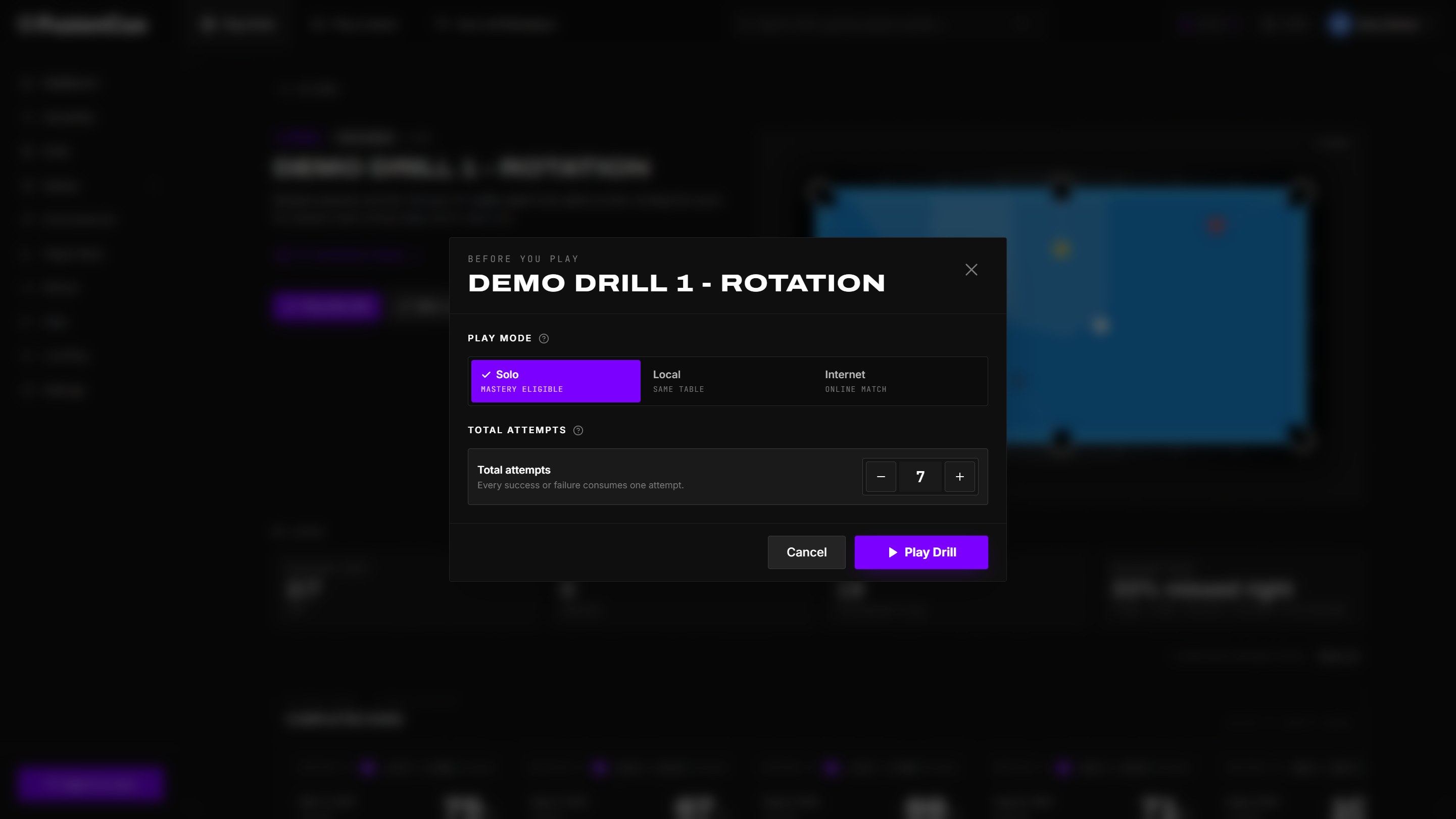 The launch dialog keeps play mode and the drill's active challenge target together before anything starts.
Your drills appear in the library immediately. Edits you make later apply to your copy; if you edit a system drill or someone else's imported drill, FusionCue automatically saves your changes as your own copy so the original stays intact.
Sharing drills
Click Publish in the editor (in-app):
- Public — anyone can find it in the Community library and play it.
- Unlisted — only people with the share link can open it.
- Remove from Community — removes it from browse, search, and share links; existing local copies remain playable and attributed.
Publishing gives you a share link (fusioncue.com/drill/…) — the share
page shows the drill diagram and opens it in the recipient's app.
The publish dialog tracks your published version and how many players have
picked it up. Updating is one click: Update published.
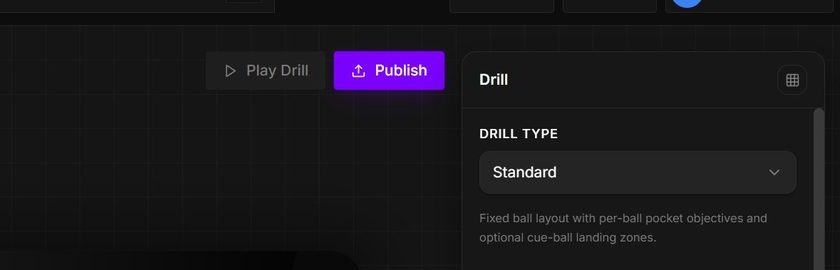 Play and Publish stay pinned above the editor so the authored layout remains visible during the handoff.
You can also use Remove from Community directly on your own card in the Community library. When deleting the local copy of a published drill, FusionCue asks whether to remove it from this device only or from Community + this device. Removing a Community listing blocks new downloads but never revokes copies that other players already installed; those copies remain playable in solo, local, and internet multiplayer.
Publishing new drills and downloading community drills are part of the FusionCue membership; drills you've already published stay manageable even if the membership lapses, and your drills always stay on your machine either way.
On the web editor, the switch next to the save button chooses how the drill goes out. Public is a submission: it goes to FusionCue's review queue and gets approved into the Community library. Unlisted skips the queue: the drill is live at once for anyone with its link, and never shows in browse. A drill that is already public stays public on the web (use Remove from Community in the app to change that).
Use your drills on another computer
A drill you build is saved on the computer where you made it. Nothing syncs to your account by itself. To use one on another PC, such as the one at your table:
- Make it Unlisted: Publish → Unlisted in the app, or the Unlisted switch in the web editor.
- On the other computer, sign in and open My Drills (or the share link) and choose Open in FusionCue. The drill opens in the app, where you add it to your library.
- When you change it later, click Update published in the app (or save again on the web). The other computer picks up the new version the next time FusionCue starts.
Opening a published drill in the app is part of the membership, same as
publishing from the app. Each drill is also one .json file in
%APPDATA%\FusionCue\drills; copying that file into the same folder on
another computer adds it to that library with no account involved.