Installation
Download FusionCue, sign in, choose your plan, and get the runtime installed — online or fully offline.
FusionCue is a Windows 10 / 11 (64-bit) desktop app. There's no macOS or Linux version, and no mobile app required — an optional phone or tablet remote runs in your browser.
Before you install — make sure your room is ready: an overhead camera that sees the whole table, a projector aimed at the cloth, and a PC that meets the requirements on the Get Started guide. Not sure what to buy? The guide asks your table size and the height from the table top to the ceiling, then picks your camera (Logitech MX Brio for standard ceilings, or the SVPRO / ELP 4K camera with the H110 lens for low ones). Select H110 in the linked AliExpress listing; its other lens options are not this recommendation. Both cameras are FusionCue verified. The guide also lists the short-throw projectors that cover your table. The computer-vision engine runs on DirectX 12 graphics that meet the PC floor below. Intel UHD, Iris Xe and older Ryzen Vega graphics do not. On an NVIDIA card with 6 GB or more, FusionCue also downloads an optional GPU graphics pack (about 2 GB) that renders the projected cue-ball trails and landing zones on the GPU, so they stay smooth while you record. It installs by itself; see Settings → Runtime.
PC floor: Windows 10/11 64-bit, a six-core Core i5/Ryzen 5-class CPU, 16 GB RAM, an SSD with 10 GB free, two display outputs, and graphics at the floor: Radeon 680M/780M-class, Intel Arc, or a dedicated GPU (GTX 1650 / RTX 3050 / RX 6400 or better). Intel UHD, Iris Xe and older Ryzen Vega graphics are below it: ball tracking runs at about 4 fps there, with lag, missed balls and false scratches (details). We recommend 32 GB RAM (two sticks) with a Radeon 680M/780M, or 16 GB with a dedicated RTX GPU. The Get Started guide lists current verified options and prices.
Already own a PC? Choose Will my existing PC work? under the system requirements. The text-only hardware advisor gives you a read-only PowerShell command, compares the four output lines with measured FusionCue rigs, and recommends the smallest useful upgrade. A free account is required to prevent automated abuse of the AI service.
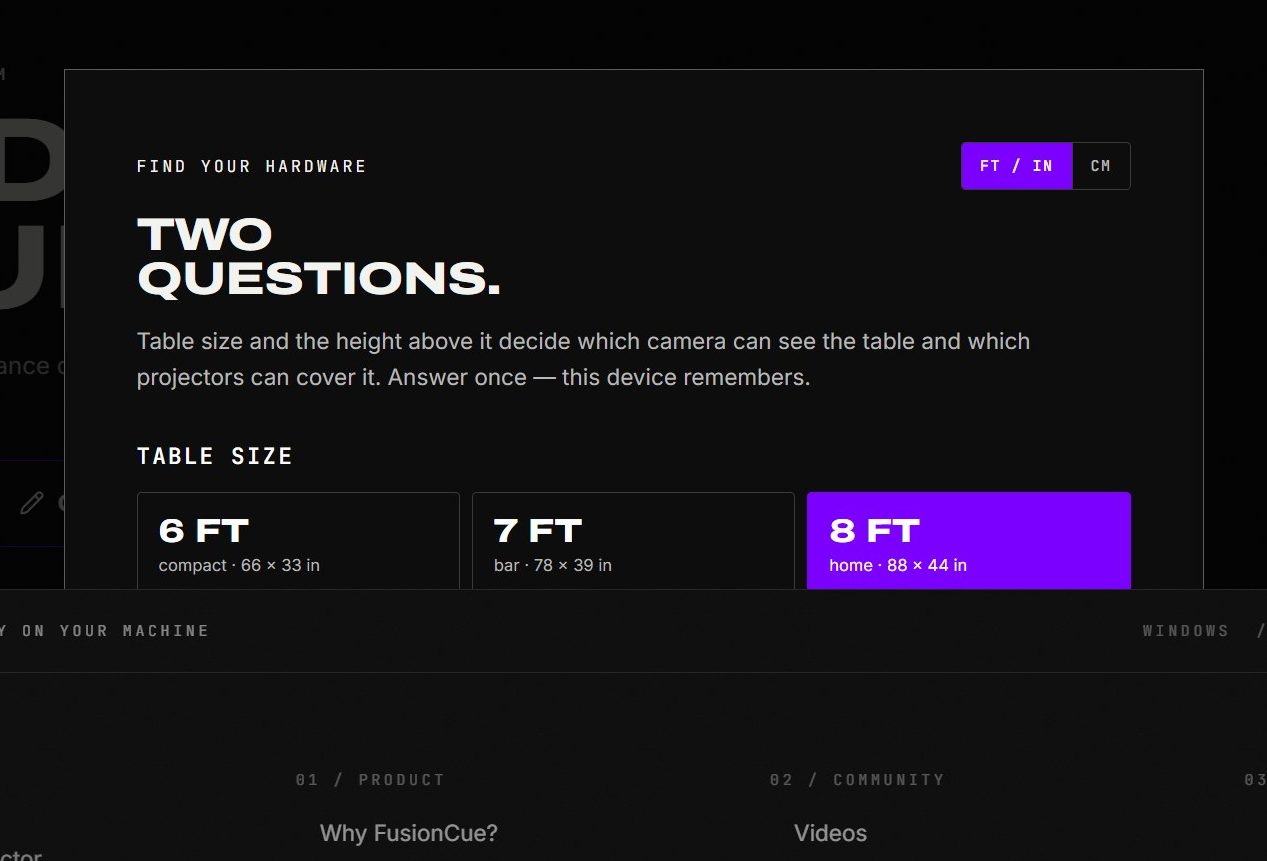 Get Started narrows camera and projector recommendations from the room you actually have.
Download and first launch
- Grab the installer from the download page and run it.
- Windows may show a blue "Windows protected your PC" box (SmartScreen) the first time. That's normal for a new app that hasn't built up a reputation with Microsoft yet. Click More info, check that the publisher reads Gary Simon, then click Run anyway. If you don't see a Run anyway button, the installer file may still be marked as downloaded — right-click it, choose Properties, tick Unblock, and run it again.
- On first launch the app downloads its vision runtime automatically —
about 2 GB, usually 5–20 minutes. Leave the app open and online until it
finishes; it's a good moment to unbox the projector and find the HDMI
cable. The runtime is split into three parts you can see under
Settings → Runtime:
- Backend runtime — the server that powers the app window. Downloads first; the app waits for it before showing the UI.
- Gameplay runtime — shot detection, tracking. Required to play a session.
- Diagnostics runtime — calibration wizards and vision diagnostics. Required for the setup flows.
- Runtime downloads are content-addressed: future updates only transfer files that actually changed.
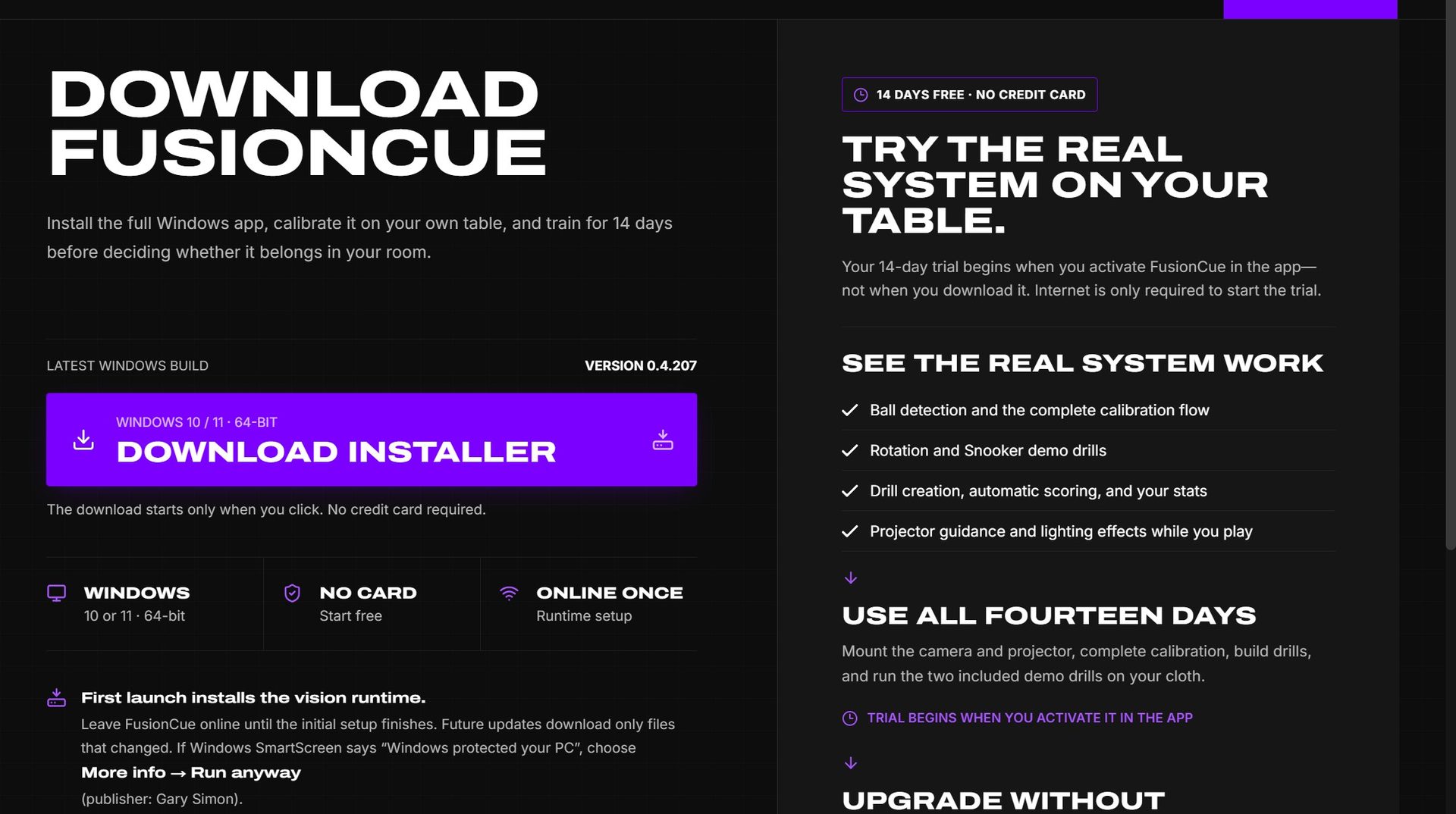 The download page keeps the signed Windows installer, requirements, and first-launch notes together.
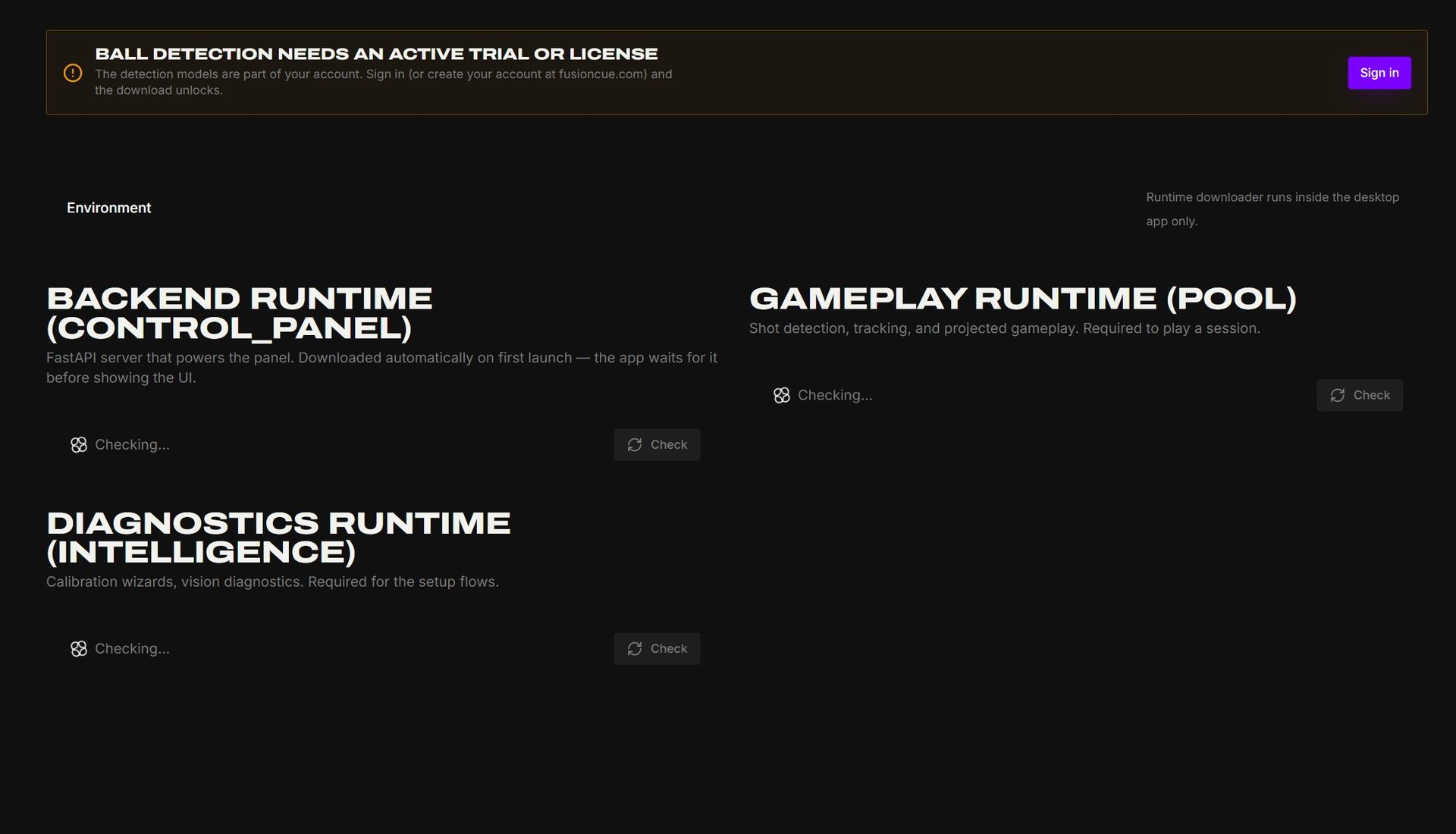 Settings → Runtime shows the backend, gameplay, and diagnostics packages independently.
Smart App Control (some Windows 11 PCs) can block part of the runtime with a message mentioning WinError 4551. Open Settings → Runtime and let it update; if it keeps happening, ask Setup help inside the app — it knows the fix for your PC.
Sign in
Create your account at fusioncue.com, then sign in inside the app with Google, email + password, or an emailed magic link. You stay signed in on that computer.
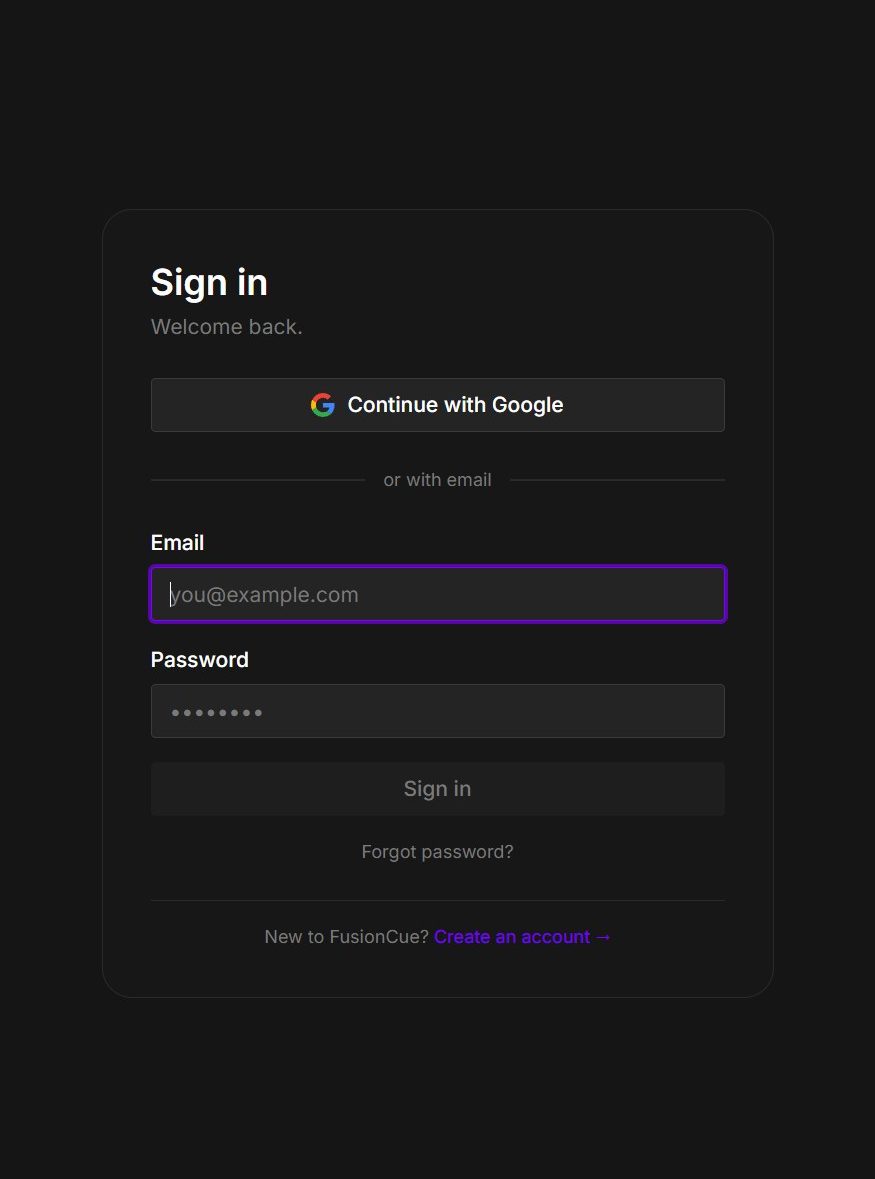 Use Google or email credentials; password recovery stays on fusioncue.com.
If you forget your password, choose Forgot password. The desktop app opens the browser-based recovery flow, and the email link returns to Set a new password on fusioncue.com. You do not need to remain signed in on the PC.
After sign-in a short setup wizard asks for your display name, your table size and make, and (optionally) your ratings. On a new table, Setup help then becomes the main screen until calibration is complete: setup rows stay on the left and the current step stays on the right. Choose Set up later if you need the rest of the app first. After calibration, the helper becomes a drawer and guides you into your first drill.
Plans: what's free, what's paid
| What you get | |
|---|---|
| Setup mode (free, no trial) | Calibration and drill creation work. No drill playback. |
| Free 14-day trial | Unlocks the ball-detection download your camera needs, plus a small set of trial drills — the drill library lists them first with a Free trial tag; the rest show Locked until you buy. No credit card required. |
| Full-access rent-to-own | Everything while the subscription is active. Eligible cash payments count toward the perpetual offline license threshold. Canceling pauses connected access without erasing earned credit; the final ownership payment is reduced to the exact remaining balance. |
| Perpetual offline license | The full offline experience: drill library, games, local multiplayer, recording, and lighting. It does not require an ongoing subscription. |
| Owner-connected service | Perpetual-license holders can add internet multiplayer, community, publishing, and other connected services at the lower owner rate. Canceling connected service does not affect the offline license. |
Current prices, the active terms version, and any featured promotion are shown on the live pricing page. FusionCue is in early access: it has not reached version 1.0, and the purchase page says so before checkout opens.
Note — the ball-detection models only download once your trial or license is active. If Settings → Runtime shows "Ball detection needs an active trial or license", start the trial (or sign in) and the download unlocks automatically.
Online installs (the normal path)
Buy from inside the app (Settings → Billing) or at fusioncue.com/buy. If you're signed into the app, Upgrade, Buy, and Account links open the website already signed in. The app updates automatically once checkout confirms. Your license is tied to your account — on a new machine, just sign in and click Re-download license to this machine under Settings → Billing. If a settled payment is later refunded or disputed, existing offline installations remain usable, but connected access, re-downloads, and hardware rebinds pause until the payment deficit is resolved.
Connected service and rent-to-own billing are managed the same way. Settings → Billing shows ownership credit and the exact remaining balance. It opens Billing & purchases on the website for plan status, purchase history, receipts, and invoices. Stripe portal updates cards or cancels the membership.
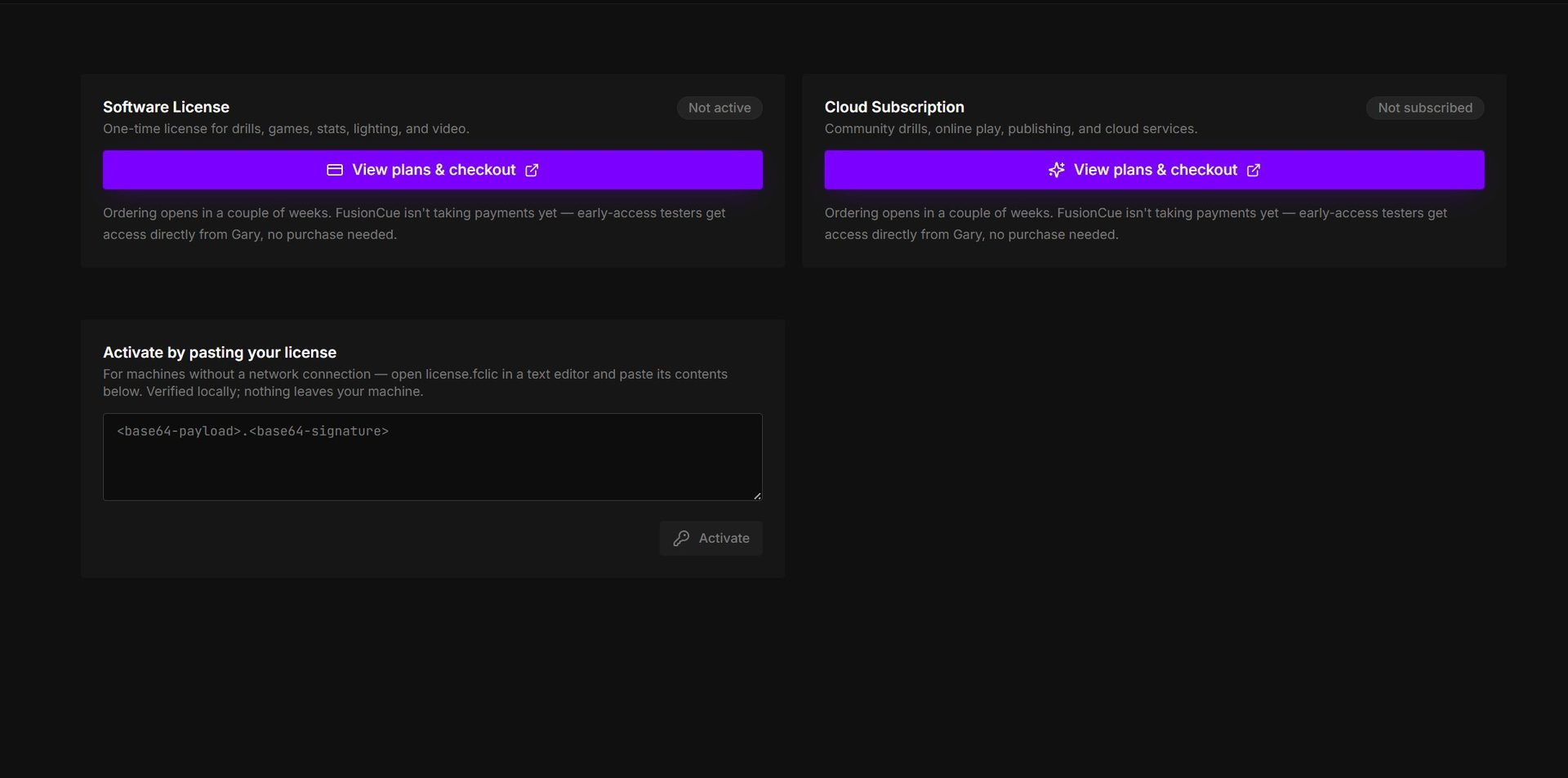 Settings → Billing keeps cloud status and offline activation in one place.
Offline installs (no internet at the table)
FusionCue's license works fully offline. If the PC at your table has no connection:
- From any connected device, sign in at fusioncue.com with the same account and purchase the license.
- Download your
license.fclicfile from the account page. - Bring it to the table PC (a USB stick works), open it in a text editor, and paste its contents into Settings → Billing → Activate by pasting your license, then click Activate.
The license is verified locally — nothing leaves your machine. Two caveats for offline rigs:
- The 14-day trial requires internet — there is no offline trial path.
- The initial runtime download also needs one online session. Install and let the runtime finish downloading somewhere with internet first if your table location has none.
Membership features (online play, community drills, YouTube on the table) naturally need a connection — everything the offline license covers, including drill playback, games, scoring, and recording, runs entirely on your machine.
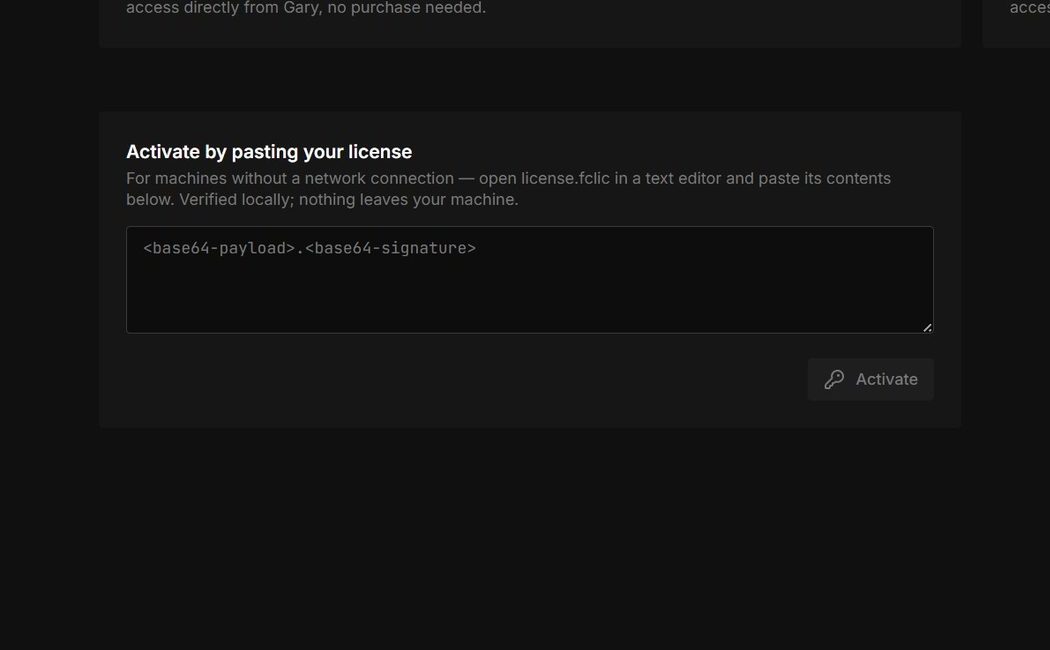 An offline table PC verifies the signed license locally; the activation area never needs the table to reach FusionCue.
Starting your first session
The dashboard's Play now button runs a pre-flight check — camera, projector display, calibration, and no conflicting camera apps — and then boots the session (5–8 seconds: opening camera, loading models). If anything's red it links you straight to the fix (Settings → Hardware or Settings → Calibration). Before your first session you'll need to calibrate.
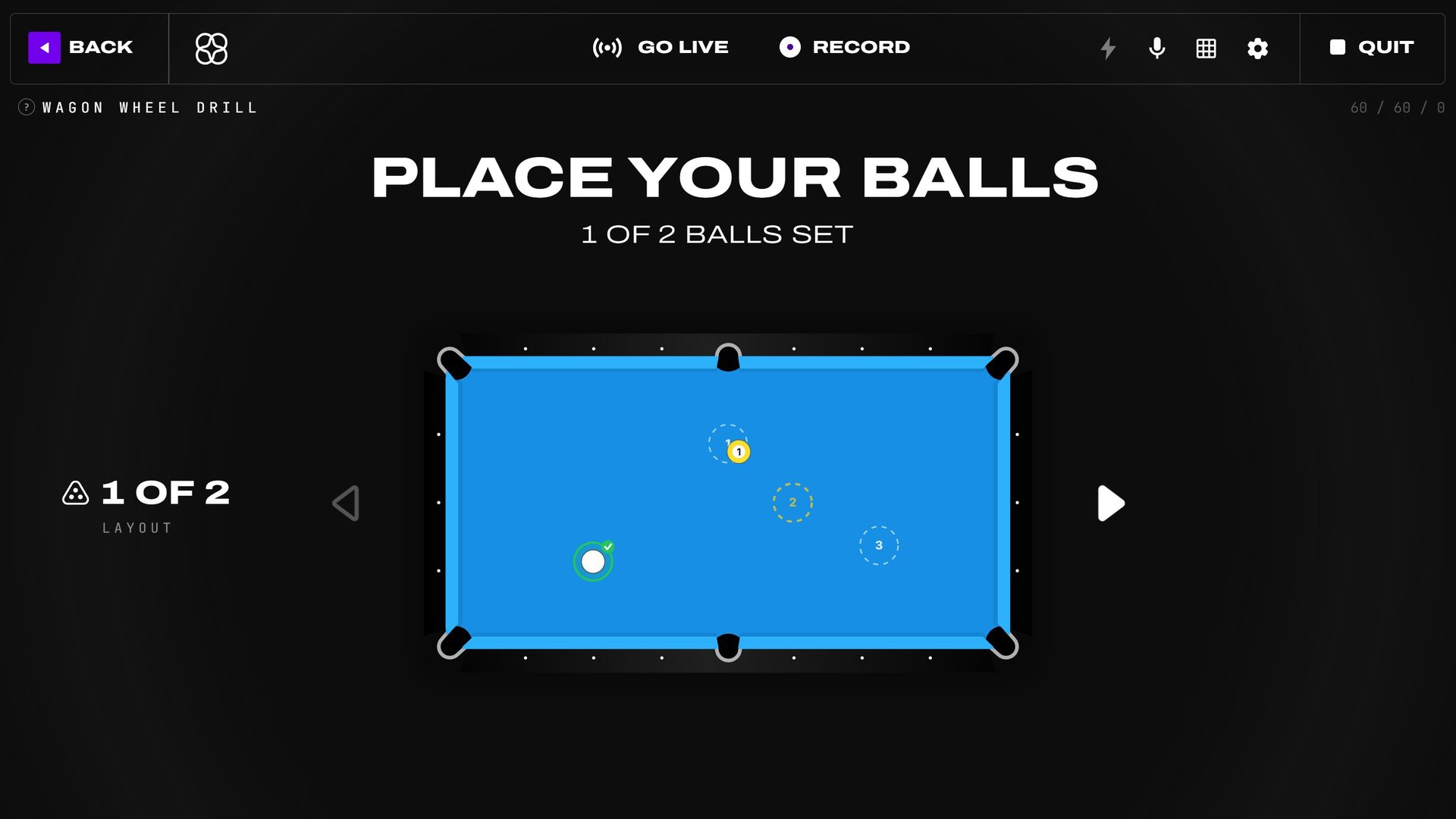 The first session begins with projected placement targets and a live setup count.
Updates
FusionCue checks for updates on launch and offers them under Settings → About, where you can also view version history and roll back or forward. Runtime updates appear under Settings → Runtime with an Update button and install in the background.
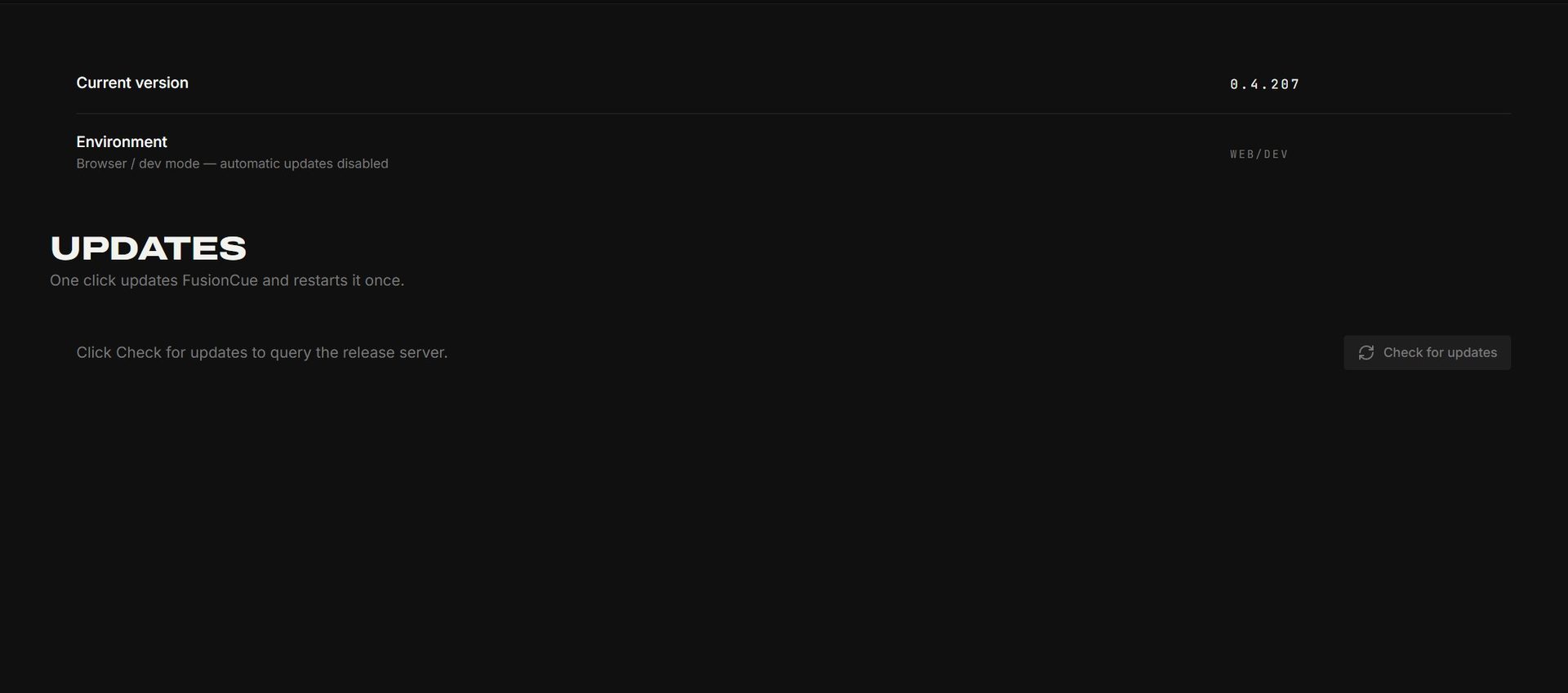 Settings → About checks for app updates and keeps version controls visible.