Drills
The drill library, every session setting explained, the play screens, and local + internet multiplayer.
Drills are structured practice: a fixed ball layout (or several), a goal, and automatic scoring. Choose Play Drills from the app header or open Drills in the sidebar — both lead to the same library, whether a table session is already running or not. Filter by category and skill level, or switch to the Community tab to pull in drills other players published. Tap the heart on any drill card to add it to Favorites, the last tab in the library; favorites are per player profile and also appear on the phone remote.
When a table session is already running, the library shows Session running. Choosing Play loads that drill into the existing camera and projector session instead of starting another one.
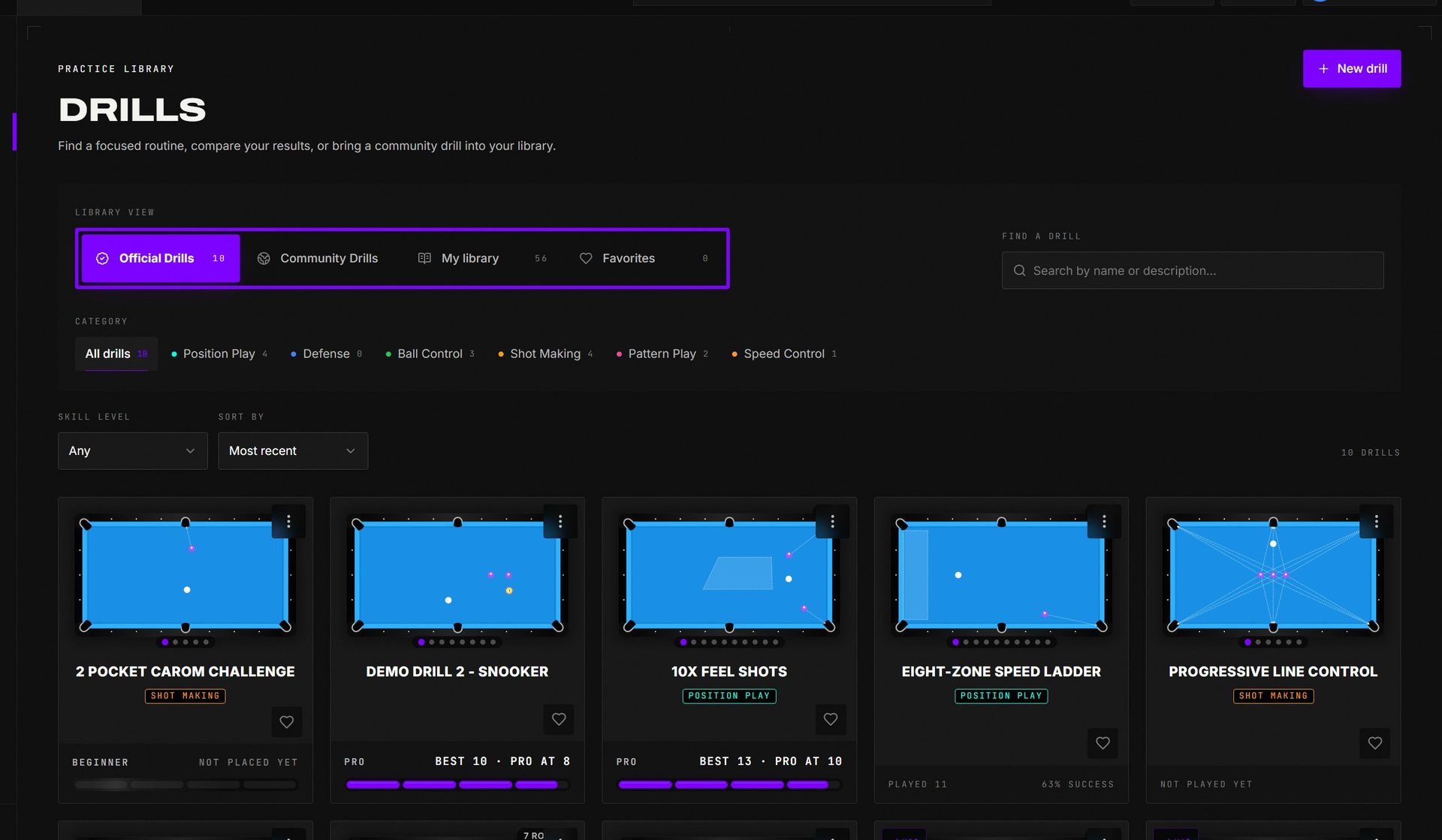 Official, Community, personal, and Favorite tabs share the same search, category, skill, and sorting controls.
Before you play: drill configuration
The drill page shows the essentials — name, description, the table preview (with layout-pager arrows on multi-layout drills), and PLAY. Drills recreated from a coach's video credit them under the description: Drill by the creator, and Watch on YouTube opens the video where the drill is explained. The settings dialog always shows Solo, Local, and Internet when the drill supports them. A mode your current plan does not include stays visible with a lock; select it to see which plan unlocks it. Local multiplayer needs a FusionCue license or full-access plan, while Internet play needs the Connected plan. The rest of the dialog gives each option a ? that explains it:
- Your levels (when authored) — Beginner, Intermediate, Advanced and Pro are shown, not chosen: the cards tell you which you've mastered and which is next. A run earns every level it beats — on a streak drill the run goes to the top streak and every level at or below your best streak is credited.
- Target streak / Total attempts / Successful completions — 1 to 500, measured in whatever the drill's completion mode counts: attempts, target streak, or successful completions. Changing a named level's target switches the play to Custom. Attempt-budget drills have no custom target: every level plays the whole drill, and the level you pick is the goal shown on the table.
- Layout order (multi-layout drills only) — Creator default, Sequential, or Random.
- Shot clock (multiplayer only) — Off / 15s / 30s / 45s / 60s.
The launch button sits pinned at the bottom of the dialog, so it's always in reach no matter how many settings a drill has.
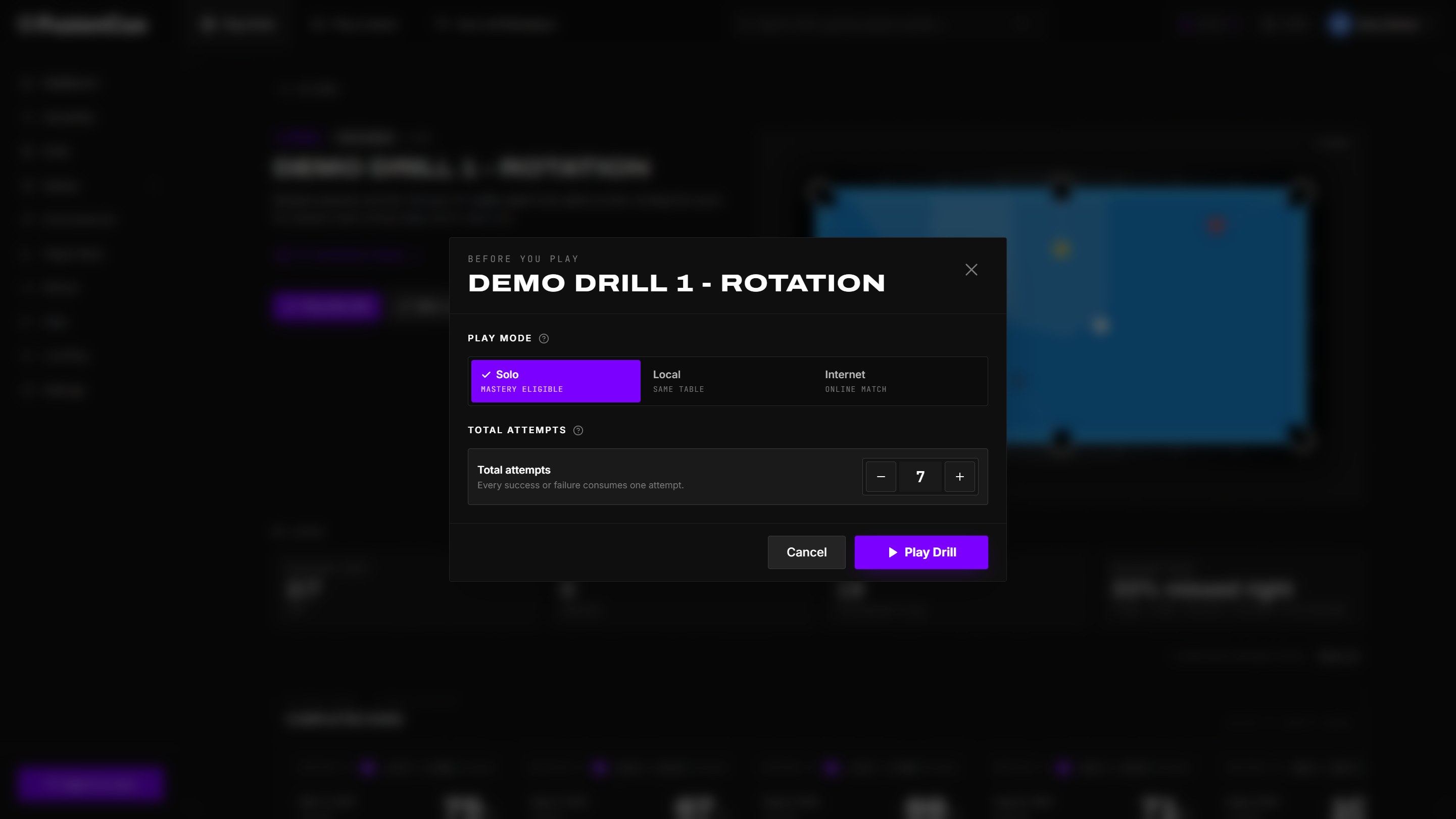 Choose Solo, Local, or Internet and set the challenge before FusionCue opens the camera.
Difficulty levels and mastery
Named levels share one drill's layout and rules; only the challenge target changes. Library cards show the available levels and your best progress toward each one. A checkmark means you have conquered that level under its current target. To start a drill over from scratch, open the card's ⋮ menu and choose Reset progress: it clears your attempts, best results and earned levels for that drill on this device; the drill itself stays.
Only a completed solo play launched through a named level can conquer it. Custom targets and local/internet multiplayer still appear in history, but do not award mastery. If an author changes one level's target, only that level's mastery resets; adding another level does not erase existing achievements.
Attempt-budget drills place you instead of asking you to pick a length. You must make every layout to finish (a miss repeats the layout and costs one attempt). Finishing at all earns the lowest level; each higher level is a budget, the most attempts a full clear may take, and one clear earns every level whose budget you beat. The table shows your attempts against the level you chose and steps down to the next reachable level if you pass its budget. Jumping to another layout by hand keeps the run going but drops it from placement, so the app asks first. Cards and ladders read lower-is-better here: "BEST 14 · PRO AT 10". Snooker and wagon-wheel drills use attempt budgets for every level: a failed snooker or a missed zone repeats it and costs one attempt, so a Pro budget equal to the layout count means one clean shot per layout.
A How to play card opens automatically before unfamiliar drills (and any time from the ? chip next to the drill name). It summarizes the layout schedule, completion rule, ball order, and any layout notes from the drill's author — plus the golden rule: stay clear while placement markers confirm, and shoot only after SHOOT appears on the table.
How placement runs and progress work
Under the hero of every drill with levels sits the level ladder: one segment per level (Beginner, Intermediate, Advanced, Pro) with its requirement underneath — Finish drill and an attempt budget on attempt-budget drills, a streak length on streak ladders. The purple fill is your best run on this drill:
- A level you've cleared fills completely.
- The next level fills with how close your best run is — on a budget drill, its budget divided by your best clear (a 24-attempt clear fills the 20-attempt rung to 83%); on a streak ladder, your best streak divided by its target.
- Levels beyond that stay empty until you reach them.
- The tag above the fill is that best run: 24 attempts or 12 in a row.
Any solo run in the creator's way or Training counts toward the ladder (the launch picks the level for you: the next unmastered rung on budget drills, the top rung on streak ladders, and a run earns every level it beats). A placement run is the same play, timed and recorded, and it is what posts your level to the public leaderboard — so the ladder can move from your own practice, but the board only moves from placement runs. Your best leaderboard run counts toward the ladder as well, so a placement level shows even on a fresh install. Resetting a drill's stats clears the local half of this; placement runs and the leaderboard are untouched.
Placement runs and the leaderboard
A drill with levels can be played as a placement run: pick Placement run in the launch dialog and the drill plays exactly as authored, with the layouts shuffled, and places you at whatever level your clear earns (attempt budgets) or your best streak reaches (streak ladders). A budget drill ends the moment every layout is cleared; a streak ladder ends when you reach the top level's streak (or after twice that many attempts).
- Part of the cloud subscription. Placement runs and the public leaderboard need connected membership; Training and the creator's way stay open to everyone.
- Three tries a day per drill for each profile, nine a day per account across all its profiles, and up to ten different drills a day per account. A try is spent the moment the run starts — quitting early still counts, and the dialog says so before you begin. The launch dialog always shows how many tries you have left.
- Profiles are people. Up to five profiles on an account can hold leaderboard entries; playing several profiles yourself is against the terms and gets runs flagged and removed. Only a profile's current best run on a drill keeps its video public — when you beat it, the older video goes unlisted and is deleted after 30 days.
- Count this run on the public leaderboard is on by default. The overhead camera starts recording and the clock starts the moment your first layout's balls are set, so every entry on the board comes with proof. Switch it off and the run still places you — privately; it just never appears on the board.
- Deleting a run. The menu on your own card or row removes it from the board for good and unlists its video; the day's try stays used. Admins can remove any run.
- After each finished run you choose which of today's tries to submit (one per day), keep trying while tries remain, or submit none. The submitted run's video is published to the community feed, where comments live.
- The leaderboard sits at the top of the drill page: the top 20, ranked by level, then attempts (or streak), then time, with the table size each run was shot on and a filter for 7 ft / 8 ft / 9 ft / snooker tables. If you're outside the top 20 your own row is pinned beneath with your true rank. My placement runs lists every try you've taken with its full result.
- Watch opens the run's video and comments. Flag reports a run (cheating, manual corrections, wrong drill); three flags from different players hide it until an admin reviews it. Manual score corrections during a run don't disqualify it, but the count is shown on the row.
Drill of the Day
The dashboard's right-hand column opens with the Drill of the Day: one featured drill, and a new one each day. It shows the table setup with the drill's name and description, and under it the top of that drill's placement ladder: rank, player, level, attempts (or best streak) and time, with Watch on each run. Your own run is highlighted, and the headline above the button says where you stand.
Start placement run gets the drill if you don't have it yet and opens its placement launcher. It's a normal placement run, with the same rules, daily tries and cloud-subscription requirement as above.
How a drill is played
Every drill has a miss rule and a length:
| On a miss | What happens | Length means |
|---|---|---|
| Count it | It counts and you move on. | N attempts; your score is your makes. |
| Repeat the layout | You replay the same layout, no penalty. | N makes to finish. |
| Start over | Back to layout 1 with the streak at zero. | N in a row to finish. |
Some drills also carry placement levels (Beginner → Pro). Under Repeat the layout each level is an attempt budget: clear the whole drill, and the fewer attempts it took, the higher you place. Under Start over each level is a streak to finish, longer up the ladder.
Play it your way
The launch dialog opens on Training: pick the miss rule and the length for this run. Keep the creator's rule on a drill without levels and it counts like any solo run; change the rule (or skip a drill's levels) and it's kept in your history as a training run that never counts toward a level. Creator's way (or Placement run for a drill with levels) plays the drill exactly as authored, mastery and placement included. Placement runs always shuffle the layouts, so a level can't be earned by learning the order. Local and internet multiplayer play the creator's way.
Ball order
Any order lets you pocket the remaining object balls in whatever order you like; Fixed requires the drill's sequence.
The in-session screens
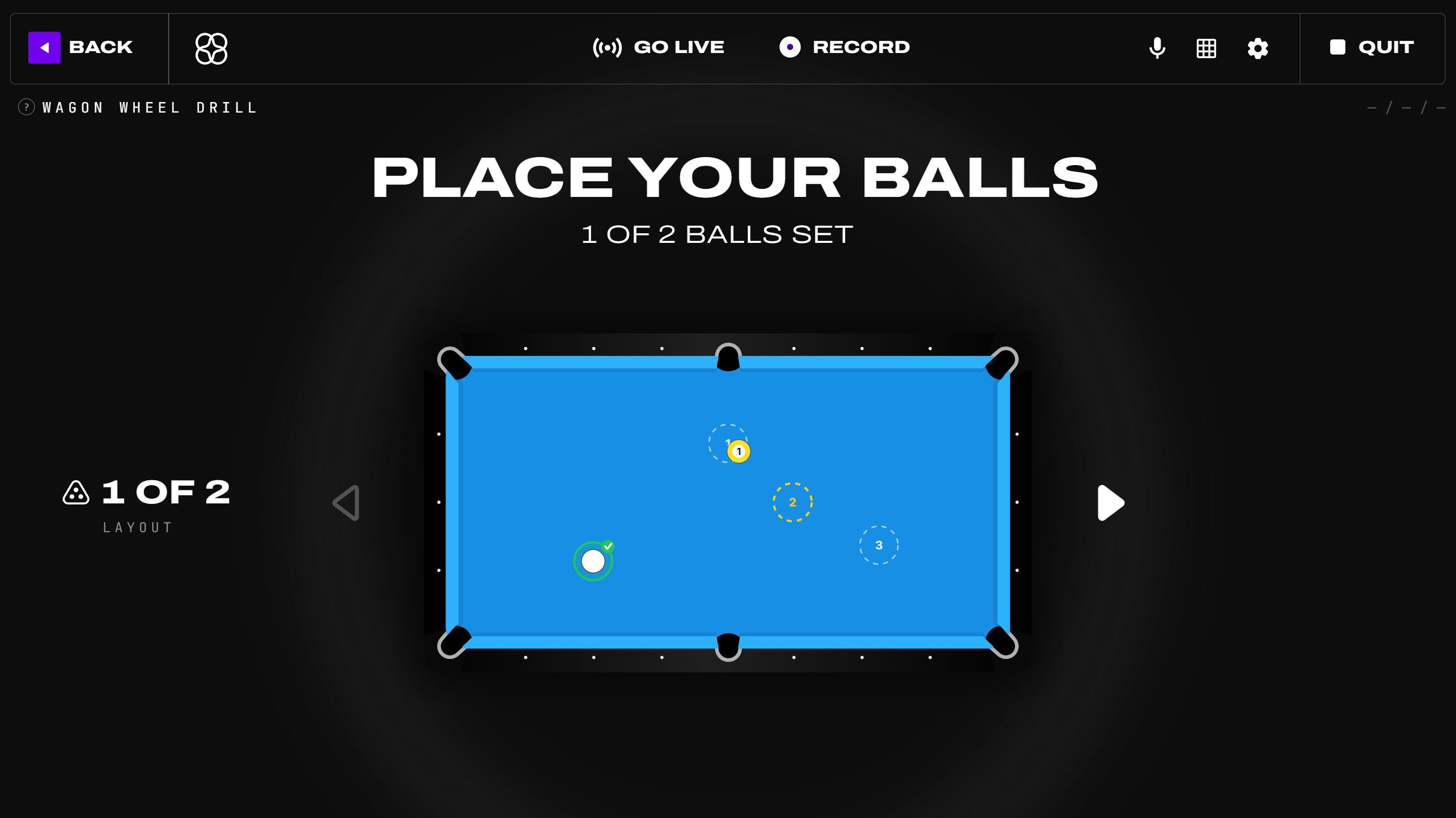 Setup: the table projects a marker for every ball; the screen tracks "N OF M BALLS SET" until the layout is confirmed.
Place each ball on its projected marker. When the layout confirms, the table flashes SHOOT and the screen switches to the attempt view. After each shot the result animation (SUCCESS / MISSED / SCRATCHED) projects onto the cloth for a few seconds along with your score — you can turn that off under Settings → Gameplay → Show post-shot result animation, or untick Result animation in the grid button's menu.
Use the eye button in the session header — or say “Hey Cue, turn projection off” (or on) — to hide the shooting graphics. Setup, respots, the shot in motion, and results stay visible; everything else goes dark once your balls are set. Hidden is a saved setting: it stays hidden on every layout, drill, and game until you turn it back on, and the eye turns amber as a reminder. The same switch is Hide while shooting under Table Projection (the grid button) and Hide projection on the phone remote. Poolseye is the exception: its bullseye is always visible and has no hide control.
To drop just one kind of graphic, untick it under Show on the table in the same grid menu: Shot line, Pocket target, Ghost ball, Landing zones, Drill arrows & notes, SHOOT! banner, or Result animation. It stays off until you tick it again, whether or not the eye is on; every game's grid menu lists the boxes for what it draws. Only the drawing goes: hidden landing zones still score, the SHOOT! sound still plays, and start signals — an online match's WAIT and GO!, LAGZONE's SHOOT WHEN READY! — always show. Setup markers and a cue-ball path you ask for always show.
Stuck on a shot? Say “Hey Cue, show me how to hit the 1” and the table draws a way to reach it; “another way” shows the next. Full run-outs are for the open table — see Instant Recall.
On multi-layout drills, click the layout counter or table minimap to open the visual layout browser; the arrows still move one layout at a time. In local multiplayer, the first player chooses during setup and that layout then stays locked for every player in the round.
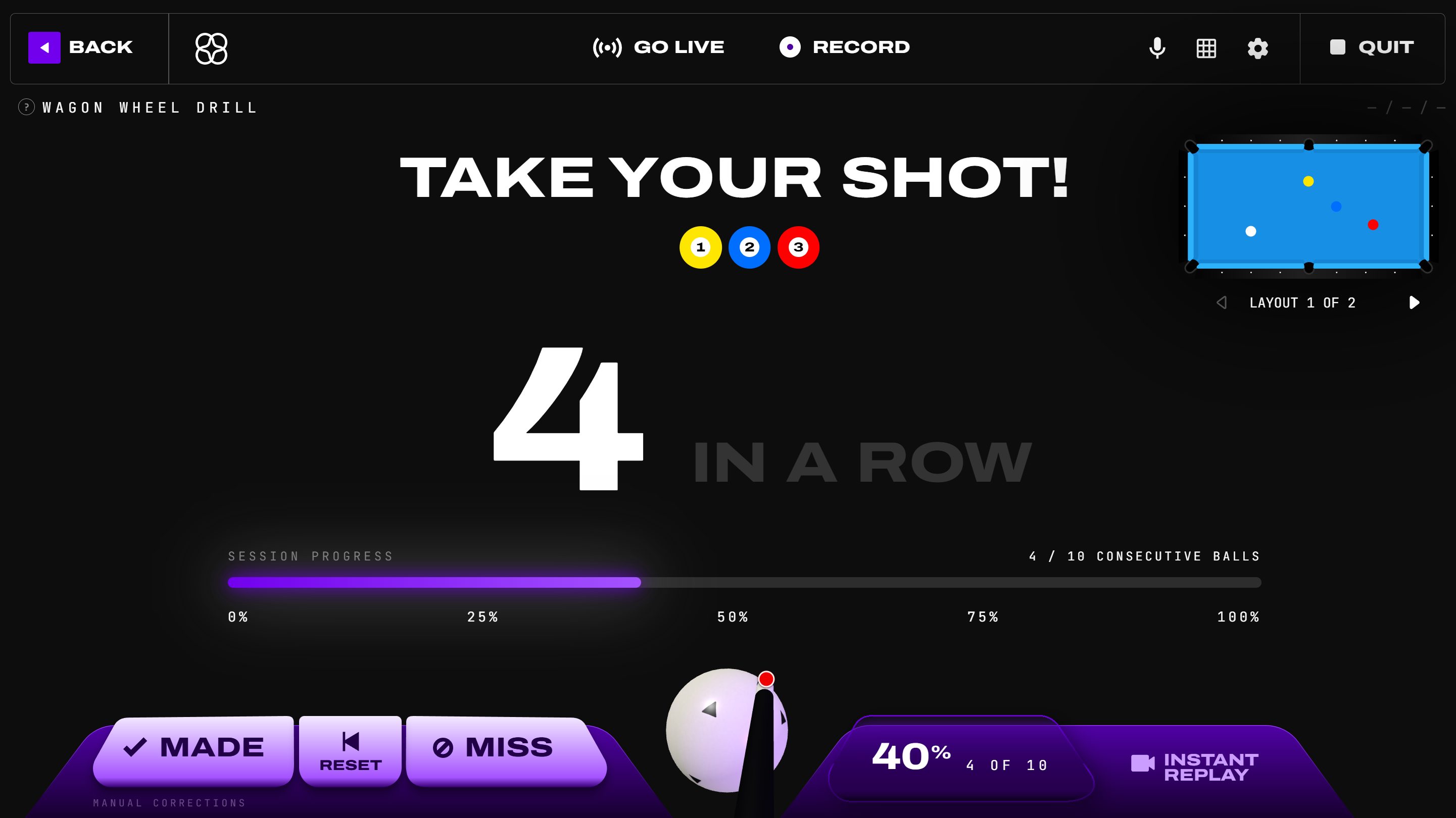 Consecutive makes earn an on-screen streak counter.
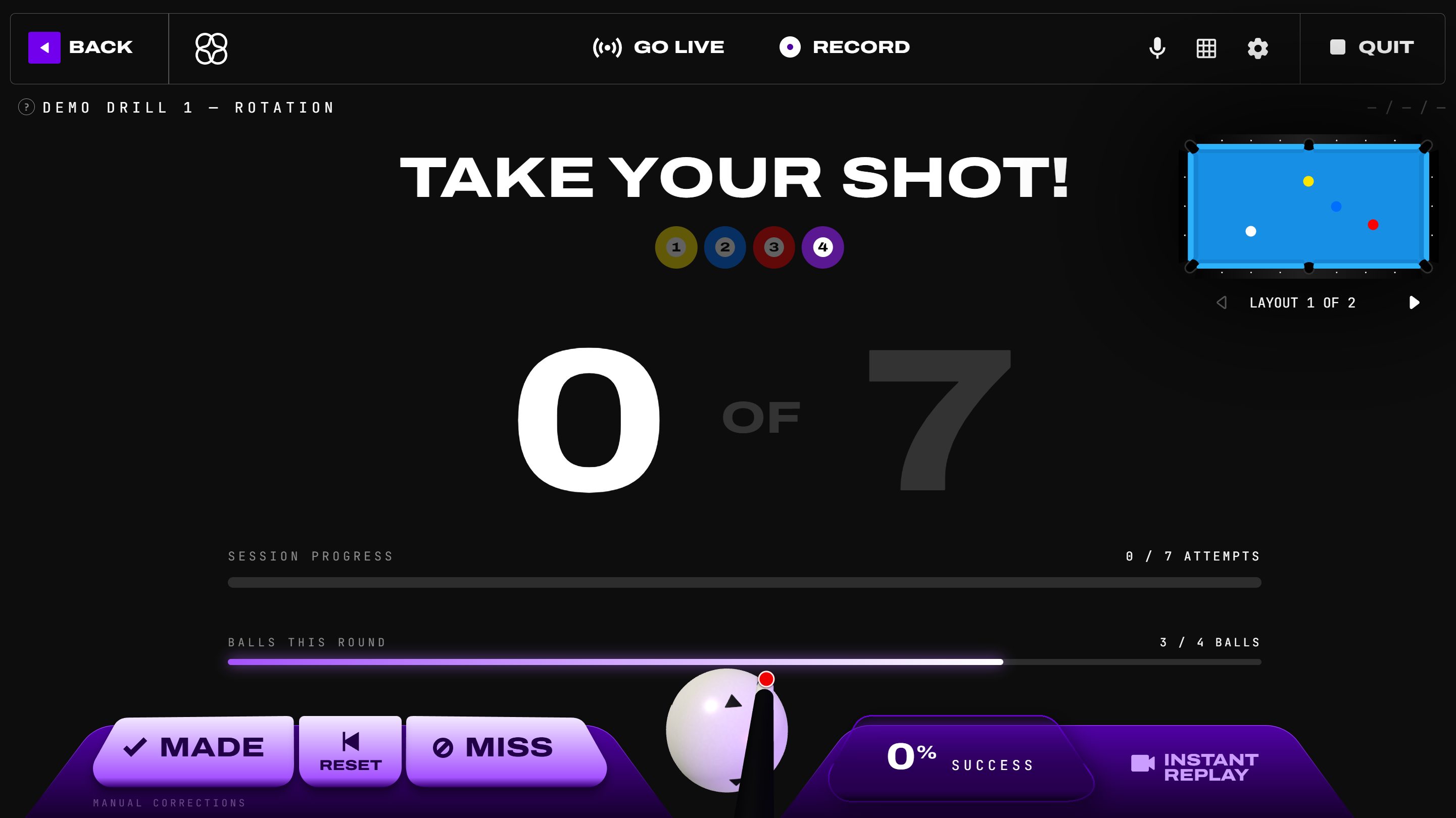 Multi-ball layouts track per-ball progress within the round as well as overall completion.
Manual corrections (MADE / RESET / MISS) sit bottom-left; a fuller corrections sidebar (Mark Made, Mark Missed, Undo Last Round, Skip Current, Start Over, End Drill) is available in the drill HUD. When the drill completes, its result screen shows BEST STREAK, SCORE, COMPLETED ROUNDS, and BALLS POCKETED (snooker drills add blocked-attempt stats). The full-screen result view removes the live header and correction docks, leaving one Back control in the upper-left. Named-level drills also show every available level, conquered progress, Replay level, and a direct Play [next level] action when another unconquered level is available.
Game Settings (the in-session cog)
The cog opens Game Settings, one page per setting — pick a page from the list on the left. Changes apply live, within a second, and are worth knowing:
- Audio & voice — the Voice commands switch (Commands on / Commands off), View command list, and Call-out: Require call-out “Hey Cue” (the default) or Open, where any command works on its own. See Voice commands.
- Shot detection — how long the table waits after a shot before scoring: Fast (0.30 s), Balanced (0.55 s, default), or Cautious (0.85 s). Fast suits machines holding full camera frame rate; Cautious adds margin if shots occasionally score while a ball is still drifting. The Fine-tune confirmation slider sets the confirmation window directly (0.20–2.00 s); Reset returns to the preset.
- Ball model — the model that finds the balls, the same list as Settings → Hardware → Ball detection model. A change loads in the background and takes over in a few seconds; detection keeps running meanwhile. In lights-out games played with the table light off (Maze, STOPSHOP, GROUND ZERO, LAGZONE), a model older than YOLOv8s v5 is swapped for v5 — the older ones were trained on lit tables — and yours comes back when the game ends. Your saved choice never changes.
- Ball matching — drills always match by position: whichever object ball you place on each marker is that slot (the cue ball must still be recognized), so an unusual ball set, cloth color, or lighting can't make a ball disappear. Instant Recall always matches exact numbers; SPEEDPOOL and lights-out games match by position.
- Cue-ball recovery — protects against a rare misread on slower machines where a hard stop shot parks the cue ball exactly where the object ball was. Auto (recommended) engages only when detection is running slowly; Always on and Off are available too.
- Shot plan graphics — how the shot is drawn on the table: a drill's paths, ghost ball, and landing zones, and the shots the shot planner shows. Choose Glow, Pulse, Sonar, Arrows, Plasma, or Original (the default). See Instant Recall.
- GPU graphics (NVIDIA cards only) — render the projected cue-ball trails and landing zones on the GPU instead of the CPU, which keeps them smooth while recording. Uses the optional GPU graphics pack from Settings → Runtime; unlike the other pages it applies at the next session start.
Settings → Hardware → Ball detection model sets the same model outside a session, and suggests a faster one if your PC can't hold frame rate with the current one.
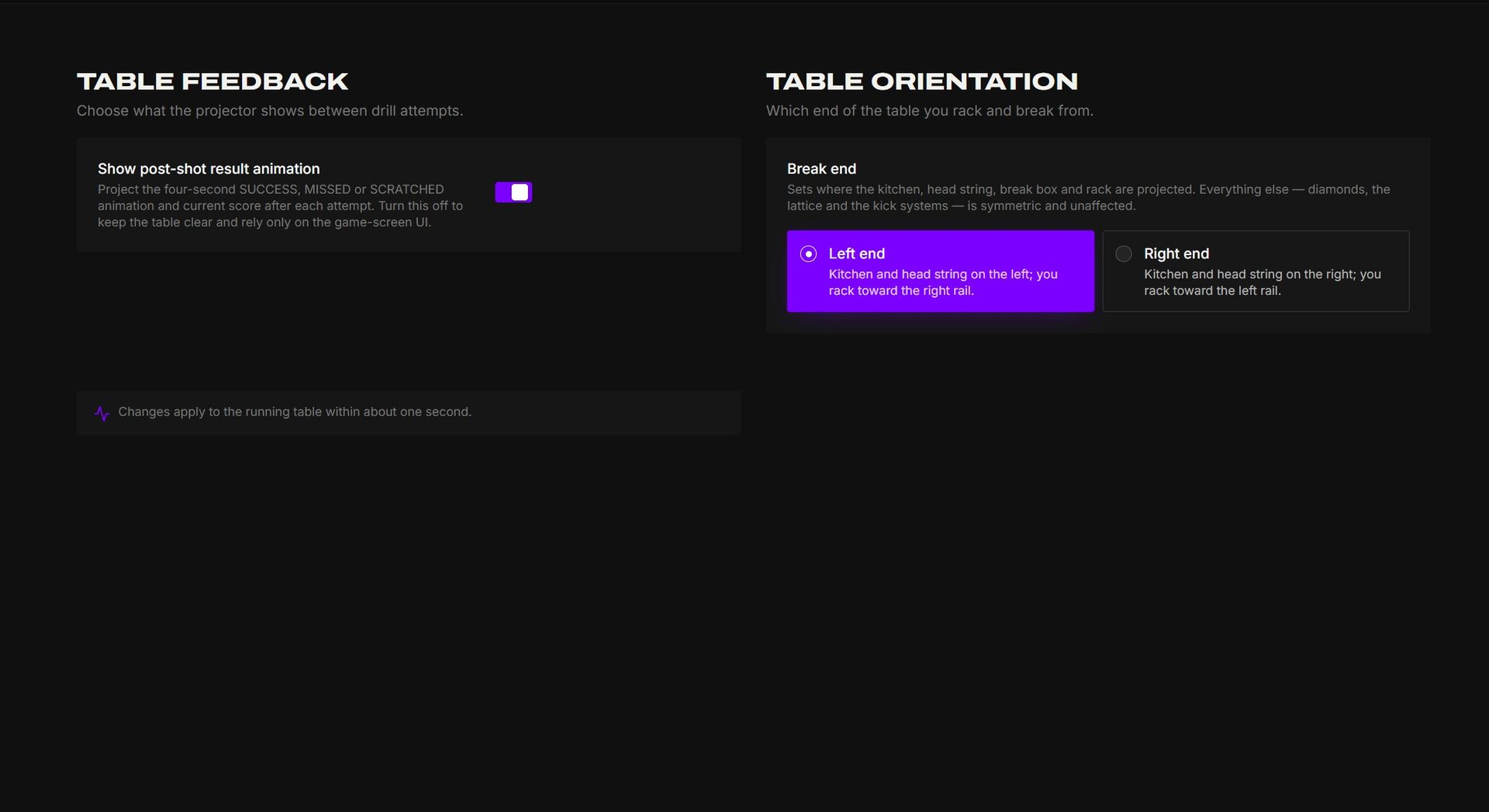 Outside a session, Settings → Gameplay holds the post-shot result animation and break-end controls.
Local multiplayer
Any drill can be played by 2–6 local players (license feature). Pick your lineup, hit Reveal Order for the randomized turn order, and the drill runs round-robin — same drill, alternating turns, with an optional per-shot shot clock. The labeled slider offers Off, 15s, 30s, 45s, and 60s. When a drill has named levels, the host chooses one before the lineup and every player uses that locked target. Multiplayer results remain separate from solo mastery. A turn banner shows who's up; the end card ranks everyone's score.
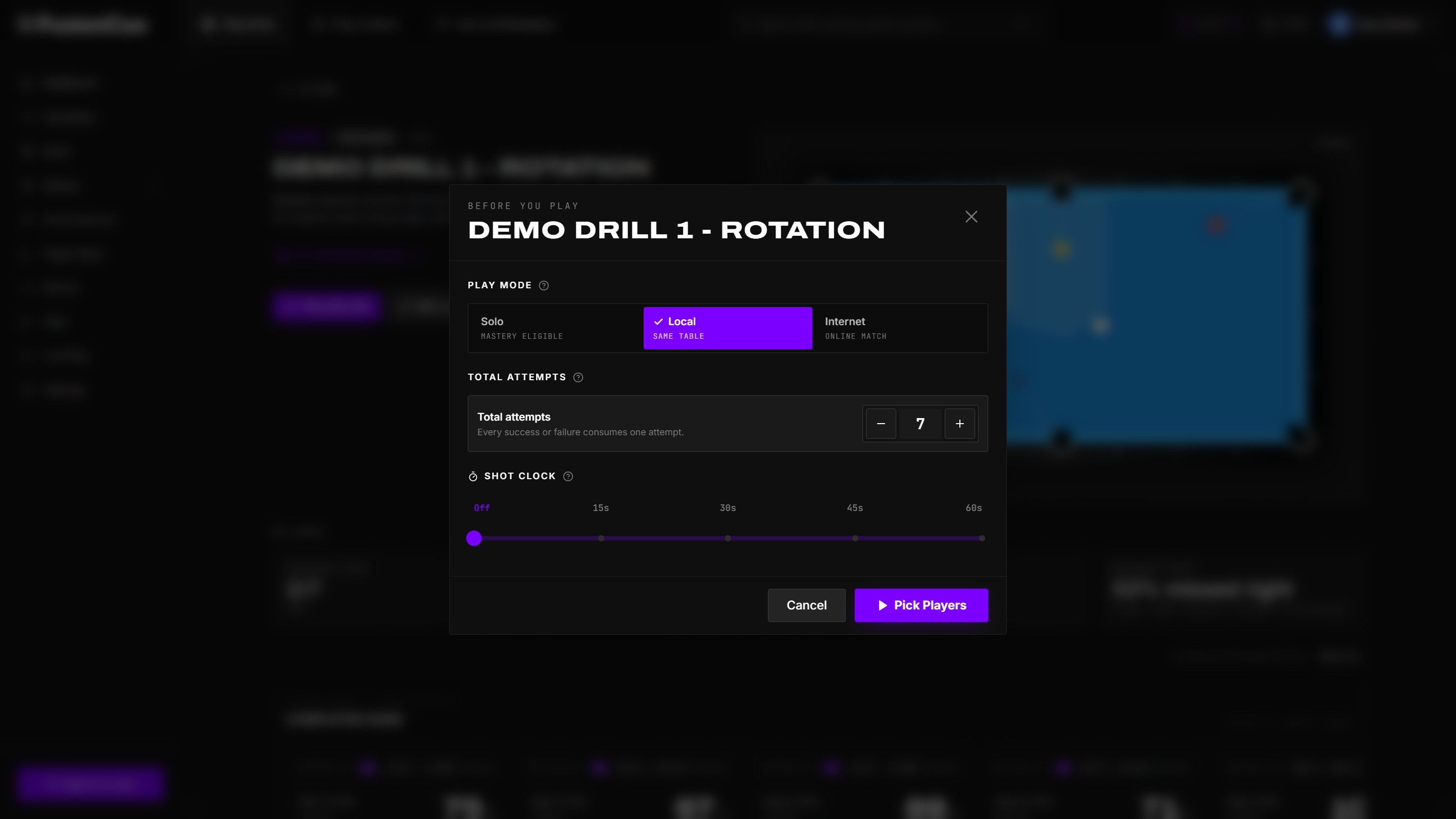 Local mode adds the shared shot clock before the player lineup and order reveal.
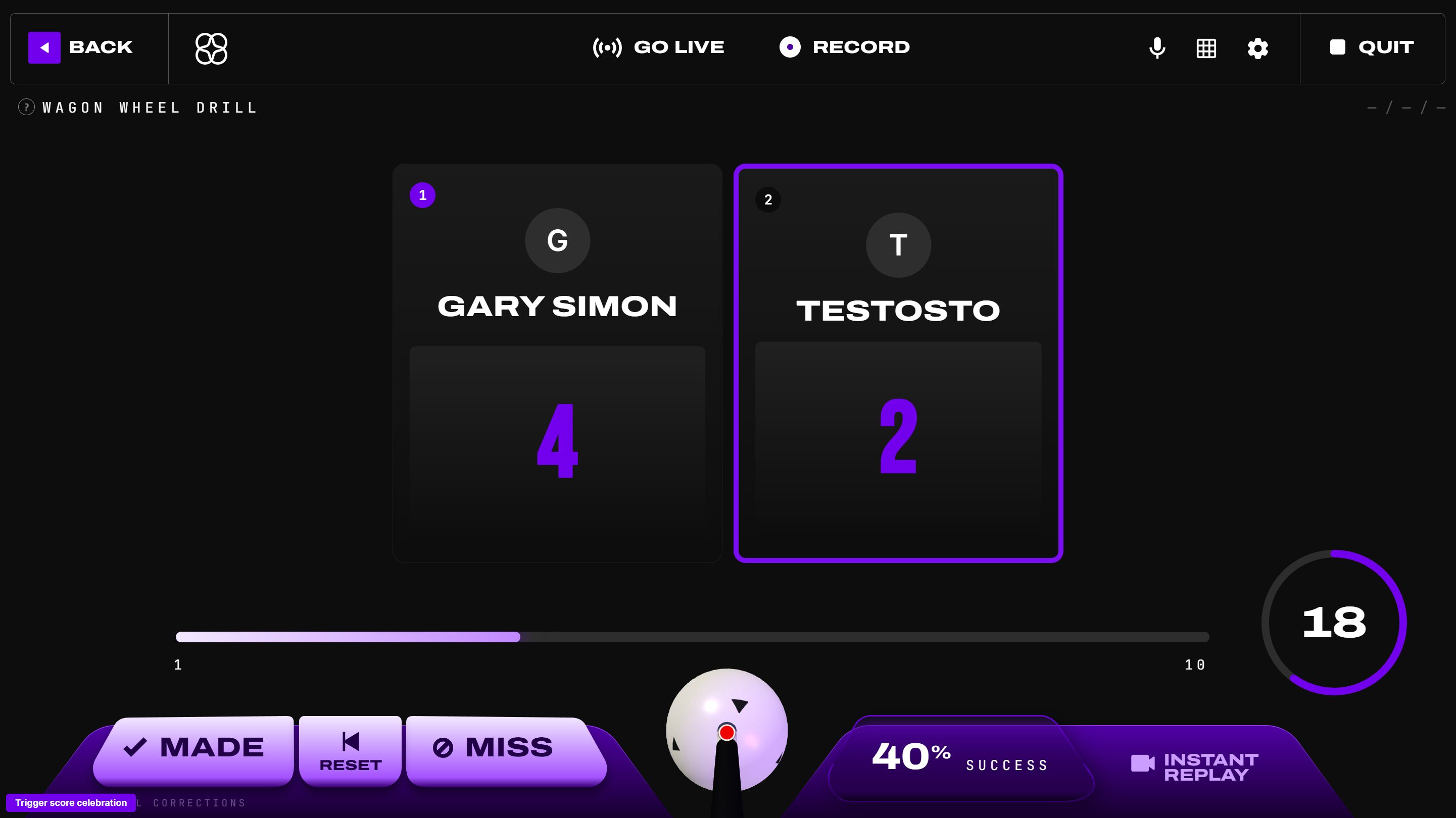 Two-player drill: the active player is highlighted; scores update per round.
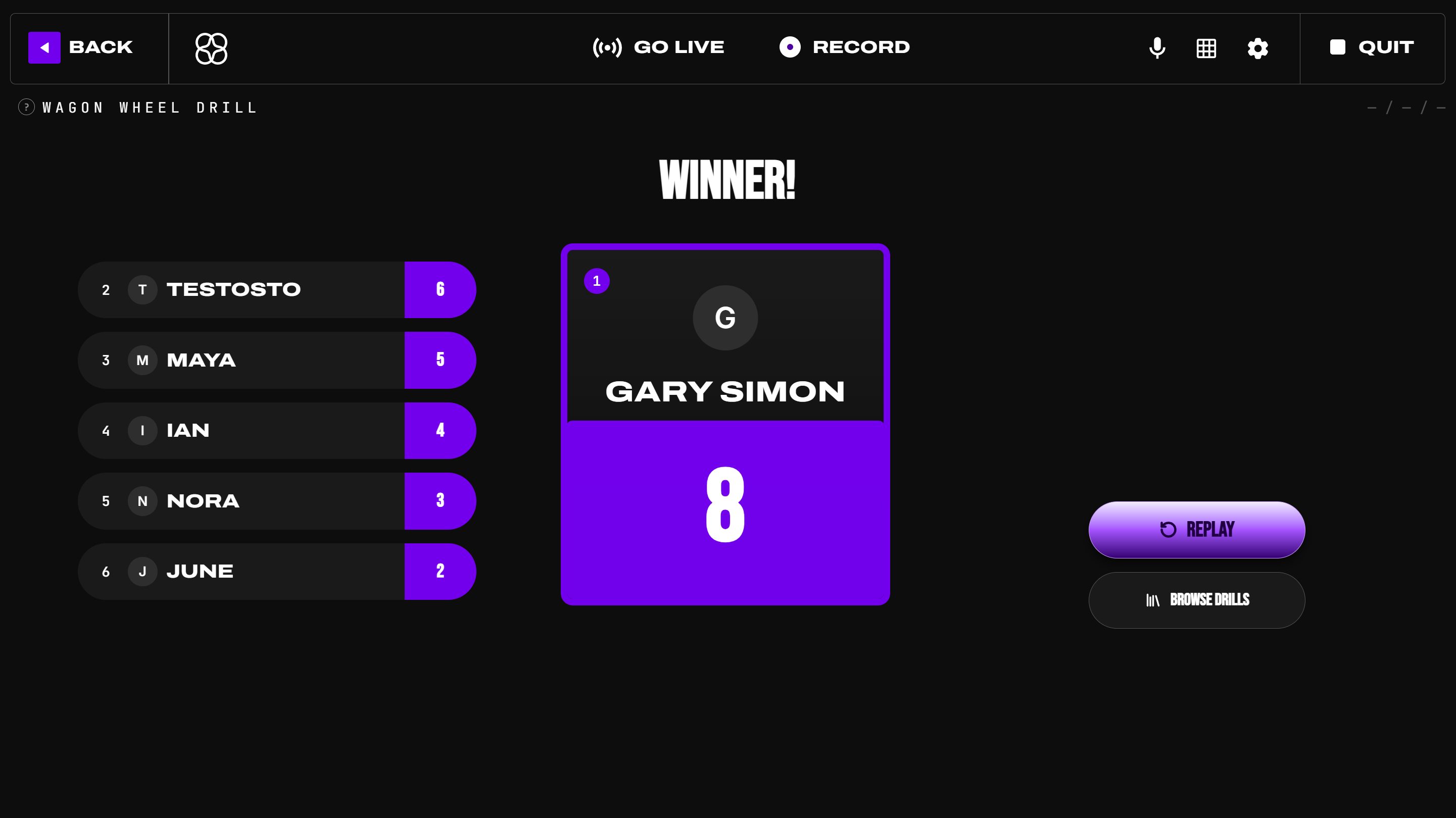 The end-of-match leaderboard.
Ties go to sudden death: when the final round leaves the lead shared, the tied players each shoot one more round while the others sit out, until someone leads (five extra rounds at most). A scoreless tie is a draw.
Internet multiplayer
Drills also run head-to-head online (1v1). From the drill's config screen choose Internet, invite an online player by name, and you both shoot the same drill on your own tables. The inviter chooses the named level (or Custom target); the invitee sees it before accepting and it cannot change for that match:
- You see your opponent's live overhead camera and hear them on voice chat; one room can run drill after drill without re-inviting.
- CAST TABLE (top-right toggle) projects the current shooter's table onto your cloth — or use ghost outlines of the remote balls.
- Corrections carry across: Mark Made / Mark Missed apply to the shooter's round on both sides, and the current player can hand a botched round back with turn giveback.
- The match records automatically (shooter full-frame, opponent picture-in-picture) and saves locally at match end; the end screen offers a Rematch and New drill.
Standard, wagon-wheel, and snooker drills are supported online, plus Poolseye. Internet play requires the Connected plan. It uses a direct peer-to-peer connection when possible, so some strict corporate/CGNAT networks may fail to connect.
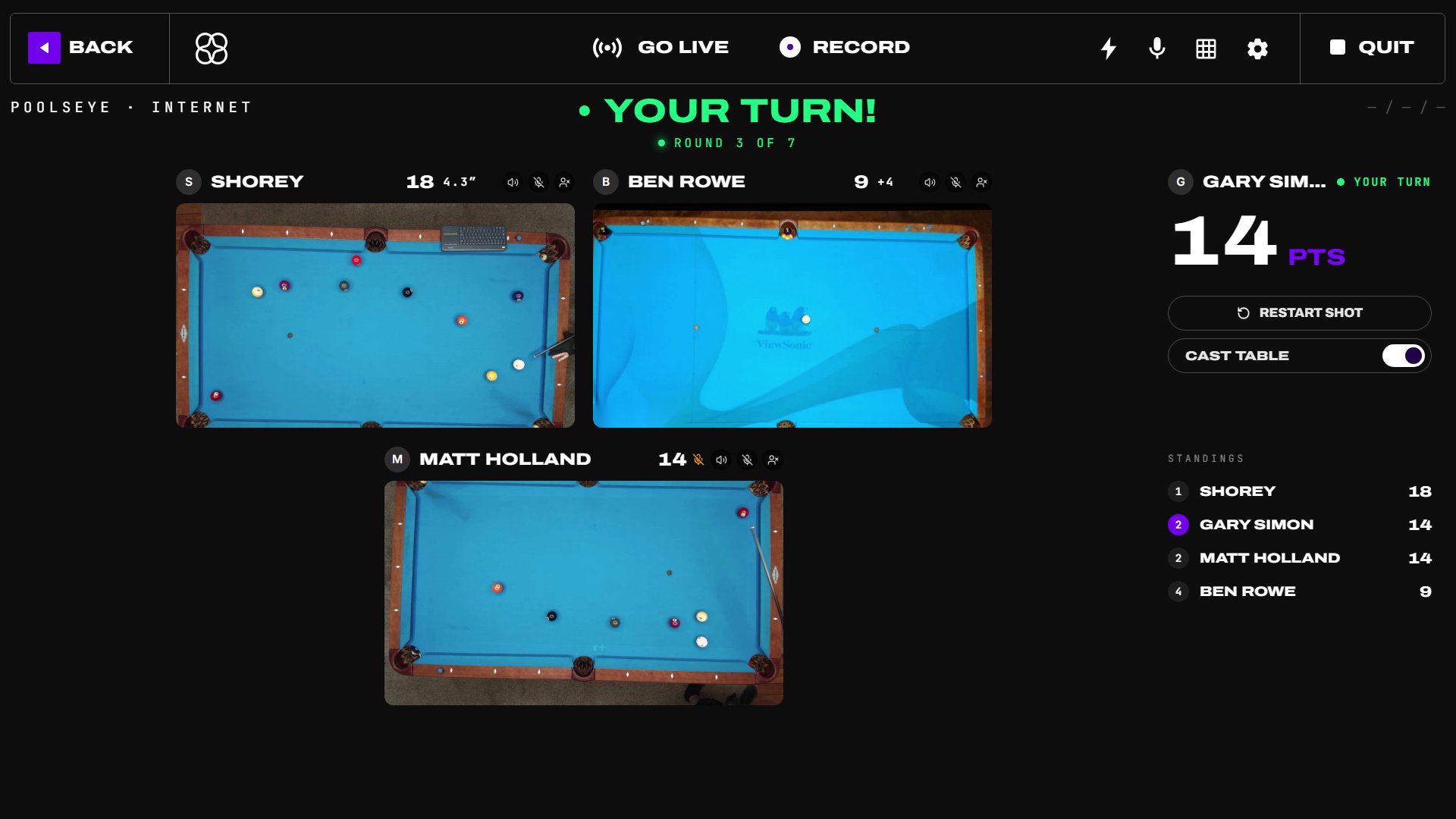 Every table sees the current shooter, live score band, round position, and match controls.