Phone & Tablet Remote
Put FusionCue's remote on your phone or tablet — install the web app on iOS or Android and pair it to your table in about a minute.
The remote turns your phone or tablet into a live controller for your table — corrections, game setup, and session controls from where you're standing, no reaching for the PC. It's a web app, so there's nothing to download from an app store: add fusioncue.com to the device once, pair it with a QR code, and it reconnects automatically every session after that.
Before you start
- Your phone or tablet and the FusionCue PC just need internet — they don't have to be on the same network.
- Sign in at fusioncue.com in the device's browser with the same account you use in the FusionCue app. Pairing is per-account; a signed-out browser can't pair.
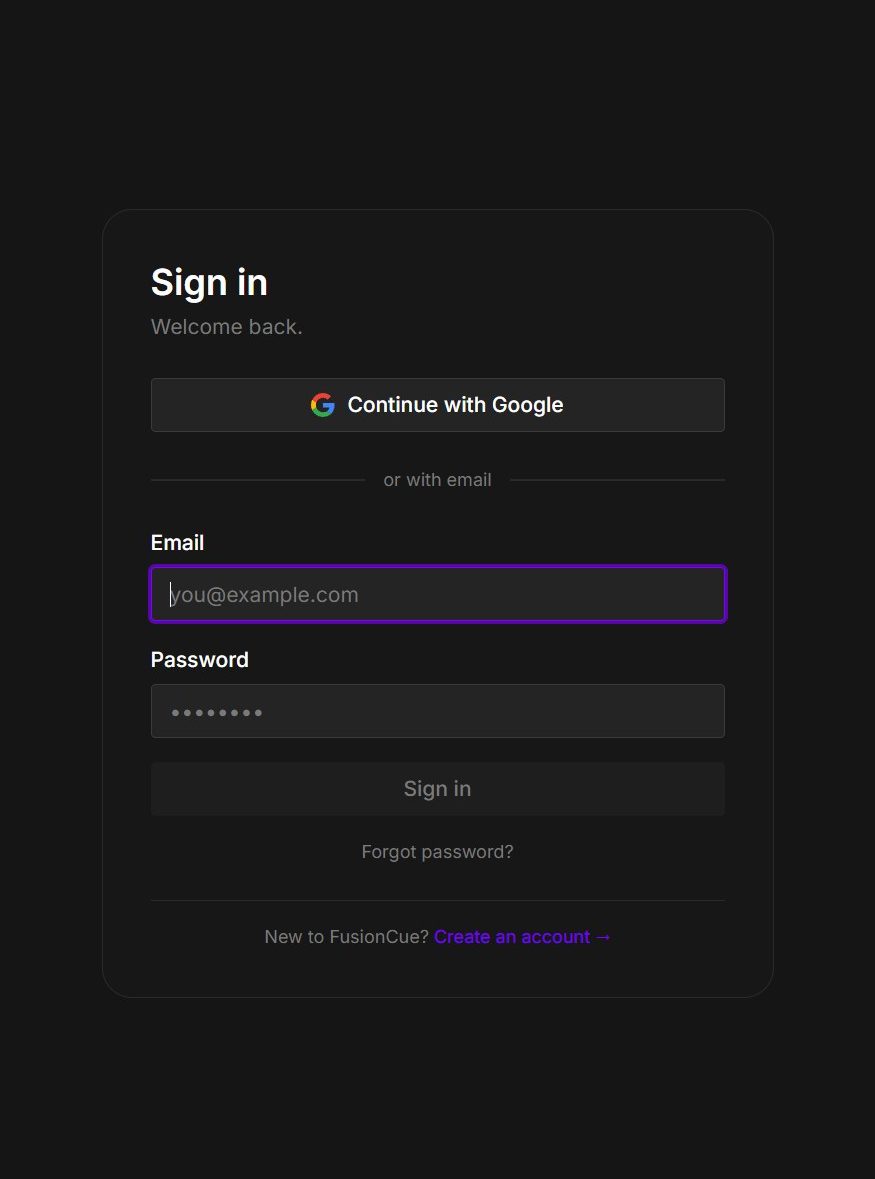 The remote device and table use the same FusionCue account before the one-time QR enrollment begins.
Add FusionCue to your phone or tablet
The remote works straight from the browser, but installing it as an app gives you a home-screen icon and a full-screen view — do it once, up front.
iPhone / iPad
- Open fusioncue.com/app in Safari (installing only works from Safari on iOS).
- Tap the Share button (the square with the up arrow).
- Scroll and tap Add to Home Screen, then Add.
Android
- Open fusioncue.com/app in Chrome.
- Tap the ⋮ menu (top right).
- Tap Add to Home screen (on some phones it says Install app), then confirm.
Either way you'll get a FusionCue icon on your home screen that opens full-screen like a native app. Sign in there if you haven't already.
The installed web app uses the same FusionCue account as the table PC.
Pair it with your table
On the FusionCue PC:
- Open Settings → Phone Remote.
- Give your rig a Table name if you like — that's how this station shows up on the remote.
- Click Generate QR.
- Scan the code with your phone or tablet (the regular camera app works). Scan once while signed into the same FusionCue account.
That's it — the phone or tablet is now a trusted device. The QR is a one-time enrollment link and expires after a few minutes; if it lapses, just generate a fresh one. Can't scan? There's a copy-link option next to the QR — send the link to the device and open it there instead.
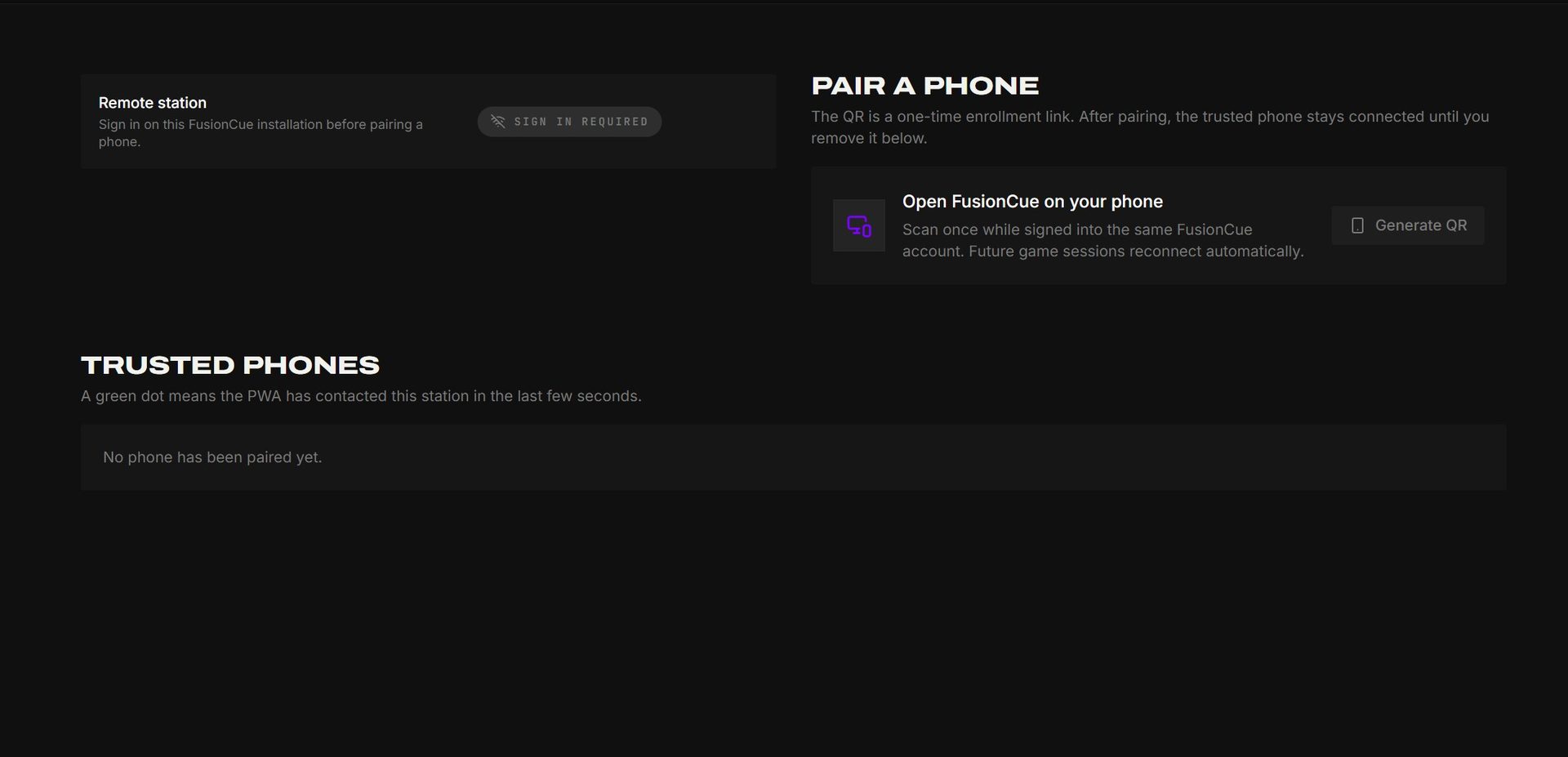 Settings → Phone Remote generates the one-time enrollment code and lists every trusted device.
After pairing
- The remote reconnects automatically on future sessions — pairing is a one-time thing per device.
- One remote device drives a table at a time; the connection quietly hands off if you reopen the remote elsewhere.
- You can see every trusted device under Settings → Phone Remote on the PC, and remove one at any time to un-pair it.
The desktop keeps every enrolled phone or tablet visible so a lost or replaced device can be removed immediately.
Correct multiplayer scores
During local or internet multiplayer, the remote shows a Scores panel for the active match. Tap an editable player, choose any completed round, and set the score — the only field — before pressing Apply score. Balls follow the score automatically.
Local matches allow every player to be corrected. In internet matches, you can correct your own rounds; the host can correct everyone. The panel remains available on the results screen, so corrections do not have to be made immediately after the shot.
If a turn passes by mistake — a phantom shot or a wrong call ends someone's turn — the Scores panel offers Give turn on that player's row until the next shot. Confirm, and their last round is voided and they shoot it again. In internet matches the remote first says how their turn ended (for example OUT OF FUEL — your turn), with Give it back.
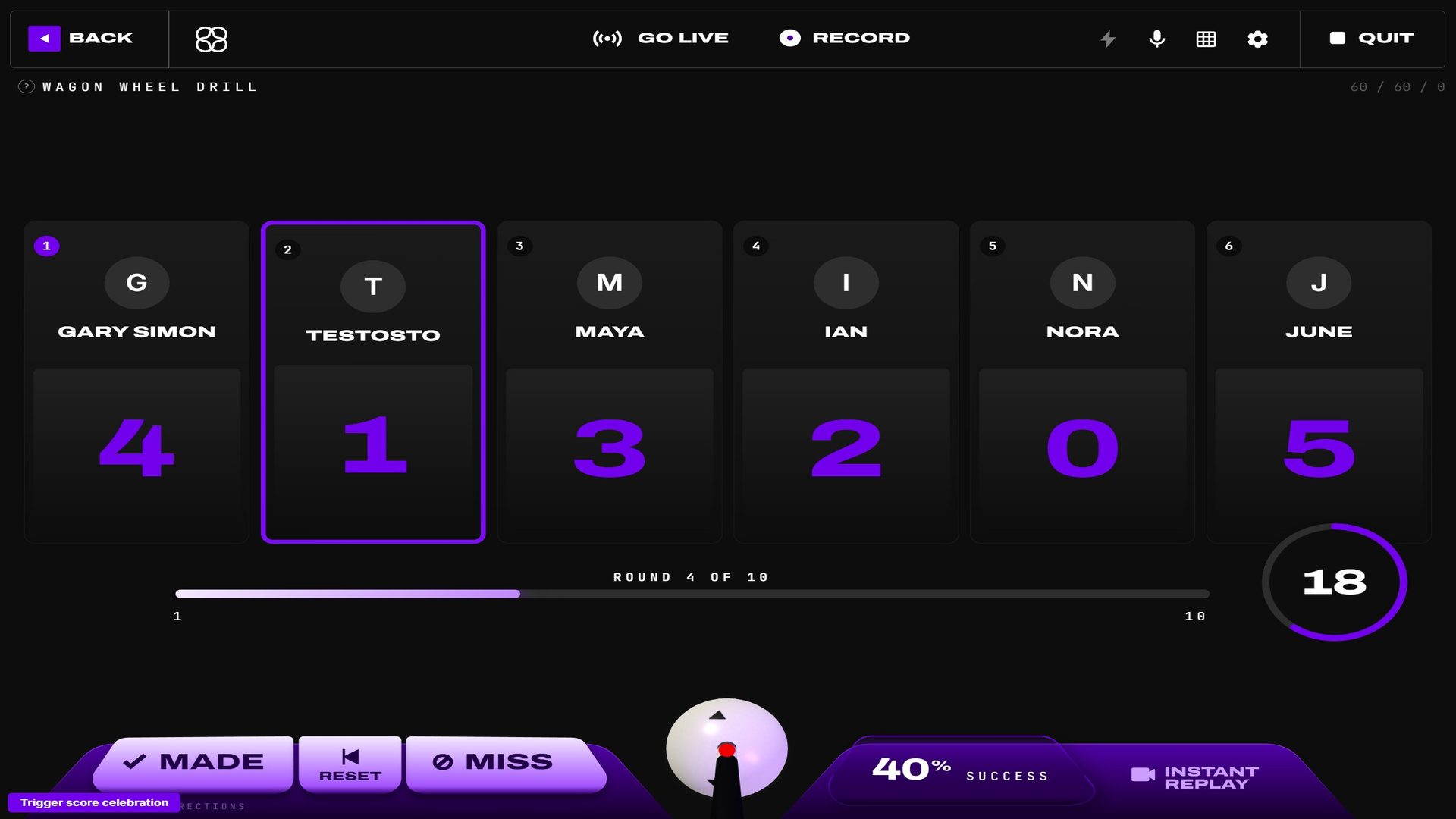 The remote edits the same player and round totals shown on the table PC.
Start a drill or game for your room
When you host an internet room, the internet step of any drill or Poolseye launch shows Start for your room above the opponent list. Tap it and the whole room moves to that activity — from the lobby, or mid-match, in which case the current match ends first.
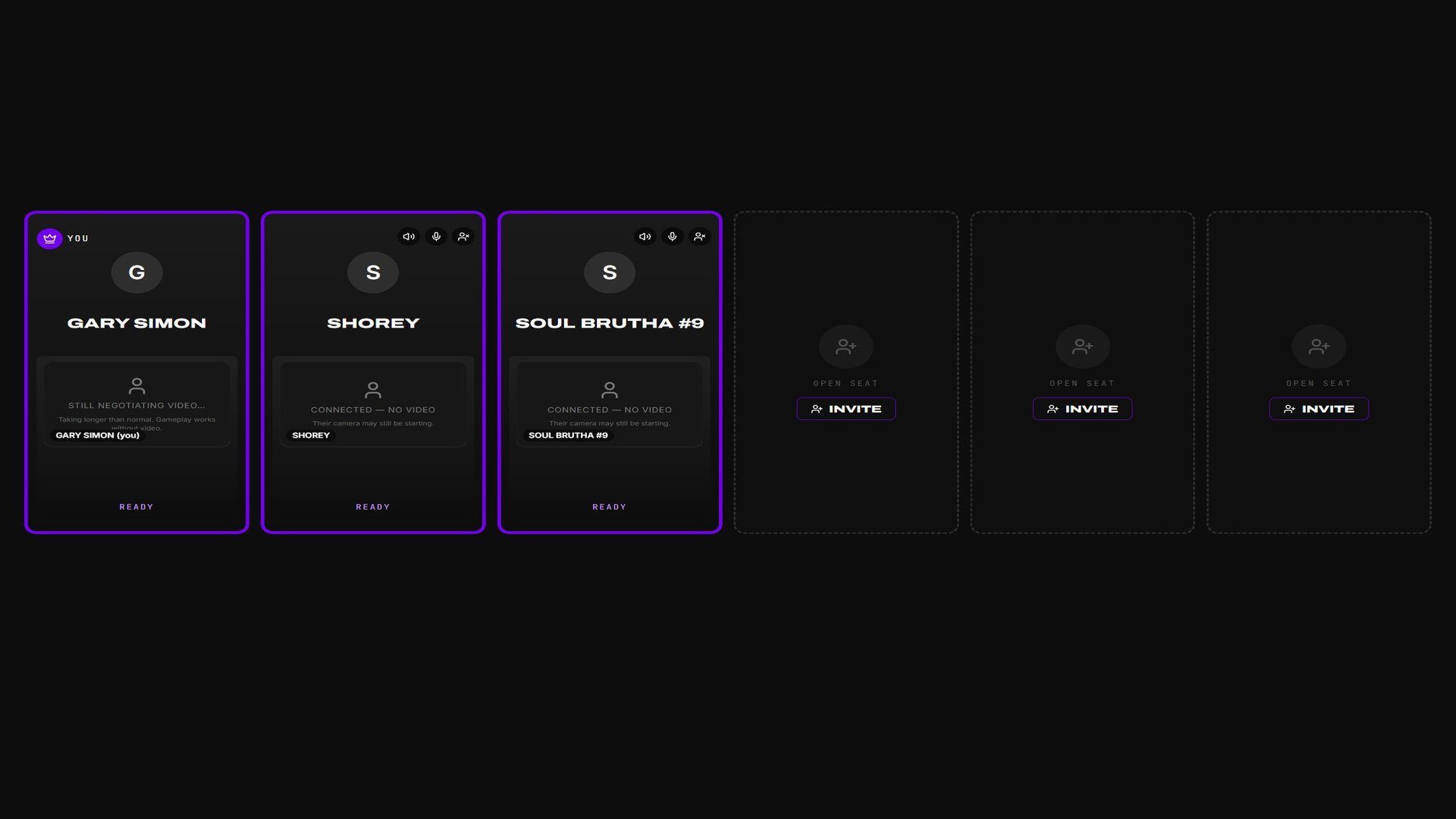 Start for your room moves this entire roster together instead of launching only on the phone.
View and record the table
Tap the record icon (the filled circle) at the right of the remote header to open the private table feed. The Record button on the feed can save two copies at once:
- Record to Computer keeps the full-quality session video and table audio mix on the FusionCue PC.
- Record to This Device captures the 1280×720 live preview with the table PC's microphone audio. When recording stops, tap Save to device to download it directly, or use the separate Share button. Device copies are capped at 30 minutes to protect mobile browser memory.
Both destinations are selected by default. Select Don't show this again to reuse those choices automatically; the settings button beside Record opens them again. Device recording works in current Safari on iPhone/iPad and Chrome on Android. Keep the remote open while recording because mobile browsers may pause capture when the screen locks or the app is backgrounded.
While a drill or game is running, the lightning-bolt button in the remote header opens Ball Path VFX. Use the large master switch to turn projected cue-ball trails on or off, then choose an effect from the two-column preview sheet (picking one turns trails on). The previews come from FusionCue's real shader engine, and changes made by the table UI or voice commands stay synchronized on the phone.
In drills and other modes where table graphics are optional, Hide projection hides the shooting graphics and Show projection brings them back. Setup, respots, the shot in motion, and results stay visible. It's the same saved setting as the eye button on the table's screen, so hidden stays hidden on every layout, drill, and game until you turn it back on. Poolseye never offers this control: its bullseye stays visible for every player's shot. To hide just one graphic (the shot line, ghost ball, landing zones…), untick it under Show on the table in the grid menu on the table's screen.
In Instant Recall and Free Practice the remote adds the shot planner: Show run-out, Next shot, Another way, and Stop run-out do what the matching buttons on the table's screen do — see Instant Recall.
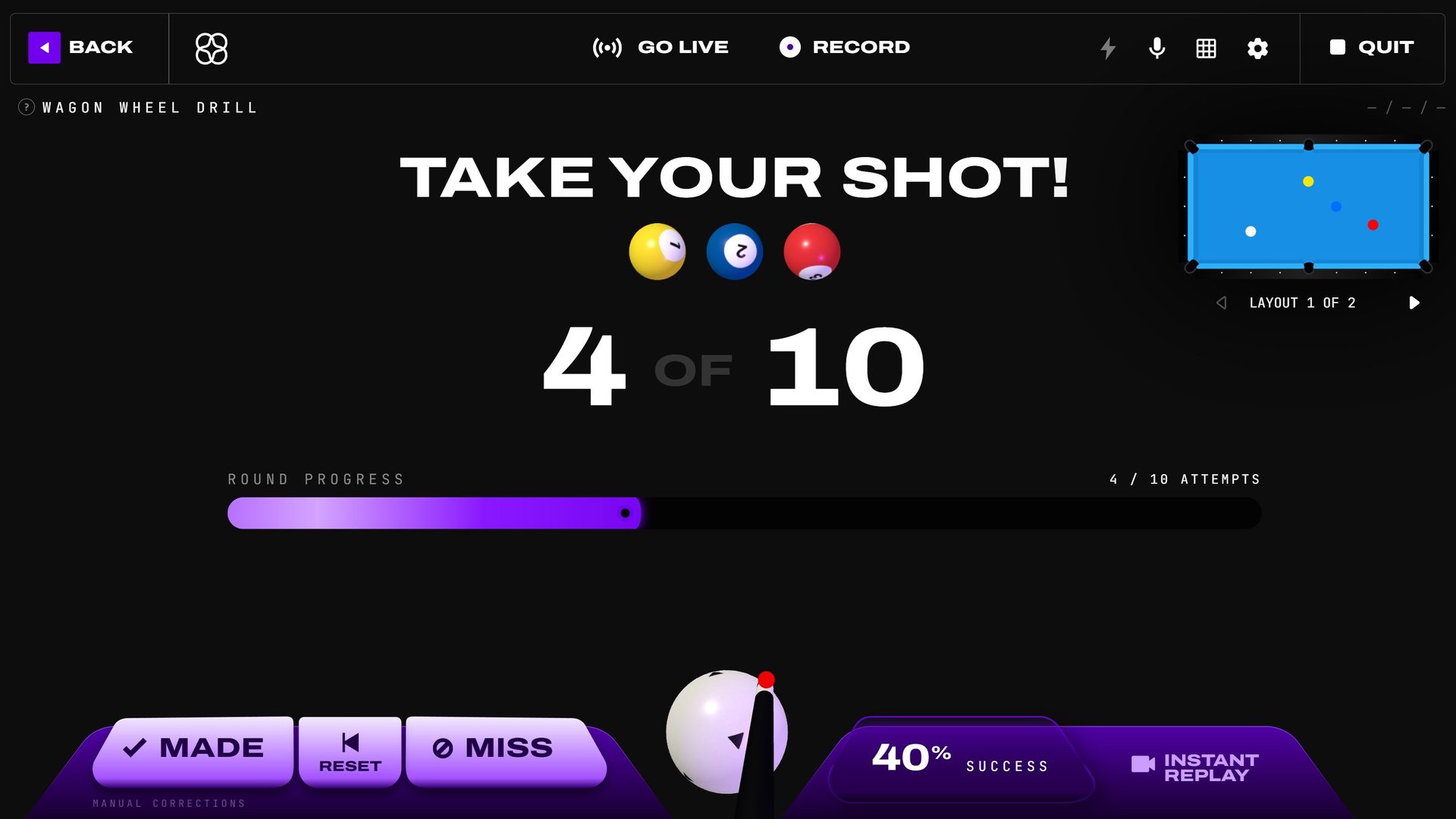 The remote mirrors the essential correction, replay, projection, and active-shot controls from this session screen.
The drill list on the remote is the table's own library. Tap the heart on a drill to favorite it for the active player — the same heart the table's Drills library shows — and flip the Favorites switch above the search box to list only those.
Note — the remote mirrors the important in-session controls: numerical multiplayer score correction, made / miss correction, Poolseye setup, the shot planner, and more. This page just gets you connected; the controls themselves are covered where each mode is documented (Drills, BU RDS, Poolseye, Instant Recall).
Game sound
The speaker button in the remote header opens Game sound: a switch turns the table's sound on or off, and Volume sets the level (moving it turns muted sound back on). It's the same setting as the speaker on the table's screen — the table's speakers, its recordings, and live streams all follow it. Changing it needs control of the table and the station online.
Troubleshooting
- "Sign in before pairing" on the PC — the FusionCue app itself needs to be signed in before it can register the station.
- QR opens the site but pairing fails — make sure the device's browser is signed into the same account as the PC, then generate a new QR (the old one is single-use).
- The code expired — codes are short-lived on purpose. Generate a new one and scan promptly.
Generate a fresh code and confirm the device list from the same Settings page when pairing fails.