Streaming
Go live or record app-wide — including YouTube, Twitch, Facebook Live, custom RTMP, and Discord.
GO LIVE is available throughout FusionCue, including the dashboard, Entertainment, and session menus. You can start the table-camera broadcast before opening a gameplay session, then move between drills and games without restarting the encoder. Between activities, viewers see the clean table feed with FusionCue branding; when play begins, the lower third switches to the current mode, score, progress, or standings automatically.
The stream follows you into internet matches too, 1v1 or group. As soon as you're in a match's lobby, the stream switches to the match program — every player's table, the standings, and the voice chat — and stays on it through the results, rematches, and the room's next activities. Leave the room and your own table comes back, on the same stream. App-wide Record follows you the same way: one recording from solo play, through the match, and back.
Use the red record dot or purple broadcast icon in the top bar. While either is active, its control expands to show elapsed time and a stop button.
A local replay of the whole broadcast is saved either way, with the same graphics that appeared in the live program.
The app-wide Record action captures that same produced feed without connecting to a streaming provider. Recording can start on the dashboard, continue through menus and multiple activities, and stop from any screen. Afterward, the review dialog lets you publish, keep the file locally, or discard it.
 Gameplay headers keep their integrated GO LIVE action, while the persistent app control remains available above menus and end screens.
Providers
Toggle on one or more destinations in the Go Live dialog and paste the stream key from that platform:
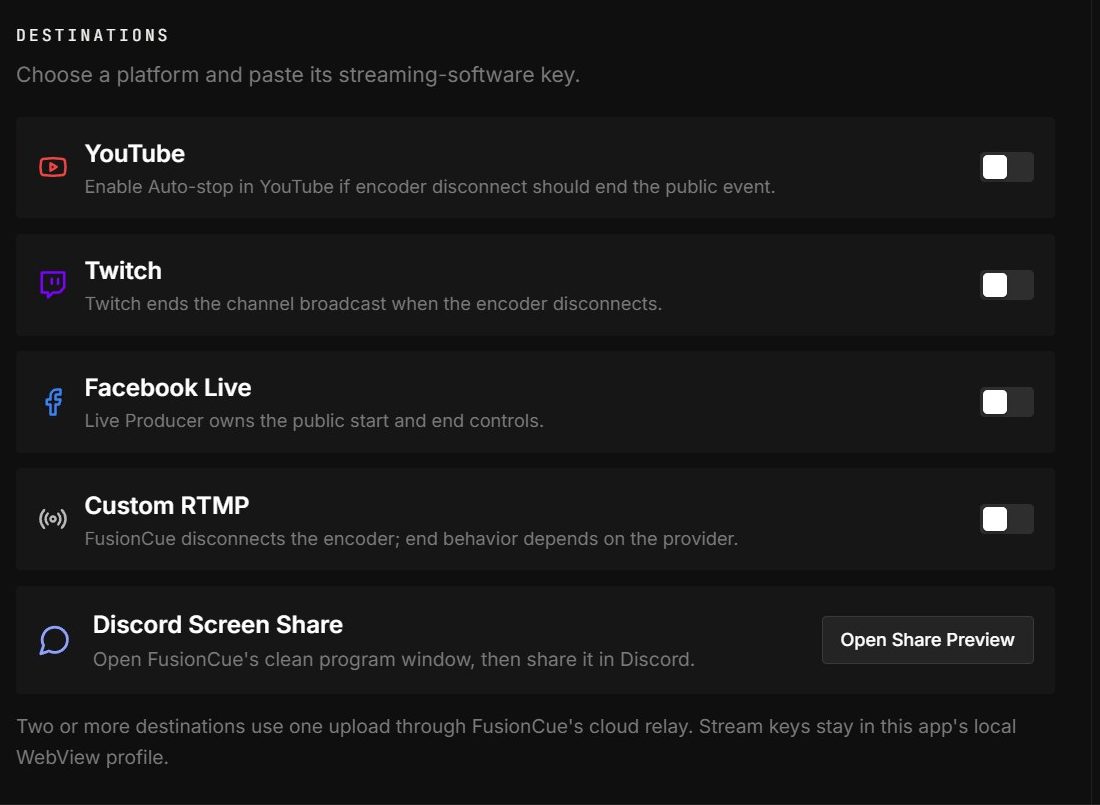 YouTube, Twitch, Facebook Live, custom RTMP, and Discord share preview are configured together.
YouTube
Create a live stream in YouTube Studio (Go live → Streaming software) and copy the stream key into FusionCue. That's it — YouTube picks up the feed when you go live.
Turn on Auto-stop in YouTube Live Control Room if you want YouTube to end the public event when FusionCue disconnects. A stream key authorizes video ingest, not channel management, so without Auto-stop you must click End stream in YouTube after Stop Broadcast in FusionCue. The post-broadcast summary links you back to Live Control Room.
Twitch
Copy your Primary Stream Key from Twitch Dashboard → Settings → Stream into FusionCue.
Facebook Live
Facebook needs its Live Producer page open while you connect:
- Click Open Facebook Live Producer setup in the dialog (or go to facebook.com/live/create), choose Streaming software, and copy the stream key.
- Paste the key into FusionCue and tick the checkbox confirming Live Producer is open with that key.
- The button changes to Connect Encoder — click it, then start the broadcast from Facebook's page once it shows your preview.
Facebook also owns the public end control. After Stop Broadcast in FusionCue, click End live video in Live Producer; the post-broadcast summary keeps that link visible.
Custom RTMP
For any other platform (Kick, Restream, a private server…): enter the RTMP URL and, if your provider uses one, the stream key (optional if it's already part of the URL).
Discord
Discord has no public stream ingest, so FusionCue gives you a clean program window instead: click Open Share Preview, then screen-share that window in any Discord voice channel.
Streaming to multiple platforms at once
Select two or more destinations and FusionCue routes through its cloud relay — one upload from your rig, fan-out in the cloud, so your connection only carries a single stream. The dialog shows your remaining relay minutes for the month and the destination cap. A single destination streams direct, no relay involved.
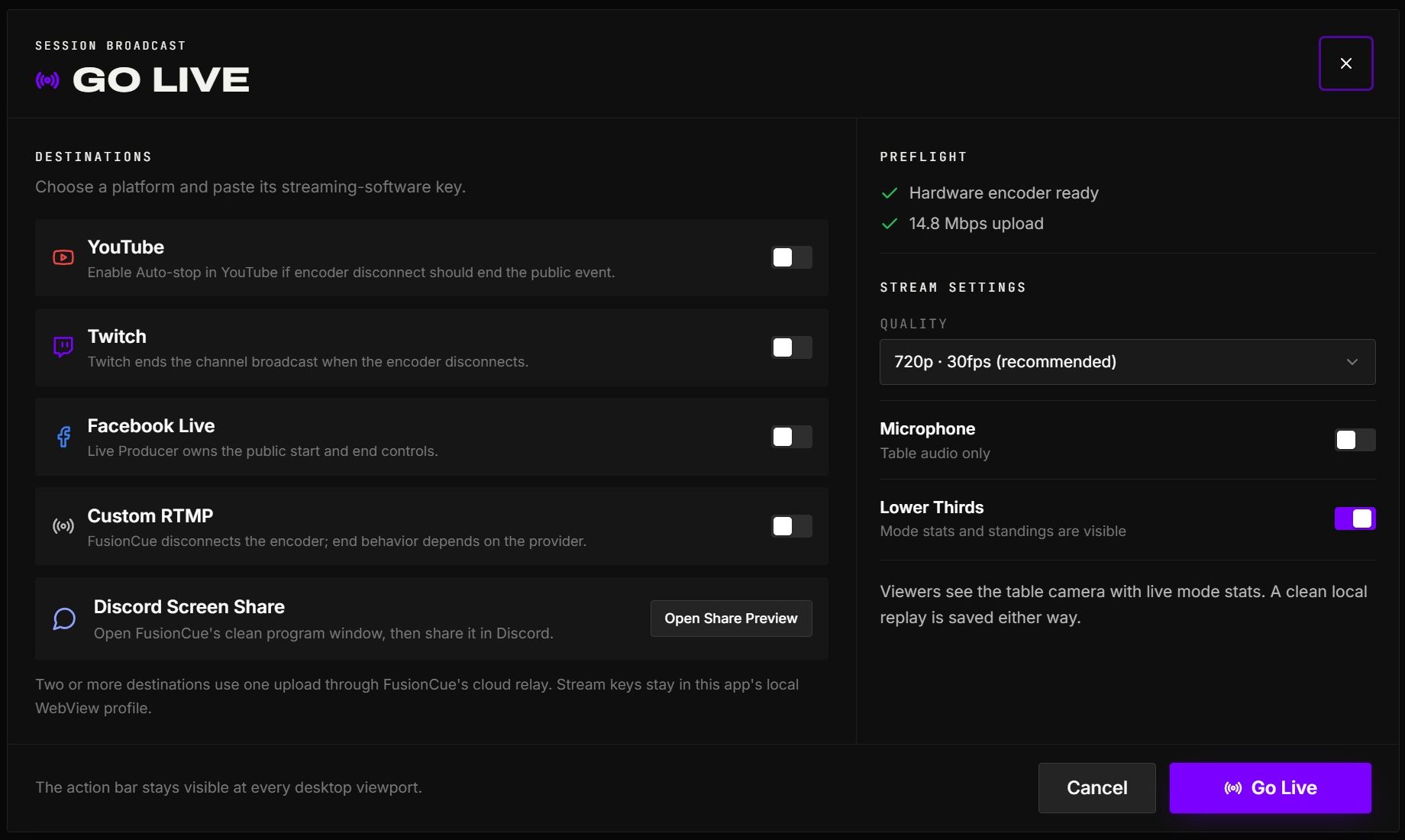 Selecting multiple destinations keeps relay guidance beside quality, microphone, lower thirds, and the final Go Live action.
Quality, mic, and graphics
- Quality — 720p · 30fps (recommended) or 1080p · 30fps.
- Mic — include your microphone (solo sessions; in a net match, voice chat of both players is part of the program feed).
- Voice coach — when your coach is on, what it says is in your recordings and streams along with the game sounds. With your mic on too, headphones (or quieter speakers) stop the mic from also picking the coach up from the room.
- Lower Thirds — on: the score bug and lower thirds are visible; off: the camera alone. In an internet match the host controls the match graphics.
Production graphics and music
Every recording and stream gets a full broadcast package, set up in the game session's settings cog → Production (it applies the moment you change it, even while you're live):
- Cold open — the game's key art comes alive (a drill gets its name and its layouts flying past), your name slams in, then a 3D transition cuts to the table.
- Player cards — your card with your headline stats, a VS card for two players, or the whole field for three to six.
- Score bug — the game, the player and the live numbers (score, time, balls) in the bottom-left corner; a match adds one row per player, the player at the table in purple.
- Lower thirds — round results, UP NEXT, a new drill.
- Moment call-outs — NEW BEST, streaks, finish times, the winner.
- 3D cutscenes — the transitions and the winner burst.
- Shot recap — after a drill, a game or a match, the build-up to every key shot on 3D billboards in about 15 seconds.
Pick Full show, Minimal (score bug and lower thirds only) or Clean feed (the camera alone), or switch pieces on and off yourself.
Music — pick one of the 20 background tracks, Shuffle or None. The bed plays in your recording or stream and, unless you turn off Play in the room, through your speakers too. Duck under voice lowers it while you talk. The speaker bottom-right of every game screen has two knobs: Music and SFX (the game sounds).
Internet-match recordings use this same program feed. Saved Match replays therefore include the graphics in the video itself (unless the preset is Clean feed — the card then doesn't say Graphics included). A recording that follows the room into the next match opens that match's show too: its intro, lower thirds and call-outs. Online SPEEDPOOL's score bug is your running clock and the balls left. Replay archive cards use generated video thumbnails. If a player's picture drops out, the program holds their last frame with a small RECONNECTING tag until it's back, rather than cutting away.
Tournament matches record themselves (see Tournaments). Turn on Settings → Recording → Auto-record online matches and every online match records too: the top bar shows REC · AUTO, and when the match ends the recording is saved to Match replays on your PC, with no review. These recordings aren't uploaded.
With a second camera set up (an ATEM program, or a front webcam — see below), you choose what the program shows when your opponent shoots: Their table (their overhead camera) or My camera — your own camera, which shows your table with their shot cast onto it. The first time you record an internet match you're asked; change it any time in the Go Live dialog or Settings → Recording, even mid-recording. Your own turns always show your overhead, and an instant replay still plays full frame.
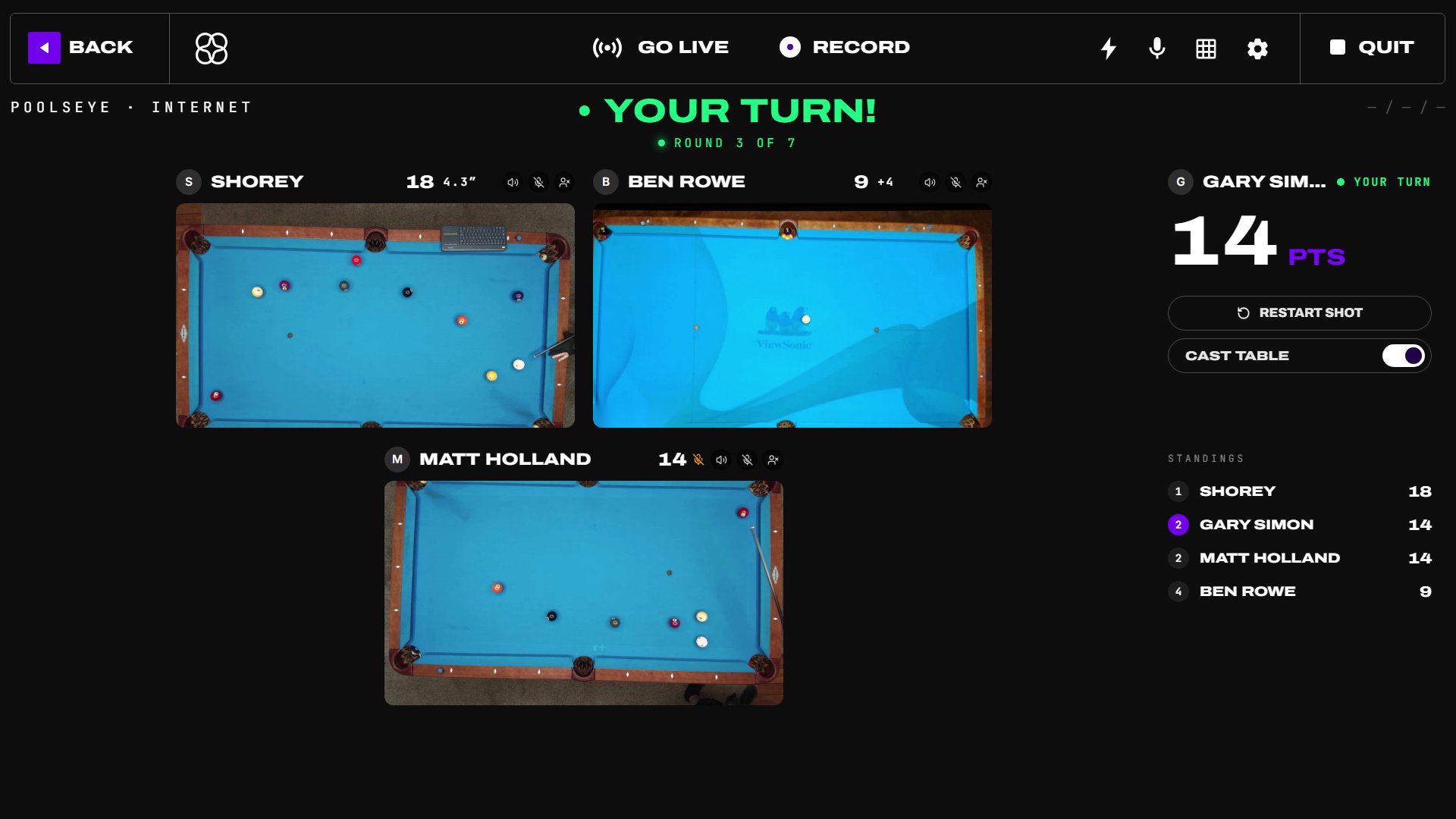 Internet broadcasts use the current shooter as the program stage and keep the multiplayer standings visible below.
Automatic camera switching (ATEM Mini)
With a Blackmagic ATEM Mini (Mini, Pro, Pro ISO, Extreme or Extreme ISO), FusionCue directs your cameras: the program cuts to the overhead camera when you get down on a shot, stays there through the shot, and cuts back to the front camera a moment after the balls stop. It works the same whether you Record or Go Live, and on the models that record (Pro and up) the ATEM's own recording follows the cuts too.
Wiring
- Overhead camera and front camera into two ATEM inputs (for example input 1 and input 3).
- ATEM HDMI OUT into your capture device on the PC — this is the camera FusionCue scores with, so set it to the overhead input. FusionCue pins HDMI OUT there each time it connects and only ever switches the program, so ball detection never moves to the front camera. If your scoring camera plugs straight into the PC instead, set Vision camera (HDMI OUT) to Not through the ATEM.
- ATEM USB-C into the PC — the ATEM's webcam output, which carries the program.
- ATEM Ethernet on the same network as the PC.
Setup — open Settings → Recording → Camera switching (or Go Live) and set Video source to ATEM program (USB webcam). That turns on Automatic camera switching for the ATEM, and your recordings and streams follow its cuts. On that card, press Find: FusionCue looks for the switcher on your network, saves its address (ATEM recording uses the same one) and shows the model, what's on the program and HDMI OUT, and your input names. If you know the address, type it and press Test instead. Pick the overhead, front and vision inputs, Cut or Mix (the ATEM's own transition), and how long to hold the overhead after the balls stop. The default video source, Table camera, records and streams the scoring camera exactly as before.
If the switcher moves — routers sometimes give the ATEM a new address. When the saved one stops answering during a session, FusionCue finds the switcher again by itself, saves the new address, and ATEM recording follows it. With two ATEMs on the network it won't guess: press Find and pick yours.
Voice — after "Hey Cue":
| Say | What happens |
|---|---|
| "Switch to overhead camera" | Overhead now; automatic switching takes over again on the next shot |
| "Switch to overhead camera and stay" | Holds the overhead until you say "back to auto" |
| "Switch to front camera" / "… and stay" | The same for the front camera |
| "Back to auto" | Automatic switching resumes |
| "Stop auto switching" | Cameras change only when you ask |
"Over head", "top-down" and "bird's eye" work for the overhead camera; "top camera", "table camera", "player camera", "wide shot" and "main camera" work too. While you're live, the Go Live panel shows the camera on air with AUTO, HOLD OVERHEAD or HOLD FRONT, plus Overhead, Front and Auto buttons. While you record, the same controls float under the top bar.
Recording without a session running (from the dashboard)? Overhead and Front still switch, by hand: FusionCue cuts the picture itself, or cuts the ATEM directly. Auto and the voice commands need a session, since they follow the table.
The preview — whenever you record or stream, a small picture of exactly what's being captured floats over the screen (camera cuts, look and lower third included), with REC or LIVE and the camera on air. Drag it by its bar, resize it from any edge or corner, maximize it (or double-click the bar), or minimize it to a pill. It stays where you leave it.
No ATEM? Plug a second USB webcam into the PC, facing you (ideally on a different USB port from the table camera). Set Video source to Table camera + front webcam (no ATEM) and pick that webcam; that turns on automatic camera switching too. FusionCue then cuts between the table camera and the webcam at the same moments, in recordings and streams alike, and the voice commands work the same way. The ATEM does a few things this can't: Mix transitions, any HDMI camera, and its own recording (ISO models keep each camera separately).
Camera look
Settings → Recording → Camera look frames and colours each camera in your recordings and streams: Zoom, Left / right, Up / down and Rotate (for a camera mounted a little crooked; it zooms in just enough that no corner shows empty), plus Brightness, Contrast, Saturation and Warmth. The overhead and front previews play live side by side with your changes applied, so what you see is what gets recorded, and Reset puts a camera back as it was.
Only FusionCue's recordings and streams change. Nothing moves at the camera, so there's no recalibration, and ball detection and the ATEM's own recordings keep the cameras exactly as they are.
With an ATEM, the front preview is whatever the ATEM has on air; when that's another camera the preview says so, with a Show front button that cuts the ATEM to the front camera. In your recordings, each camera's look follows the cuts.
Before you go live
FusionCue runs a quick preflight:
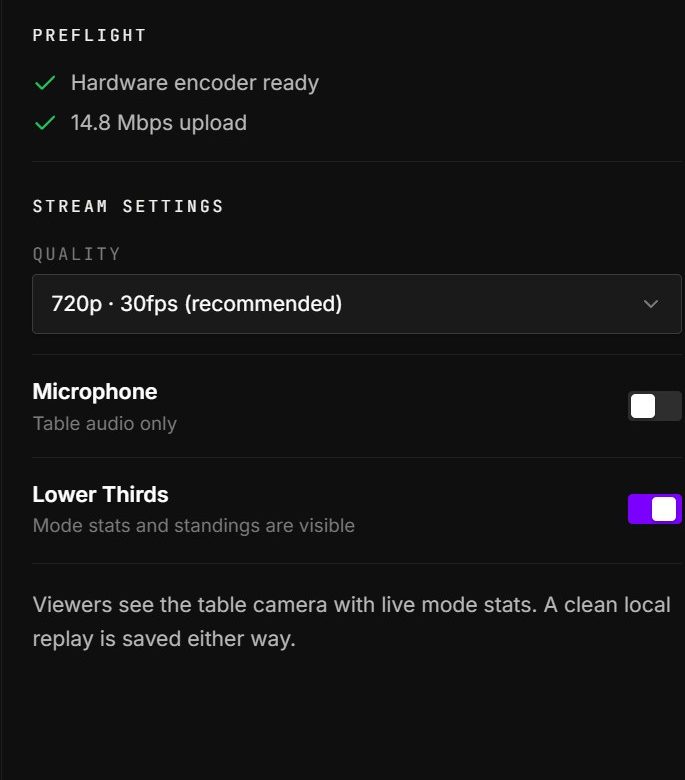 Hardware encoding and upload speed are checked before the stream can start.
- Hardware encoder required — broadcasting needs a hardware H.264 encoder (any recent GPU has one). Software encoding is disabled because it would starve the vision pipeline that's scoring your shots.
- Upload check — it measures your upload speed and warns if it's below what the chosen quality needs. You can still go live on a weak connection; quality auto-adjusts if the link strains.
While live, the persistent control shows status and elapsed time on every screen. Click its status area to reopen full broadcast controls, or its stop button to disconnect immediately. The dialog shows bitrate, dropped frames, reconnects, destinations, and the always-visible Stop Broadcast action. When you stop, the summary shows where the local replay was saved, cloud watch links, and any final YouTube or Facebook action still required.
Ending a session or leaving a match doesn't stop a stream: it carries on with your table until you stop it.